

Running a gym or working as a personal trainer is demanding. You’re constantly switching between coaching sessions, writing workout plans, answering client questions, tracking progress, and trying to market yourself online. To succeed long-term, you need systems. You need consistency.
That’s where AI comes in. Think of it as your digital assistant, handling repetitive tasks so you can focus on coaching, motivating, and delivering real results. Here are five of the most valuable AI tools you can use to make your fitness business even better.
Stage 1: AI Workout Plan Generator (Personalized Programming at Scale)
Tool: ChatGPT
Creating Customized Workout Plans in Seconds
Considered the foundational bedrock of AI, ChatGPT can help you to generate a workout plan for your clients. Now, you will need to help it along and refine it, but it works wonderfully and will save you tons of time once you set it up. You can use it as a scalable “AI assistant coach” to help you with delivering better workout plans.
Step-by-Step Guide
- First, you will need to prompt it. To do that, all you have to write is, “I’m a personal trainer. Please create a personalized workout plan for my client.” I outlined this prompt as Red Box 1. You see the output in Red Box 2.
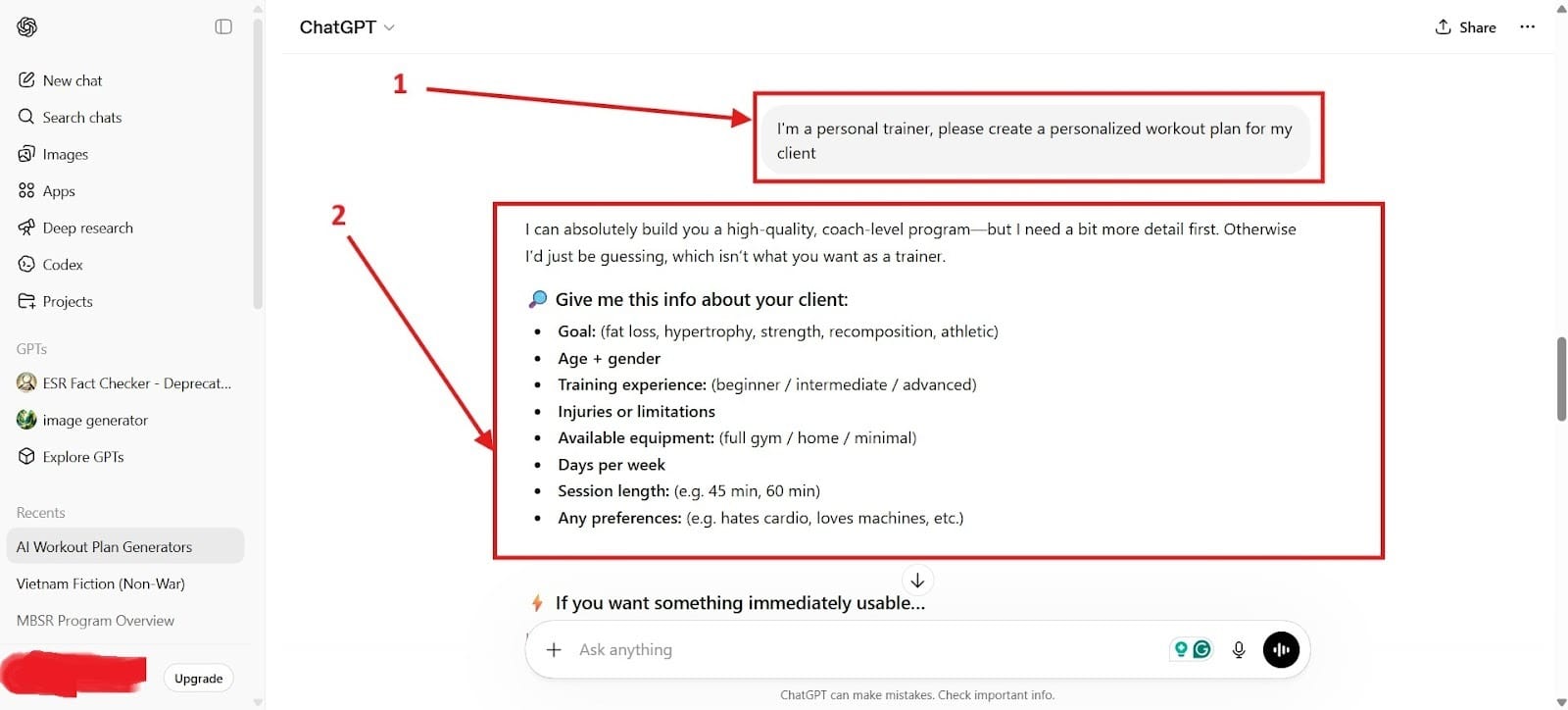
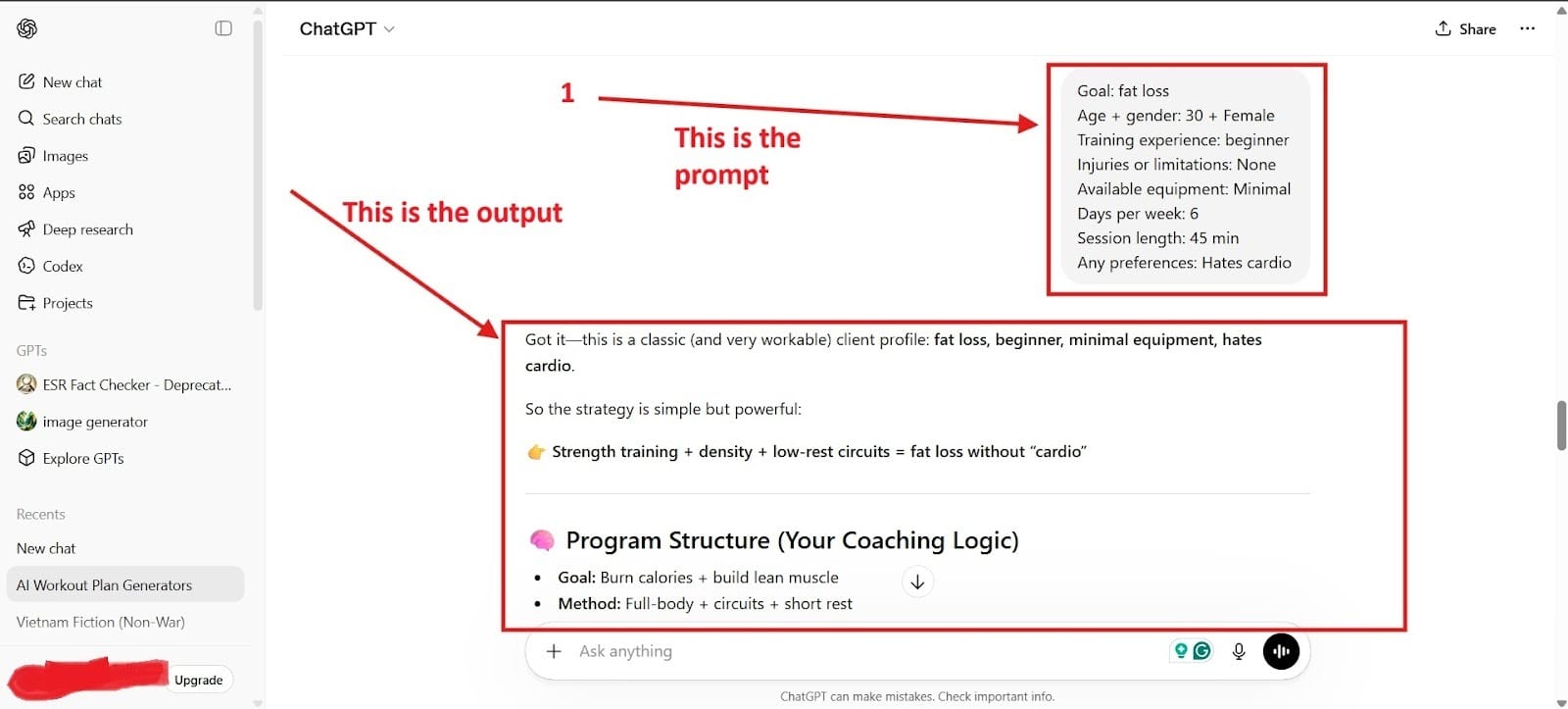
- Next, you will copy and paste the information from the output and add in the information about your client.
- Finally, what you have is the prompt with the personalized information that you entered and the output that you can copy and paste into a document to show your client their workout program. I highlighted this in the image below of what you might add:
Practical Uses:
What are the practical uses of this one for personal trainers and gyms?
- Create personalized programs to save hours on creating a program manually, allowing you to scale your gym or personal training business faster.
- Can serve as a client communication tool where they can ask it questions and the AI responds immediately. You can create an AI assistant if you have a ChatGPT Plus membership.
- Give adaptive coaching advice without the need for constant check-ins.
- Use it for marketing quickly, and build a campaign and bring in more clients to your business.
Stage 2: Nutrition Plan Tools (Smarter Meal Planning)
Tool: MealThinker
Automated Meal Planning & Calorie Tracking
An AI-powered meal planner, MealThinker looks at your client’s specific dietary needs, pantry inventory, and nutritional goals to meet your needs. The AI assistant learns your client’s preferences over time to generate better meal plans and reduce the time they spend on meals. It uses conversational AI so there’s no menus to navigate or buttons to click.
The Deep Dive:
MealThinker creates automated meal plans based on calorie targets, macros, dietary preferences, and goals.
Step-by-Step Guide
- After signing up, one of the first things it will do is onboarding. This is all pretty self explanatory, but it will ask you about your client’s dietary preferences. After that, it will ask you about their goals. Then, it will look at their nutritional profile, and what’s in your kitchen to make recommendations.
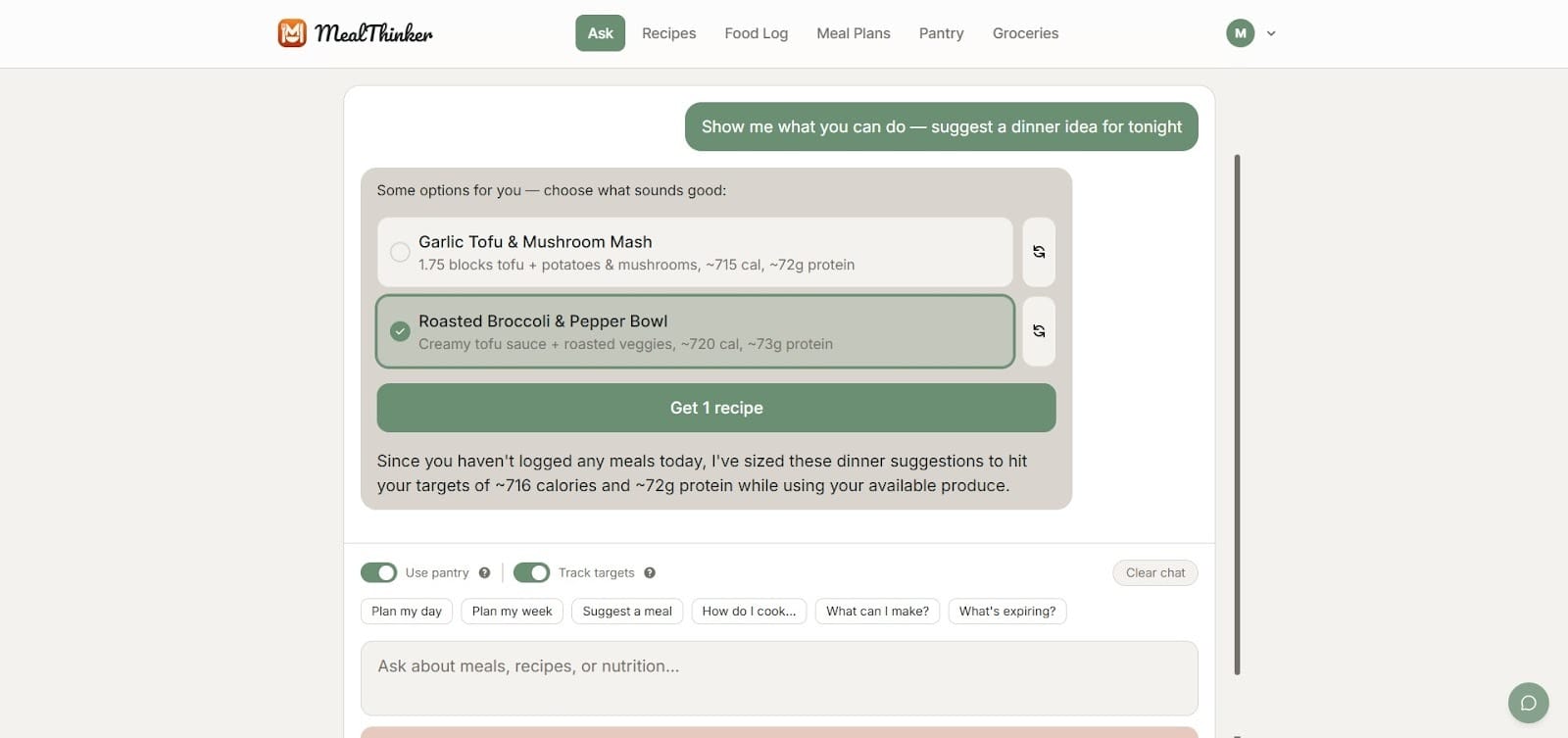
- Next, you will need to choose your recipe. You can choose either one recipe or multiple recipes depending on you. I show this in the image below.
- After you select the recipe you want, it will show you a recipe as seen below. You can either say “Ate This Today” or you can say “Add Ingredients to the Shopping List.” If you add it to “Ate This Today,” it will create a food log where it shows your calories, protein, carbs, and fats for the day.
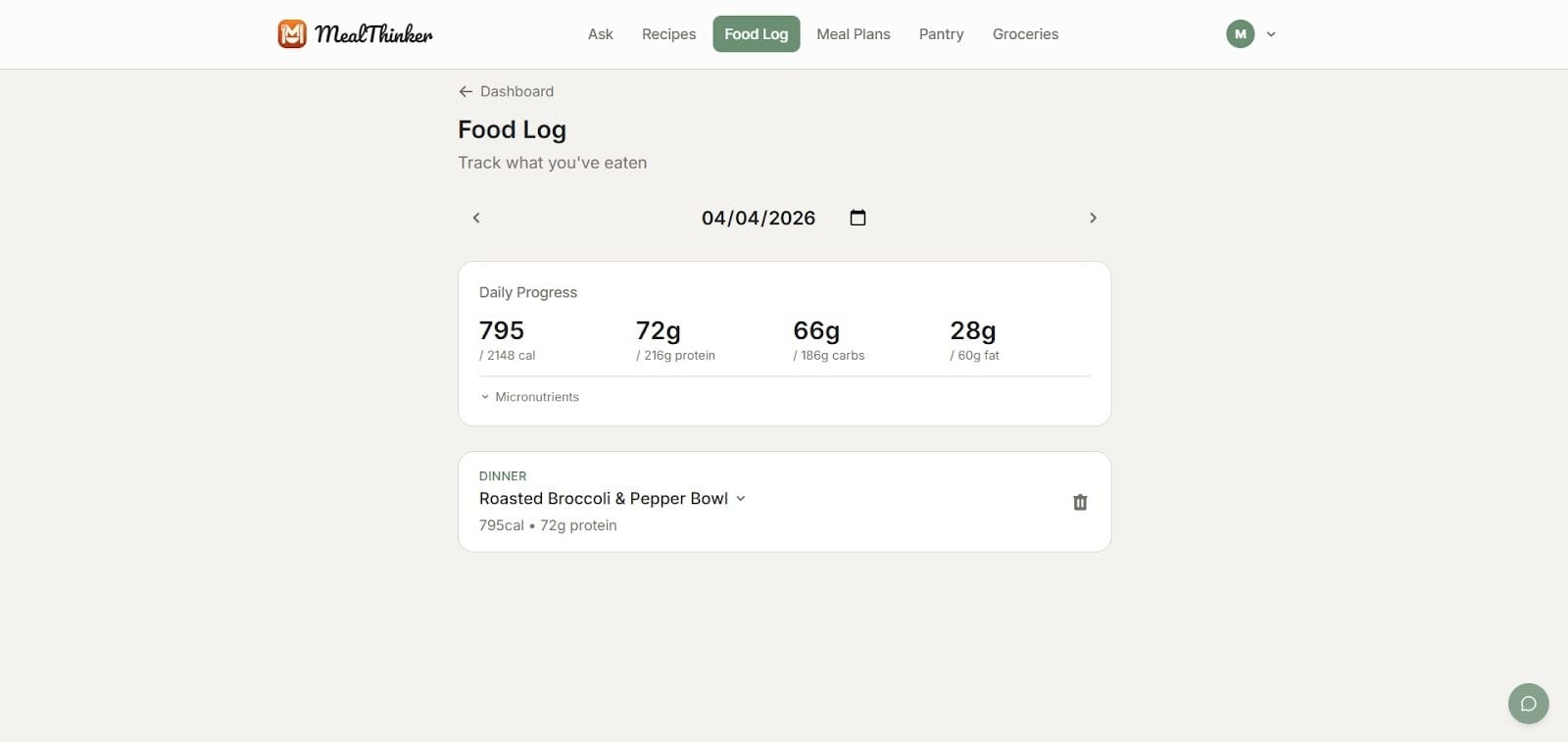
At the bottom, also notice how it shows your client what they ate for the day underneath the nutritional display.
Creating a Meal Plan: Step-by-Step
- Creating your meal plan for the week is simple. All you need to do is go to the bottom and click on the prompt that says “Plan my week.”

- Next, it will ask you to choose the servings. This, in fact, highlights how many people will be served. After you click on this, it will generate your weekly meal plan.
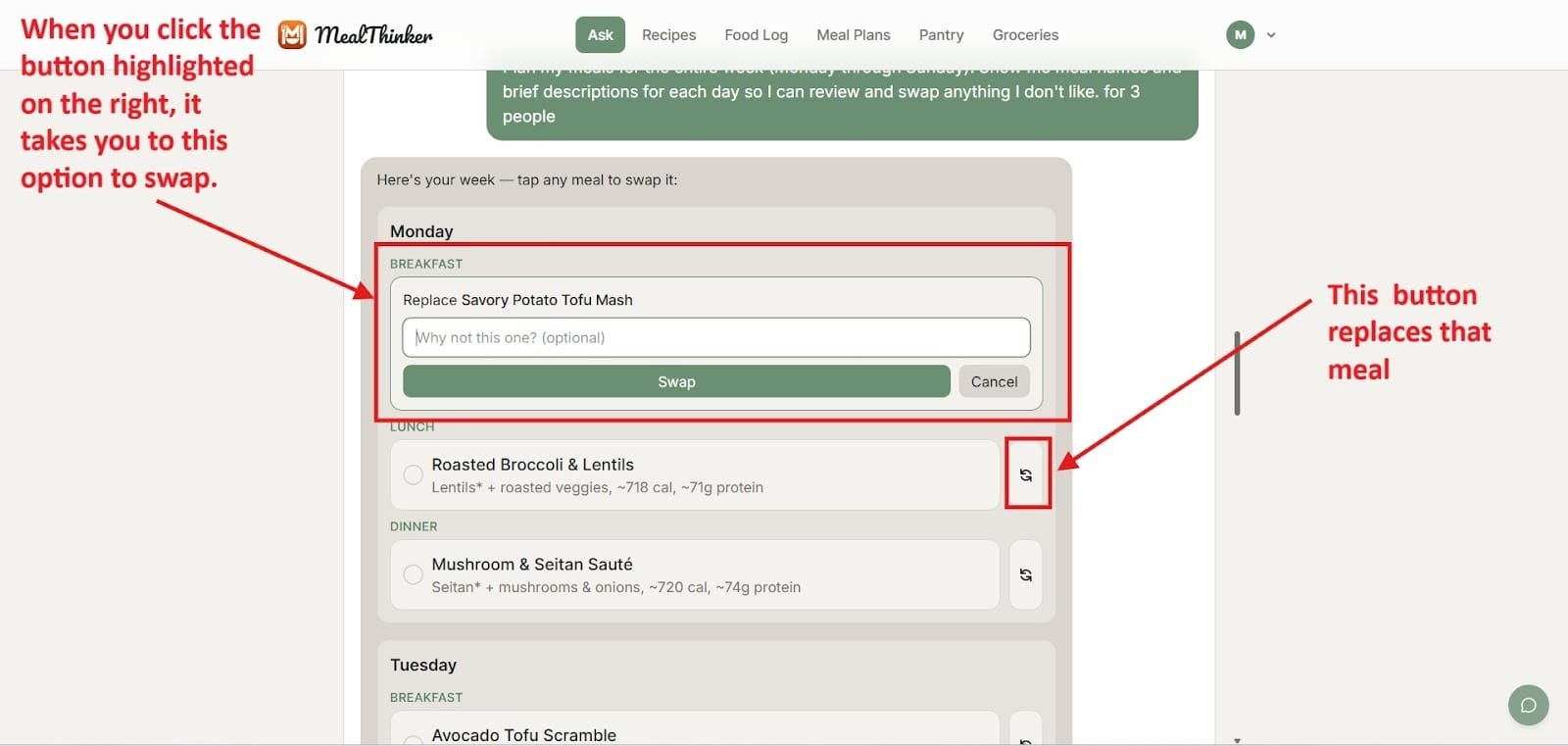
To get your meal plan, all you have to do is click on each recipe, which will put a green checkmark on the meal.
- Next, there will be a green button where you need to save it to your plan. This can be found at the bottom. Also, you will have the option to add the ingredients to your shopping list.
Core Uses:
- Generate meal plans for fat loss or muscle gain
- Adjust macros automatically
- Provide grocery lists
- Save time on manual planning
Why It Matters:
Instead of writing meal plans manually, you can:
- Give clients structured guidance instantly
- Focus on coaching behavior, not just numbers
- Improve adherence with easy-to-follow plans
Stage 3: Automated Client Check-Ins (Better Accountability)
Tool: Trainerize
Client Tracking & Automated Communication
Client accountability is everything in fitness. With AI-powered coaching inside Trainerize, you can scale accountability without losing the personal touch. Automated check-ins keep clients engaged and consistent, while still feeling tailored to their journey.
Every time a client logs a workout, uploads progress photos, or sends a message, you get notified instantly, so you’re always in the loop without being glued to your phone.
The Deep Dive:
Trainerize allows you to automate check-ins, track workouts, monitor progress, and communicate with clients in one place.
Core Features:
Automated Onboarding:
To make onboarding much easier, you can automate it. First, you need to go to the automation section, which I highlighted in the image below:

You can also see what the options for automation looks like here. Setting it up is simple for most of them because all you have to do is edit it.
Automated Workflow:
Autoflow is another way that you automate your training business. You draw from a training template for your workout, tasks, and auto messages. Setting all this up will allow you to scale your gym or personal training business much faster.
Below is what the training section looks like and how you can set it up.
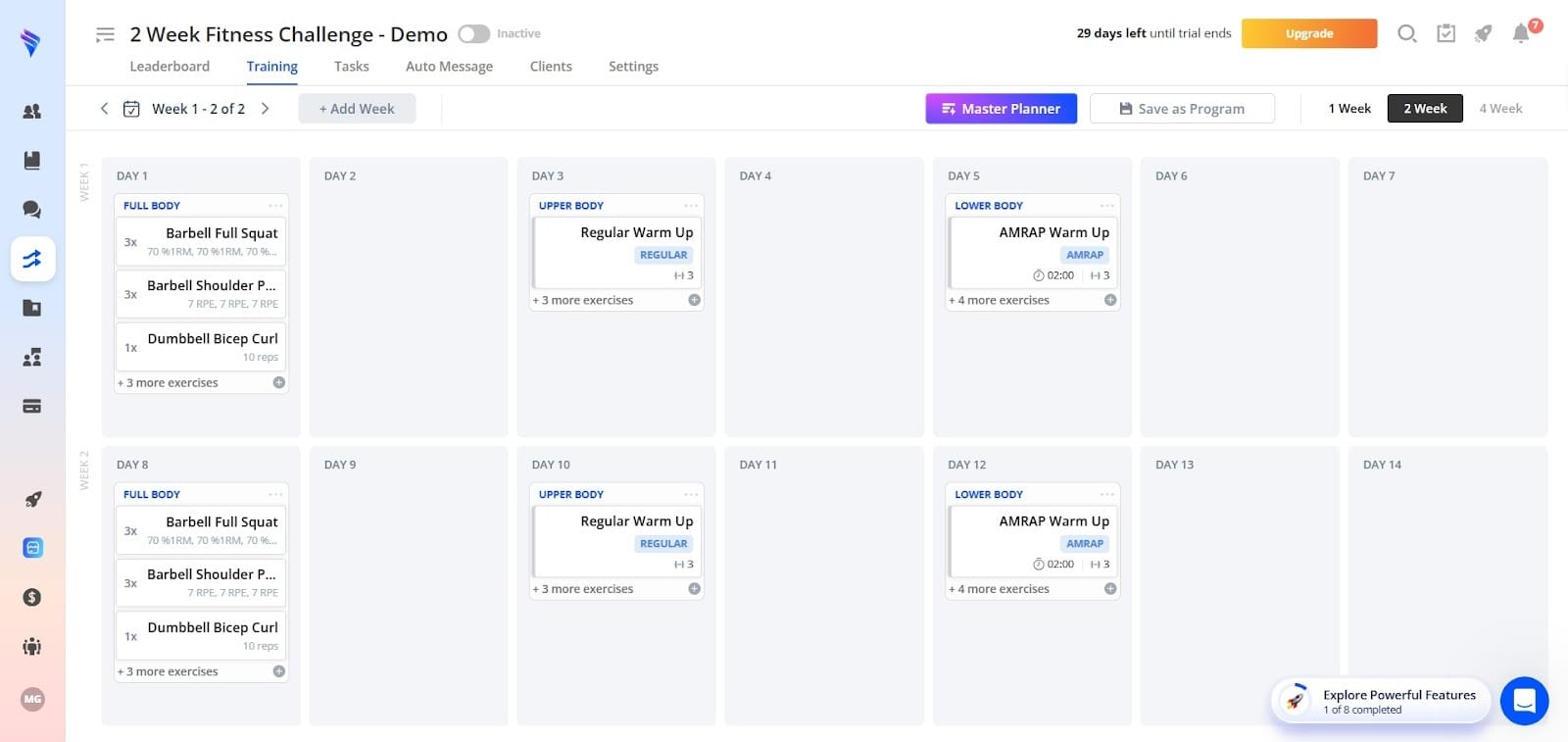
You can also set tasks, but because this is self-explanatory, we’ll skip ahead and show you the auto message section.
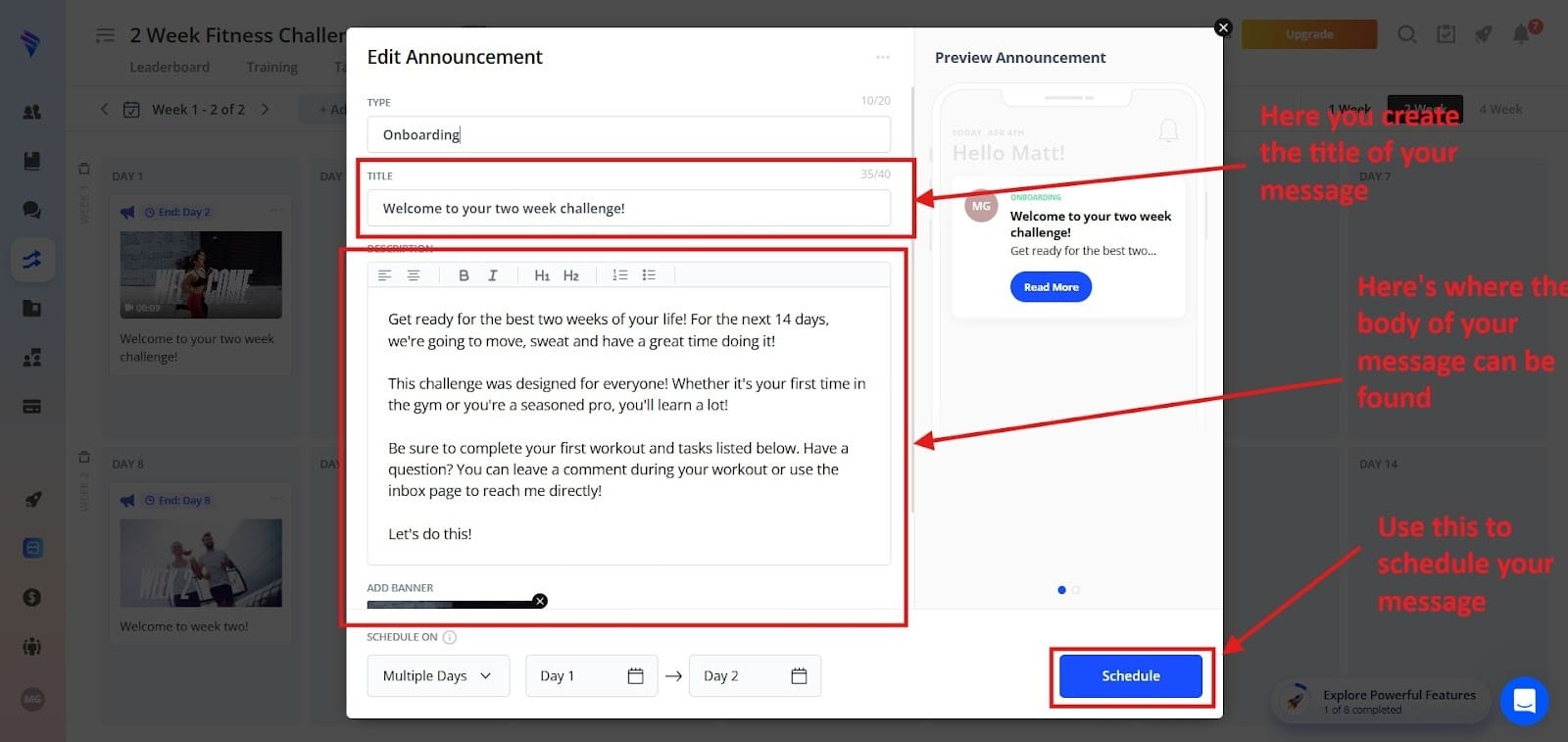
Workout Builder:
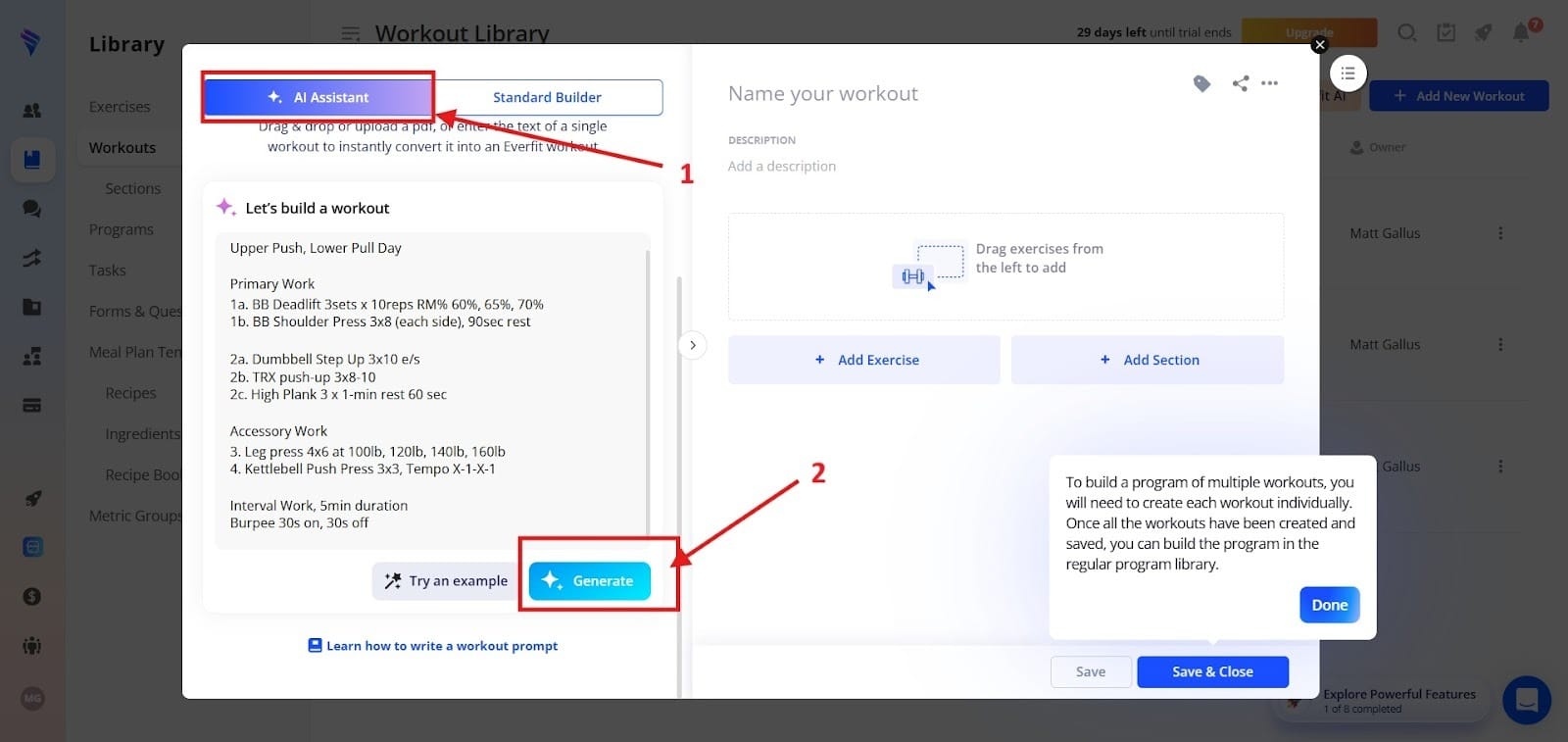
You can use the AI assistant to generate your own workouts. Simply go to Red Box 1 and click on it. Next, go to Red Box 2 and click on “Generate.”
Practical Uses:
- Send automated reminders so clients never miss workouts or check-ins.
- Track client adherence to workouts, habits, and plans in real-time.
- Identify struggling clients early based on missed sessions or declining performance.
- Maintain consistent communication without manually messaging everyone.
Stage 4: Social Media Content Creation (Grow Your Brand Faster)
Tool: Canva
Creating Fitness Content for Social Media
Marketing is essential for growing your fitness business, but it’s also time-consuming. Through Canva, you can create graphics for your business and even edit videos, such as trimming, splitting, cutting, and rearranging clips. Through its AI tools, you can create engaging workout walkthroughs or promotional videos.
The Deep Dive:
The AI tools at Canva help you generate posts, reels, workout graphics, and educational content quickly and at scale.
Use Cases:
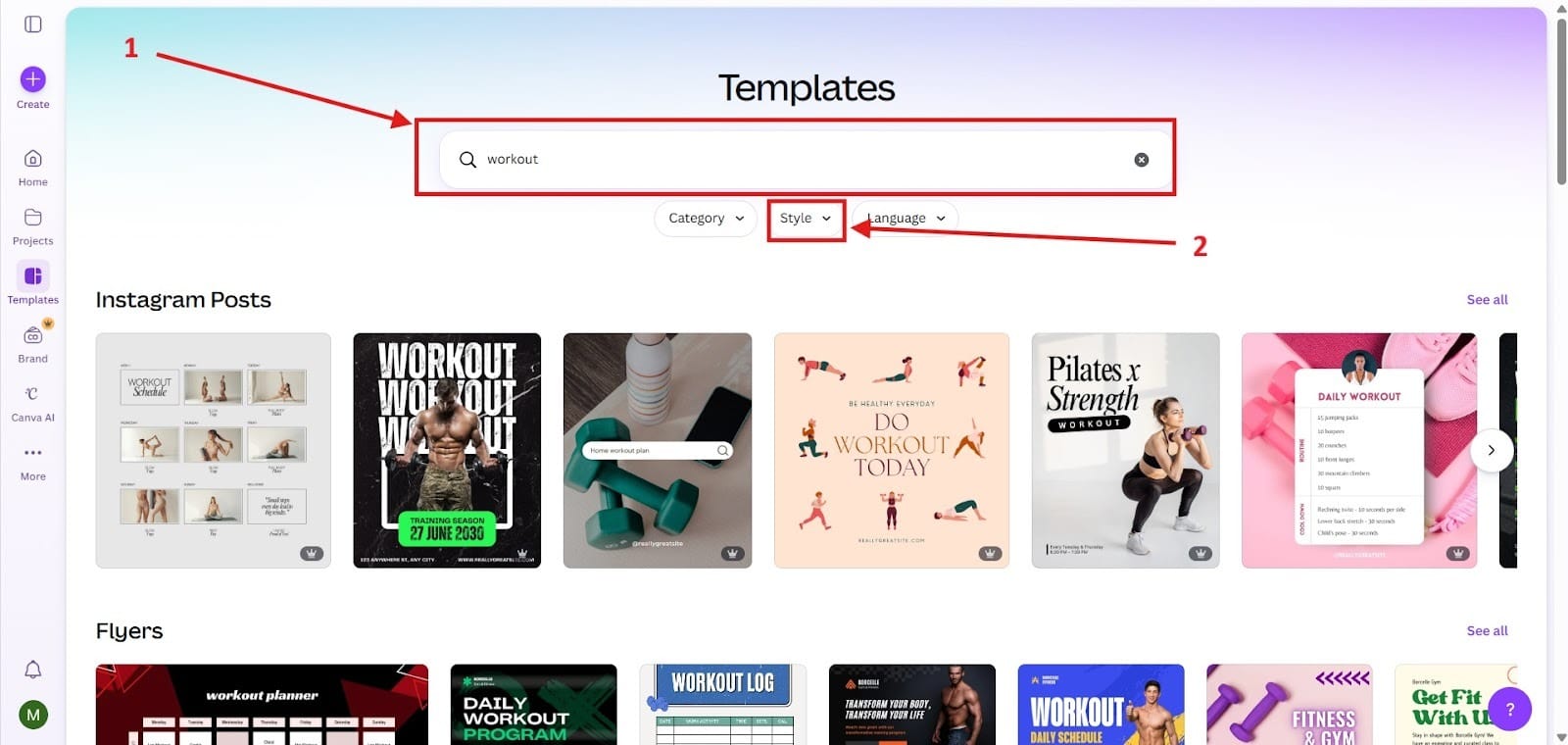
- Create Instagram Workout Posts: One of the cool things about Canva is that it has workout templates on it that will let you customize your brand. To type in “Workout” into the search bar, highlighted as Red Box 1. Next, go to the style box highlighted as Red Box 2 where it will give you different types of styles.
- Generate captions using AI: Please note, this is a Canva Plus feature, but you can use Canva to add captions with AI. To do this follow the instructions below:
1. Upload Your Video: Drag and drop your video file into Canva or select one from the Uploads tab.
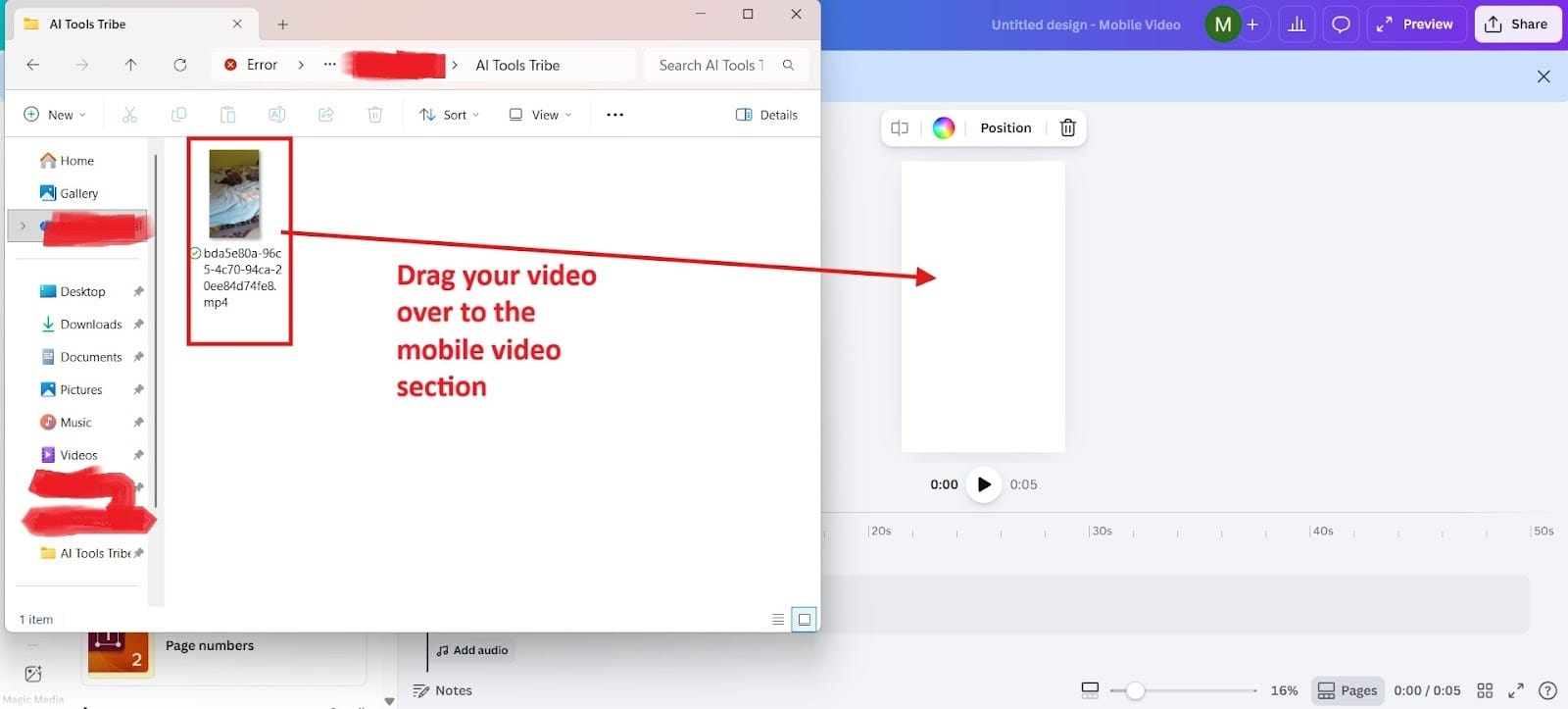
2. Select the Video: Click on the video on your timeline so it is highlighted. Resize the video as well so that it fits your full screen.
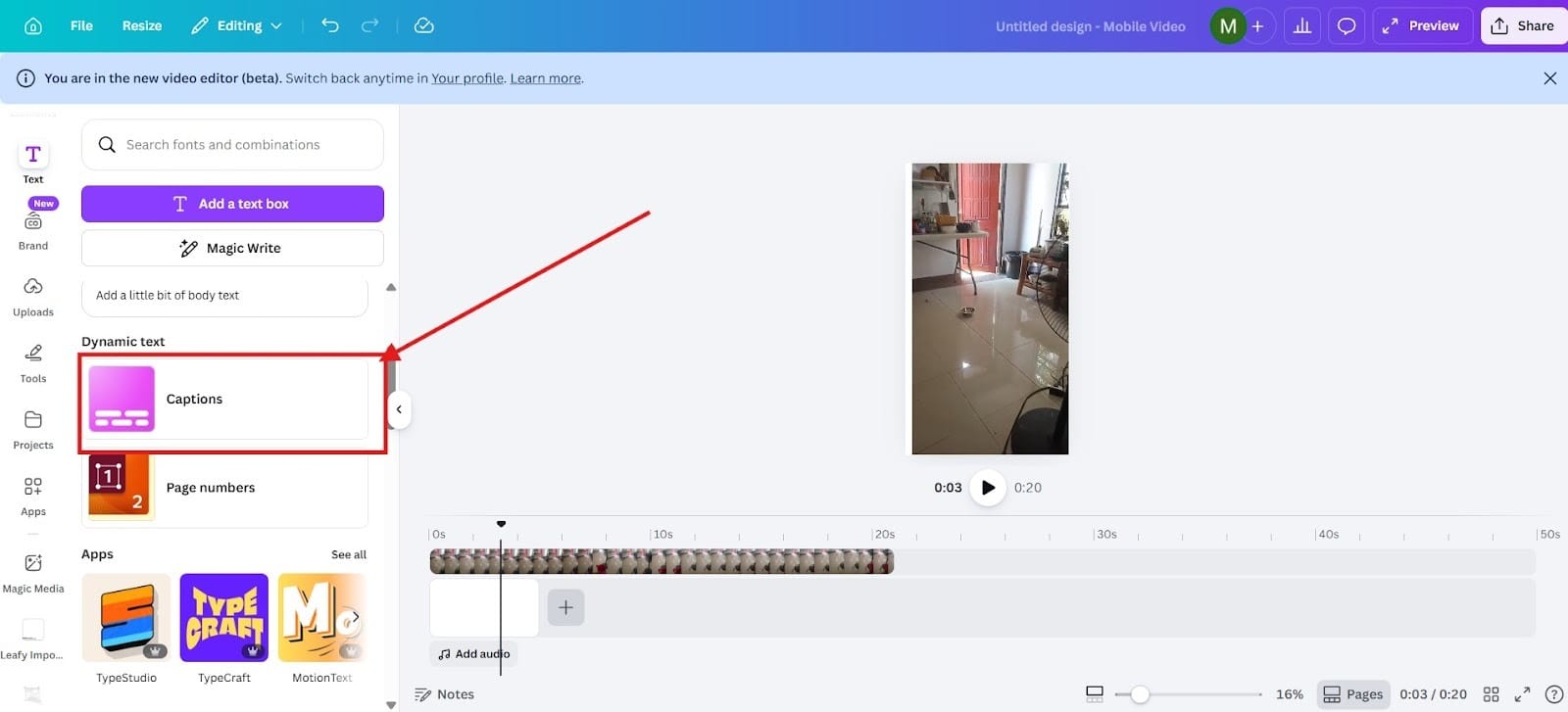
3. Find the Captions Tool: If your video has no captions, this option won’t even show up. However, you can find this option under the Text button at the top on the lefthand side. Then you would scroll down to dynamic text to create your captions.
- Build Branded Templates: Another one of the nice things about Canva is that you can use it to create branding for your personal training business or gym. It will follow your color scheme, and it’s very simple to use.
Why It Works:
Consistency builds authority. With Canva, you can:
- Post daily without burnout. It literally takes 10 to 20 minutes to make the graphics.
- Maintain a professional brand with the brand kit feature.
- Attract more leads organically through making your marketing more attractive.
Stage 5: AI Business Assistant (Operations & Growth)
Tool: Notion AI
Organizing Your Entire Fitness Business
Considered an all-in-one hub for personal trainers, Notion has everything you need from CRMs and lead tracking to social media content calendars and income/expense tracking. Notion has a comprehensive operating system for clients, finances, and programs. The exercise library has over 200+ movements.
The Deep Dive:
Notion AI acts as your business hub. You can manage clients, track leads, plan content, and organize your workflows in one place.
Main Features:
Client dashboards
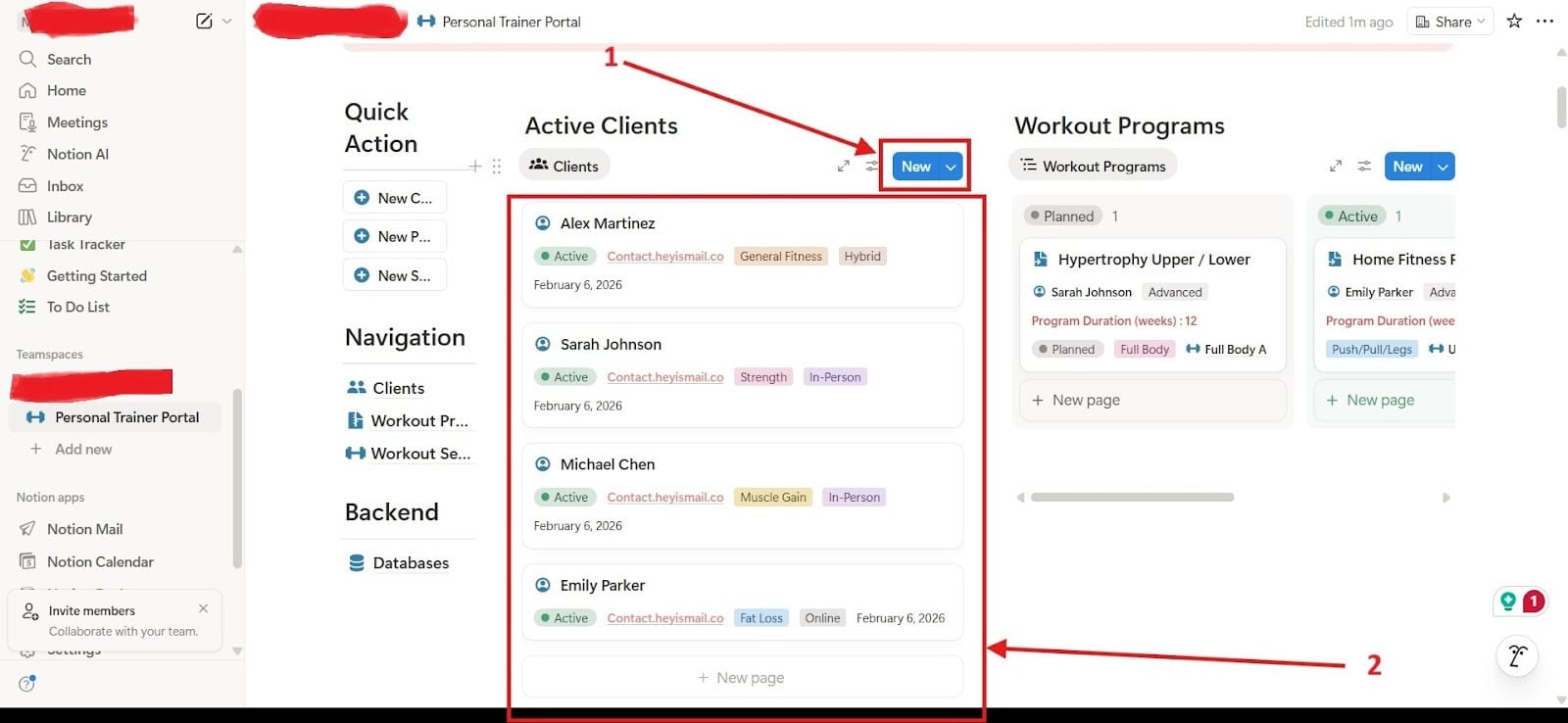
You can use the “Personal Trainer” template to pull a variety of different templates. Doing this will give you a basic client dashboard overview. I highlighted Red Box 1 and Red Box 2 as what your clients would look like.
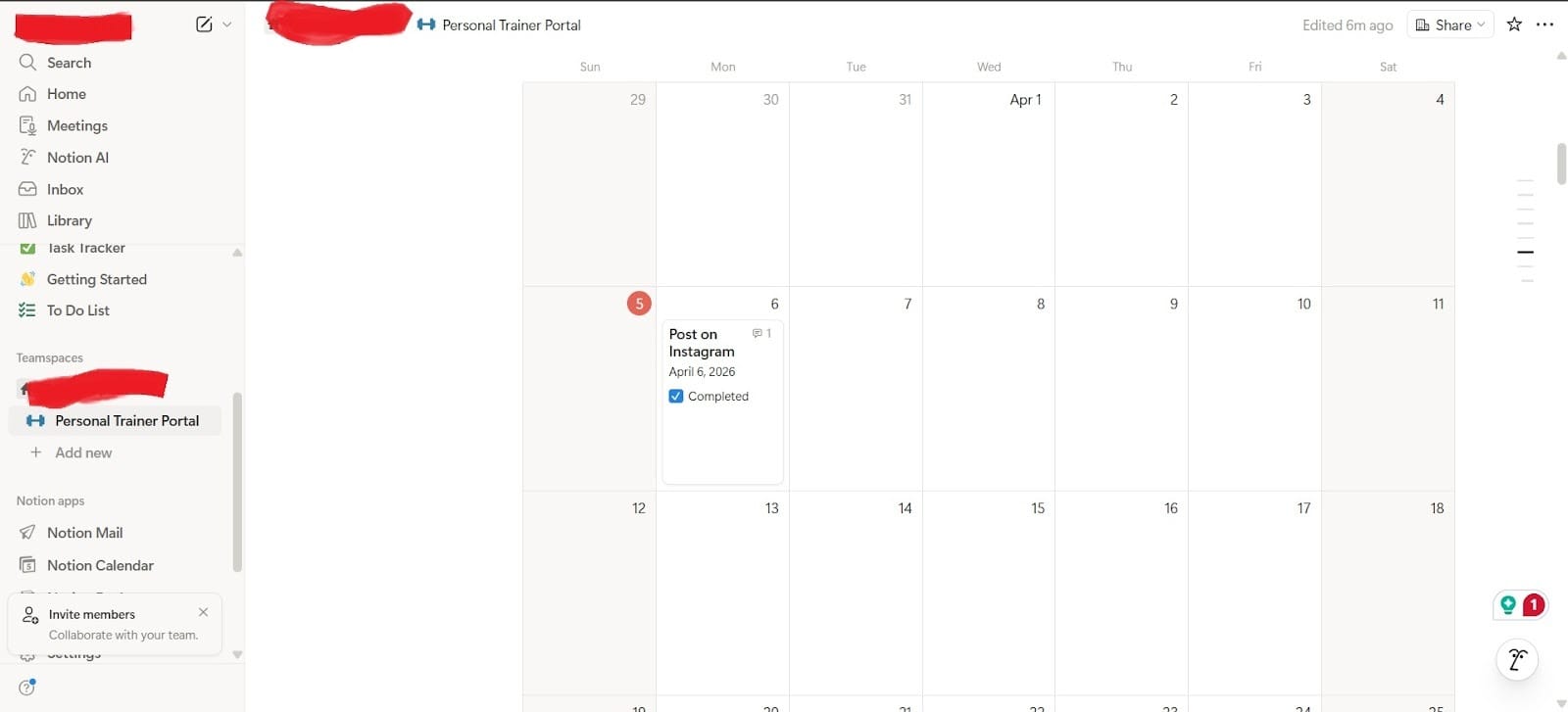
Content Calendars
An excellent addition to your social media content calendar planning, Notion has a feature on here that will let you plan out your content. All you have to do is grab it from their template section, and you can draft, plan, and write all your content from a single space.
Goal tracking
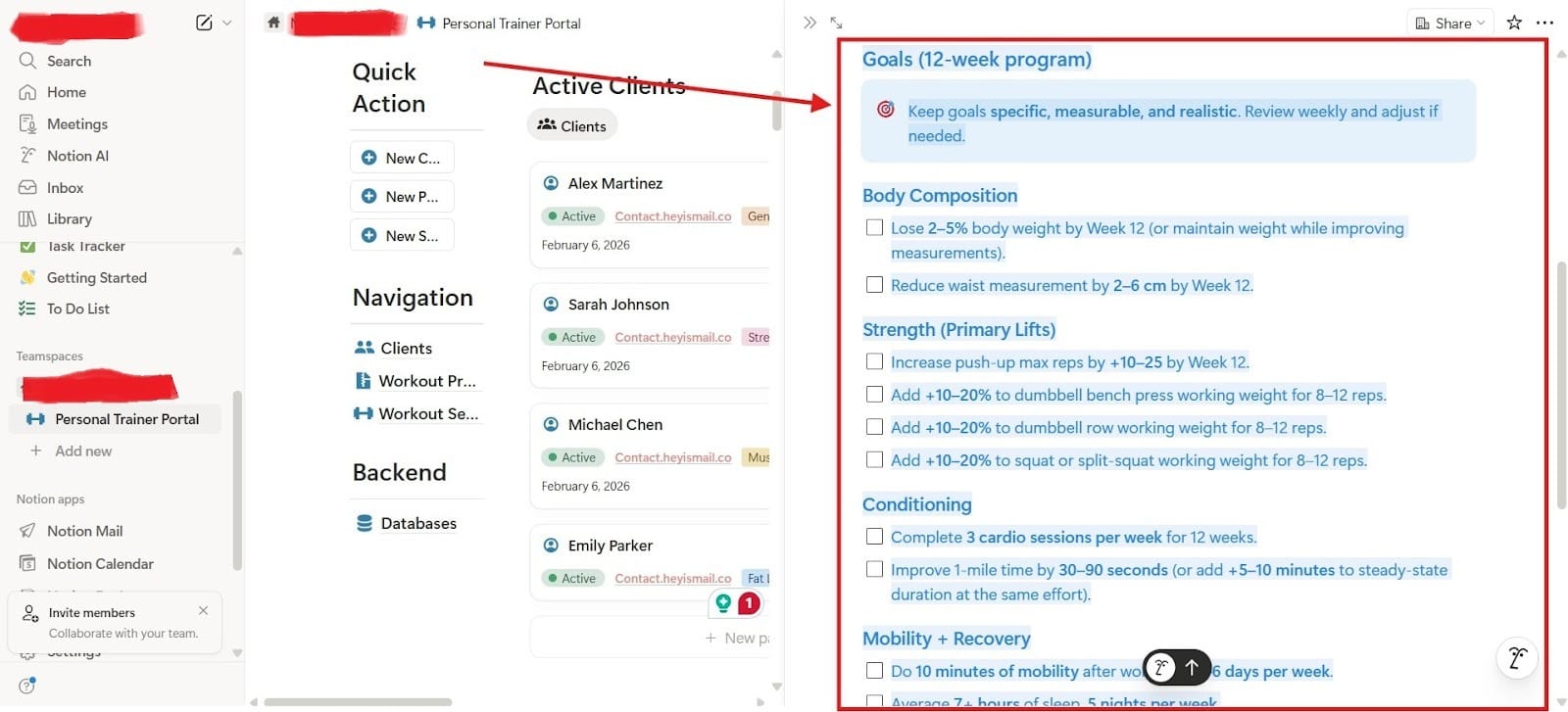
With a single AI prompt, you can put together a program of goals and set them up so that you can create a system for your client. Now, it may need some tweaking, but it will save you tons of time in the process.
How Trainers Use It:
- Manage all clients in one dashboard
- Track leads and sales
- Plan weekly content
- Build scalable systems
This is how you transition from “trainer” to “fitness business owner.”
The Success System
When combined, these tools create a powerful system:
ChatGPT → MealThinker → Trainerize → Canva → Notion AI (repeat…)
Each tool strengthens the others:
- ChatGPT builds your workouts
- MealThinker handles nutrition
- Trainerize manages clients
- Canva grows your audience
- Notion AI organizes everything
The best personal trainers aren’t just great coaches, but they’re also great operators.
AI won’t replace trainers. But trainers who use AI will outperform those who don’t.
Start with one tool. Build your system. Then expand.
Because the real goal isn’t just working harder, but it’s building a fitness business that runs smarter.
