

You started your business to enjoy freedom, but lately, it feels like the business owns you. You’re drowning in a sea of unread DMs across three different platforms, manually dragging leads through a spreadsheet, and terrified that if you hire a Virtual Assistant, they might accidentally delete your entire database, or worse, walk away with your lead list. This "solopreneur ceiling" is where most businesses go to stall: you have too much work to do alone, but you’re too disorganized to lead a team.
The transition from a "one-person show" to a scalable enterprise requires more than just extra hands; it requires an operational command center.
The Features: Your Operational Command Center
As a solopreneur, your initial journey with GoHighLevel (GHL) usually centers on marketing, such as funnels, emails, and lead capture. However, the moment your marketing succeeds, you face a new challenge: capacity. You cannot scale a business if every single task, client interaction, and administrative detail resides solely in your head.
GHL’s Client and Team Management features are designed to be your operational command center. They provide the infrastructure necessary to bring on your first Virtual Assistant (VA), a specialized contractor, or even manage a roster of high-ticket clients without losing the personal touch that built your brand. Here are some of the features found in Team Management:
- Granular User Permissions: GHL offers a sophisticated permission engine. You can control exactly what each user can see, edit, or delete. This includes restricting access to sensitive financial reporting, hiding high-level settings, or preventing contractors from exporting your precious lead database.
- Role-Based Access Control: By differentiating between "Admin" (full sub-account control) and "User" (restricted operational access), you maintain a clear hierarchy. This ensures that while your team can execute tasks, only you hold the keys to the kingdom.
- Automated Task Management: Stop using external "To-Do" lists that aren't connected to your revenue. GHL allows you to create tasks that are natively linked to contact records. If a task isn't completed, you can even trigger a workflow to notify a manager.
- Team-Based Calendars (Round Robin): As you grow, you may have multiple people handling discovery calls or support sessions. Team calendars allow you to group multiple users into a single booking link, distributing appointments fairly based on availability or weighting.
- The Conversations Inbox: This is the heart of team collaboration. It centralizes SMS, Email, Facebook DMs, Instagram DMs, and WhatsApp into one stream. Team members can "assign" themselves to conversations, ensuring that a client never receives two conflicting replies from different people.
The Benefits: Scaling Without Chaos
Scaling a business is often a messy process. Without the right management tools, bringing on a team member often feels like more work rather than less. GHL solves this by providing three fundamental benefits:
- System Security and Intellectual Property Protection: Your lead database and your automation workflows are your most valuable intellectual property. By using granular permissions, you ensure that a disgruntled contractor or a compromised account cannot export your contacts or delete your hard-earned marketing funnels.
- Radical Accountability: In a spreadsheet-based business, it’s impossible to know who contacted a lead last or why a deal stalled. With GHL’s internal tasks and activity logs, every action is timestamped and attributed to a specific user. This "paper trail" ensures that no lead "falls through the cracks" due to human oversight.
- Client Professionalism for Agency Owners: If you are running an agency model, GHL allows you to give your clients restricted access to their own "Results Dashboard." They can log in to see their leads and appointments without seeing your internal workflows or other clients' data. This transparency builds massive trust and reduces the number of "where are my leads?" phone calls you receive.
How-To-Use: Setting Up Your Team for Success
Step 1: Adding a User and Defining the "Safe Zone"
Before your first hire logs in, you must define their operational boundaries. You want them to be productive without being dangerous to your setup.
- Navigate to Staff: Go to Settings > My Staff and click the Add User button.
- User Info: Fill in the basics. Ensure their email is correct, as this will be their login and the address used for their internal notifications.
- User Permissions (The Critical Part): Click the "User Permissions" toggle.
- For a VA: Toggle OFF "Admin Privacy," "Export Contacts," and "Settings." This prevents them from seeing your global account settings or stealing your lead list.
- For a Sales Rep: Toggle ON "Opportunities" and "Contacts," but keep "Settings" and "Reporting" restricted unless they need to see their own performance data.
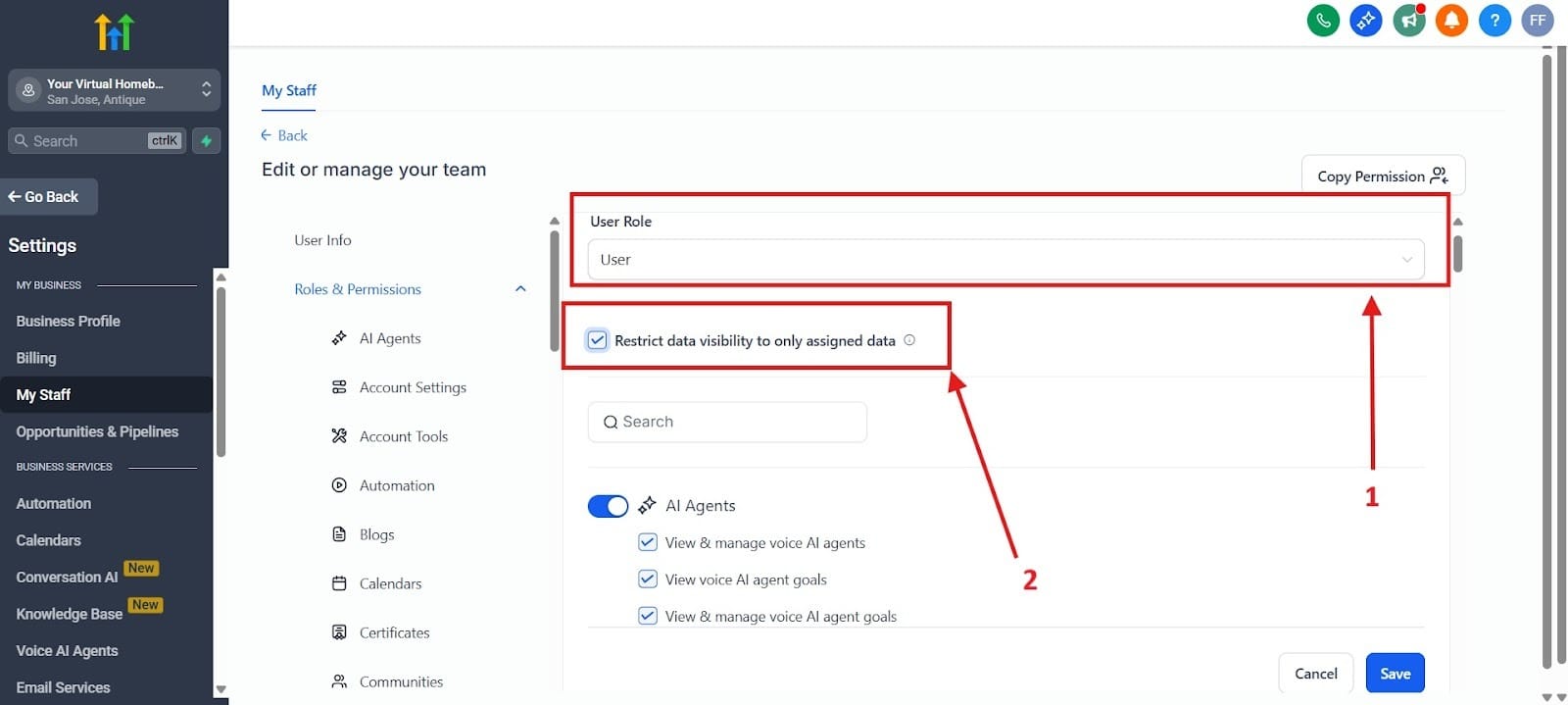
In red box number 1, you can assign the user role from Administrator to User, which you may want to do. From red box number 2, you can restrict users from certain data visibility to only seeing some things.
Step 2: The "Hands-Off" Lead Assignment
You shouldn't have to manually tell your team to call a new lead. GHL should do that for you automatically:
- Assigning Contacts: You can manually assign a contact to a user in the Contact Record, but for scale, use Workflows.
- The Automation Recipe: Create a Workflow triggered by a "Form Submission" or "Tag Added."
- Action: Assign to User: Add the action "Assign to User" and select your team member.
- Action: Add Task: Immediately follow this with a "Add Task" action. Set the title to "Call [Contact Name] ASAP" and the description to "Inquiry regarding Lead Magnet." Assign this task to the user.
- Result: The team member receives a notification on their mobile GHL app (LeadConnector) the moment the lead arrives.
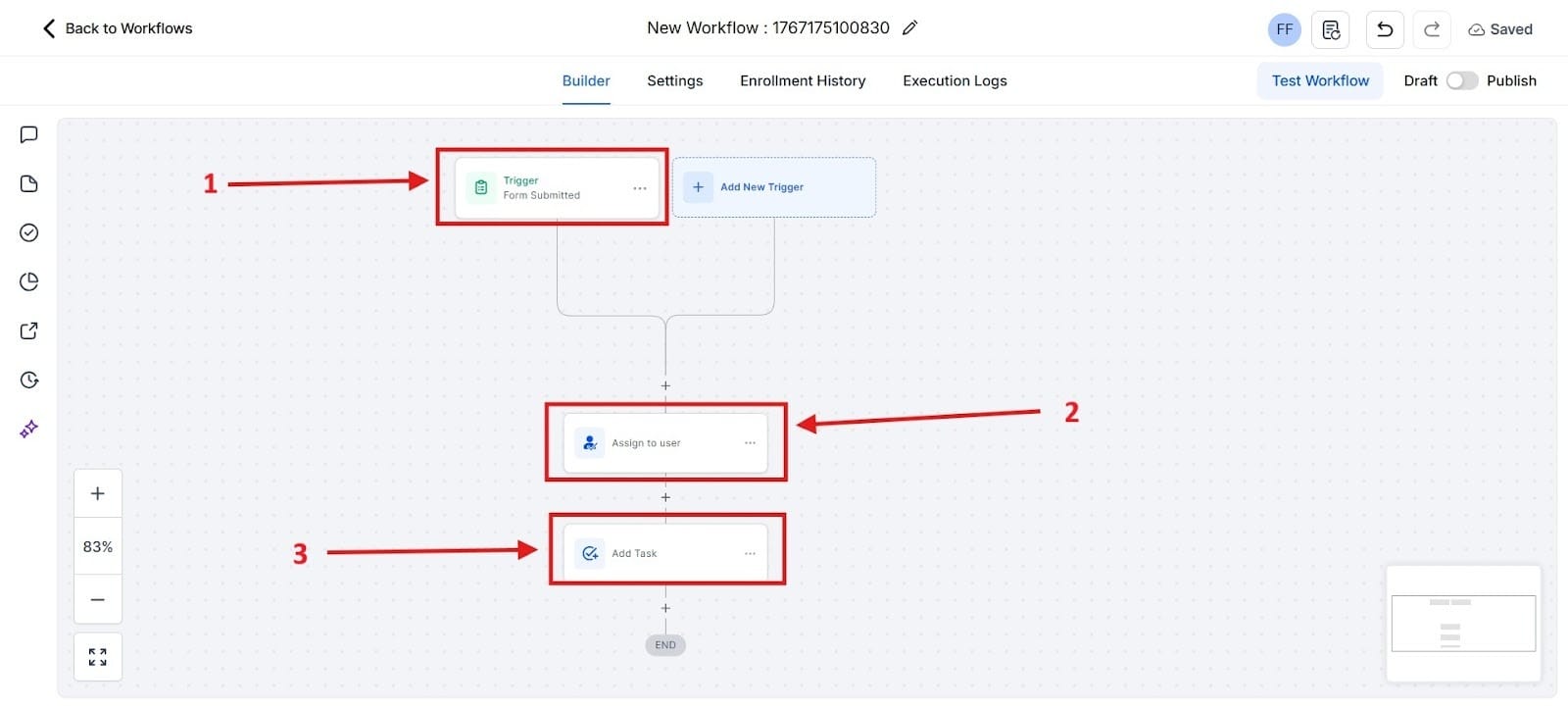
Red box number 1 highlights the trigger that you would set up where you would begin after a customer submits a form. In red box number 2, you see the form assigned to someone. Now, you can choose a deadline on this as either 1 day, 2 days, 3 days, 4 days, 5 days, or Now.
Step 3: Round Robin Scheduling (Growth Mode)
When you have multiple people available for meetings, you need a fair way to distribute them.
- Create a Team Calendar: Navigate to Calendars and select Round Robin.
- Add Team Members: Add all eligible users. You can set their "Meeting Weight" (e.g., 60% of leads go to Rep A, 40% to Rep B).
- Availability Sync: Ensure each team member has connected their personal Google or Outlook calendar in their User Profile. GHL will check all connected calendars for conflicts before showing a time slot to a prospect.
- The Result: A single link that manages the schedules of five different people simultaneously.
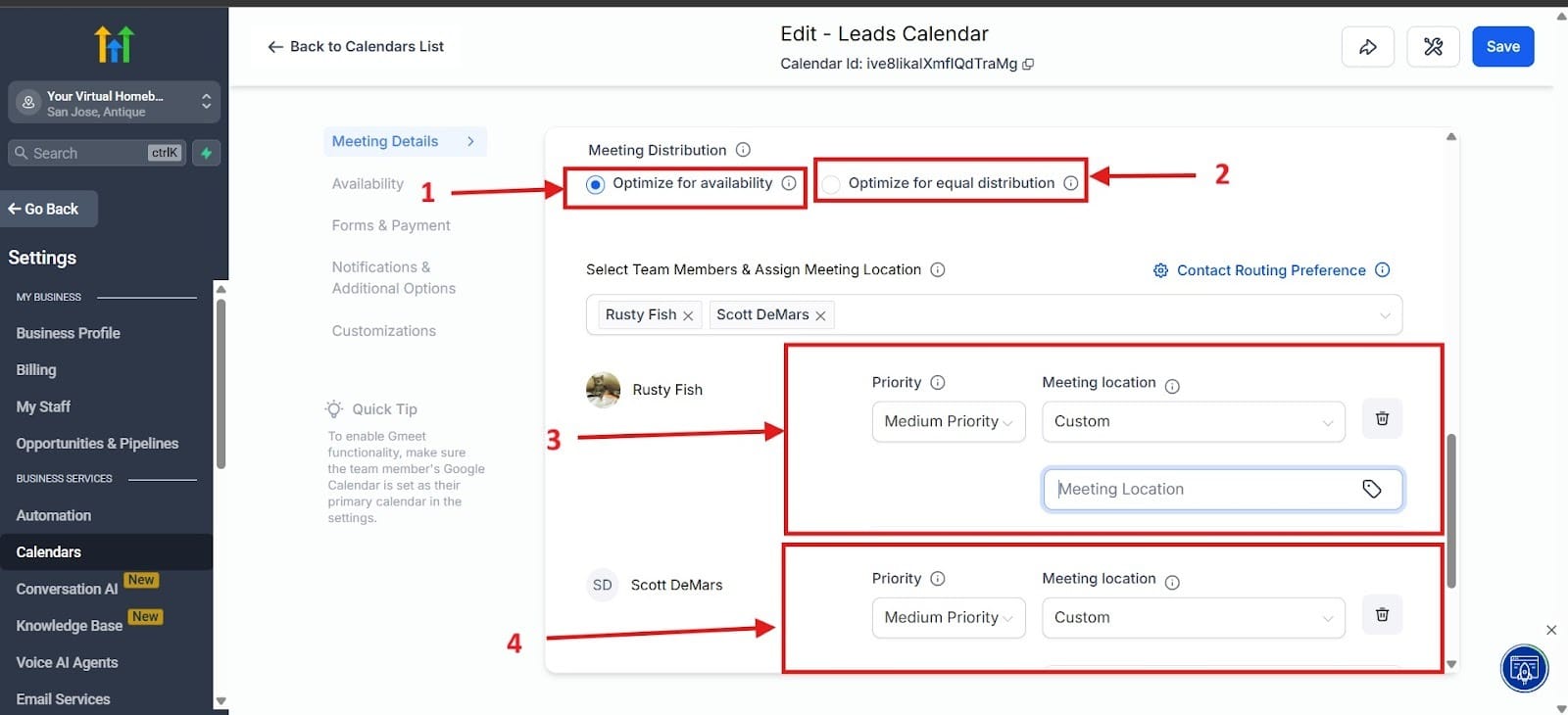
In red box number 1, you see how you can optimize for availability. This means the meeting will be assigned to the first available team member based on their integrated calendar. If you choose red box number 2, it will distribute the meetings more evenly. Red box number 3 and number 4 shows you the team members, and you can choose to meet either on Zoom, Google Meet, Microsoft Teams, or phone.
Step 4: Measuring Performance via Reporting
Management isn't just about assigning work. It's about verifying results.
- Task Reporting: Go to Contacts > Tasks. This shows you a breakdown of how many tasks are pending, completed, or—most importantly—overdue.
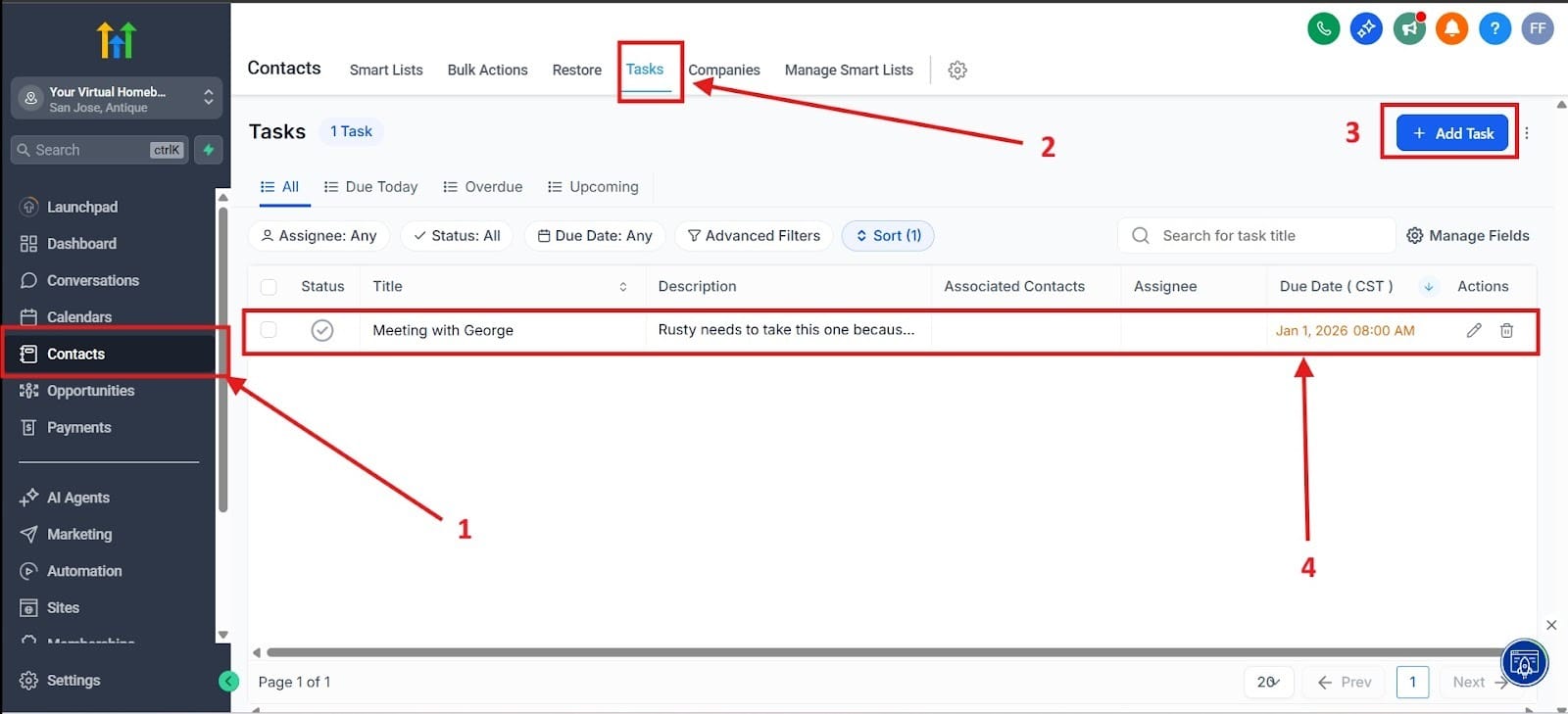
In red box number 1, it shows you how to get to the task report. First, you have to go to Contacts. Red box number 2 highlights how you have to go to Tasks. Going to red box number 3, you can click on Add Task to add tasks to your list. Finally, at the bottom in red box number 4, you see tasks with the due date, who they were assigned to, a title, and a description.
- Agent Reporting: This is the "Solopreneur’s Manager Dashboard." It provides a leaderboard of activity. You can see:
- Efficiency: How quickly is the agent responding to new leads?
- Volume: How many outbound calls and SMS messages did they send today?
- Conversion: How many of their assigned opportunities moved to "Closed Won"?
One thing to remember with this feature is that to get it, you need to be on the Agency Pro plan.
Advanced Strategy - The Client Management Portal
If you are a consultant or agency owner, Team Management also extends to how you manage your clients.
The "View-Only" Client Account
Don't send your clients weekly manual PDF reports. Instead, give them a login to their own sub-account (if you are on an Agency Pro plan) or use a Custom Menu Link to embed a Google Data Studio report within their GHL sidebar.
Collaborative Communication
Use the Conversations tab as a collaborative space. If a client asks a technical question via SMS, you can use the Internal Note feature (the yellow box) within the conversation stream to tag a team member: "@Sarah, can you check the funnel settings for this client?" The client never sees this internal note, but your team can collaborate in real-time on the solution.
Building Your Scalable Infrastructure
GHL’s Client and Team Management features represent the transition from "hustle" to "business." As a solopreneur, your time is your most limited resource. Every minute you spend manually assigning a lead or checking if a VA completed a task is a minute stolen from your high-level strategy.
By mastering User Permissions, you create a secure environment where you can delegate safely. By implementing Automated Tasks and Round Robin Calendars, you ensure that your business operates with a consistent, professional "standard of care" regardless of who is pulling the levers. And finally, by using Agent Reporting, you gain the data-driven insights needed to make your next hire or pivot your strategy.
The tools are the bridge between your current capacity and your future growth. Stop doing everything, and instead, start managing the system that does it for you.
Check Out The Other GoHighlevel (GHL) Articles:
What is GoHighLevel?
Stop Losing Leads: How to Build Your First High-Converting Lead Magnet Funnel in GHL
End the Email Back-and-Forth: Master GHL Calendars for Zero-Friction Appointment Booking & Reminders
The Solopreneur's Quickstart Guide to GHL CRM: Pipeline Setup & Smart List Organization That Converts
