

Law firms should use AI to boost productivity, reduce operational costs, and improve their speed and accuracy. All of this lets lawyers free up their time to focus on the high-value tasks that lead to a better law practice. The workflow we’ve created is designed to help solo practitioners and small legal teams reclaim their time.
Stage 1: Lead Capture & Fast Response
Goal: Secure new clients instantly and eliminate manual follow-ups.
Most law firms lose clients for one reason: slow response time. Multiple times clients have complained about waiting five to seven business days to receive a response.
The Problem
- No centralized tracking of leads
- Missed calls and delayed email replies
- Inconsistent communication
- Manual follow-ups that fall through the cracks
The Solution: Automate Intake and First Contact
GoHighLevel (GHL): Acts as your 24/7 Intake Officer
After a potential client fills out a contact form, GHL’s "Workflows" immediately trigger a text response, add them to your CRM, and notify your team. Here’s what will happen:
- You can choose to either send them an instant SMS or an email. You could also choose to send both of them.
- All information automatically gets sent right to your CRM in GHL.
- After the information comes in, your team receives a notification in real-time.
- If the client fails to respond, a follow-up sequence will automatically come up.
How to Create a Lead Capture Form in GHL
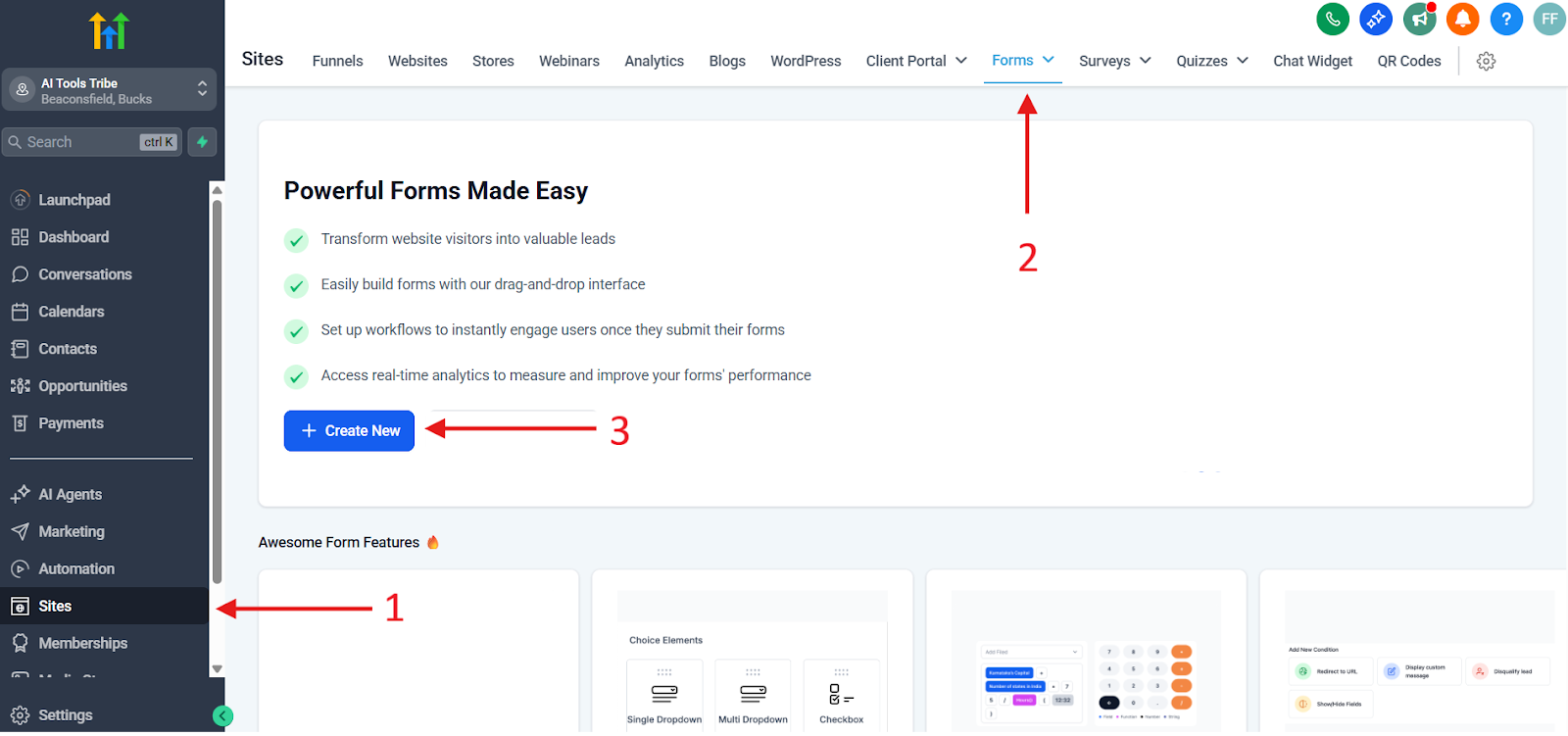
- First, you need to go over to your Form Builder. On the left hand side from your GHL dashboard, you will see Sites. Click on that, and after you click on it, go to Forms. From there, click on the button Create New.
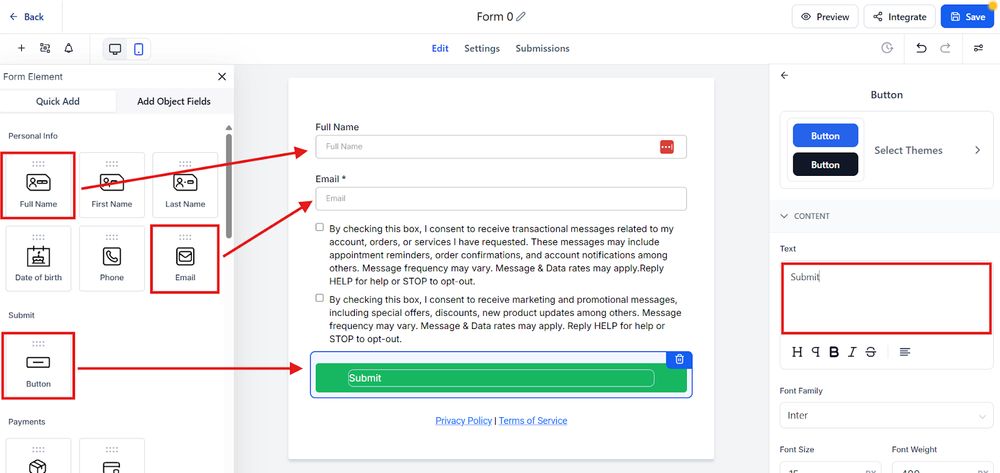
- Once you do this, it will launch your drag-and-drop builder. Remember that you want to design your form for the least friction possible. The less friction, the higher the conversion rate. The minimum amount of things you need in your form includes your Full Name, Email, and Button.
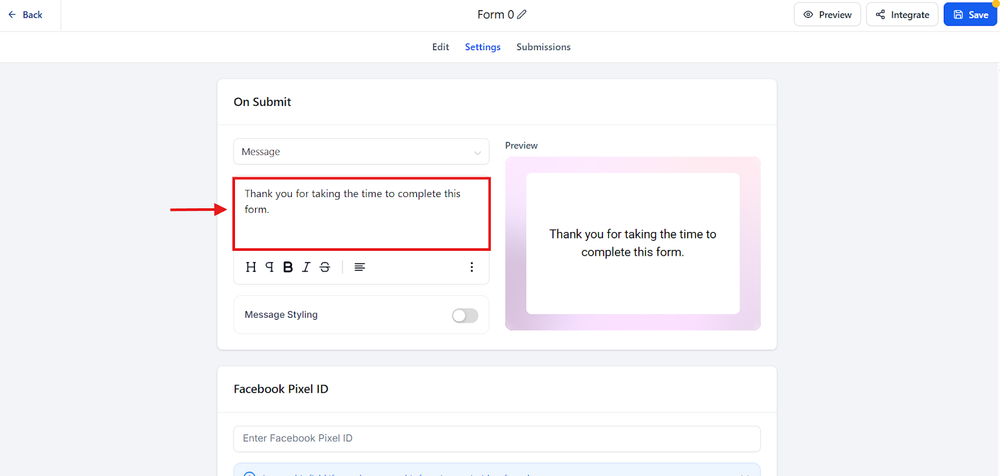
After you set up the form, you need to configure the redirect. Typically, this means that you want them to go to your Thank You page.
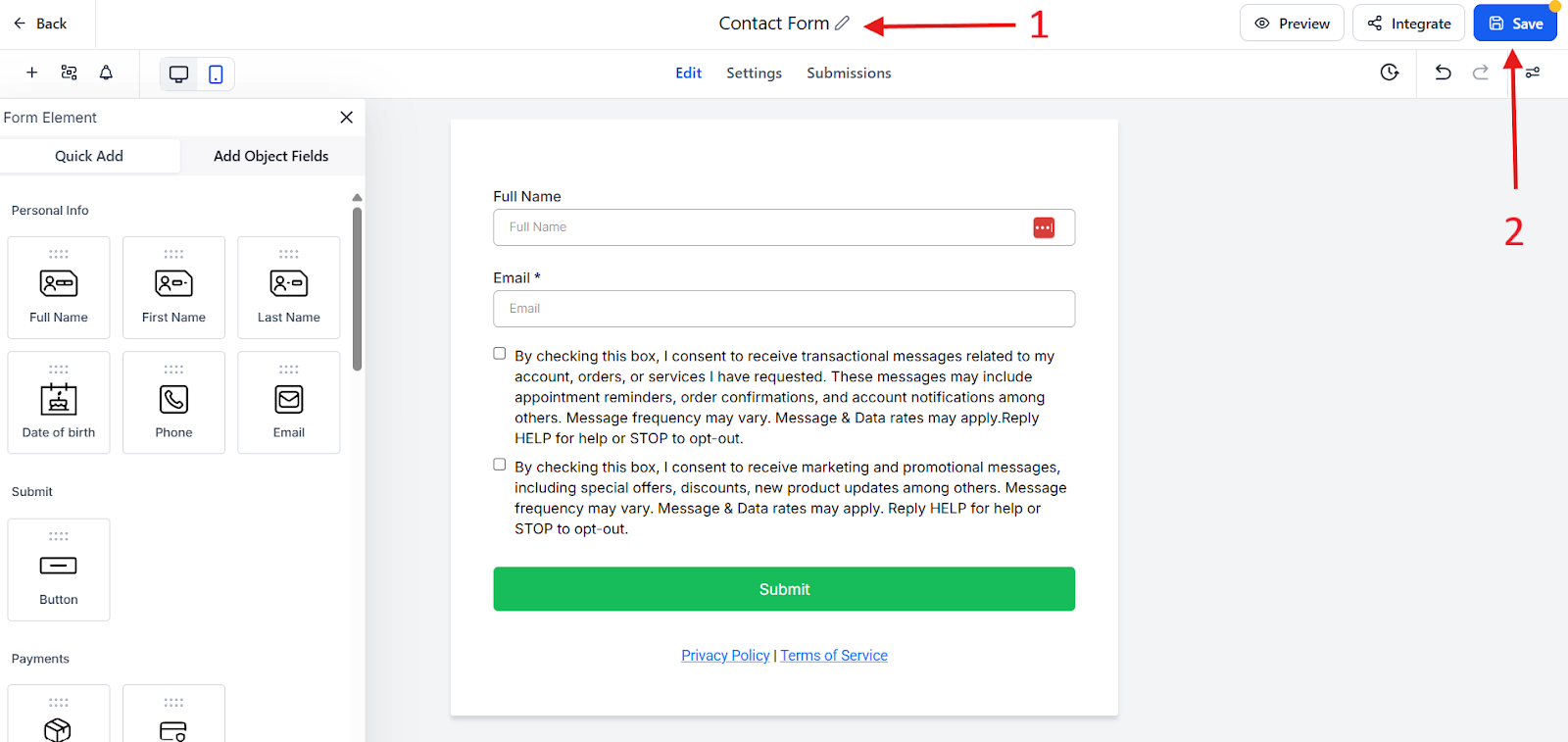
Finally, you need to name your form and save it.
Instantly AI: Your Networking Powerhouse.
While GHL might focus on handling your inbound leads, Instantly AI will play another role. Many lawyers use Instantly AI for outbound growth and relationship building.
Practical Use Cases:
- Use it to follow up with leads who didn’t sign a use retainer.
- Re-engage with cold prospects.
- Reach out to your referral partners.
Getting Started
- To begin, you first need to sign up, which you can do for free.
- Next, you will want to add the email addresses that you plan to use for your campaigns.
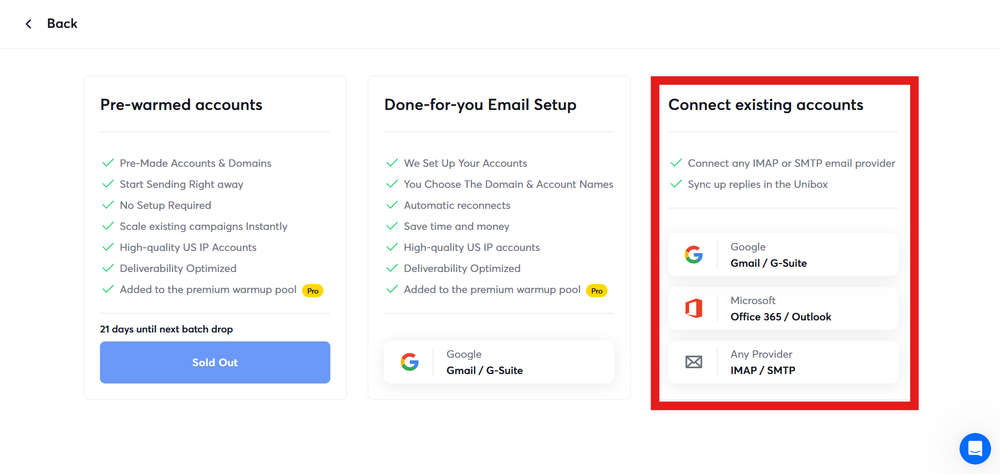
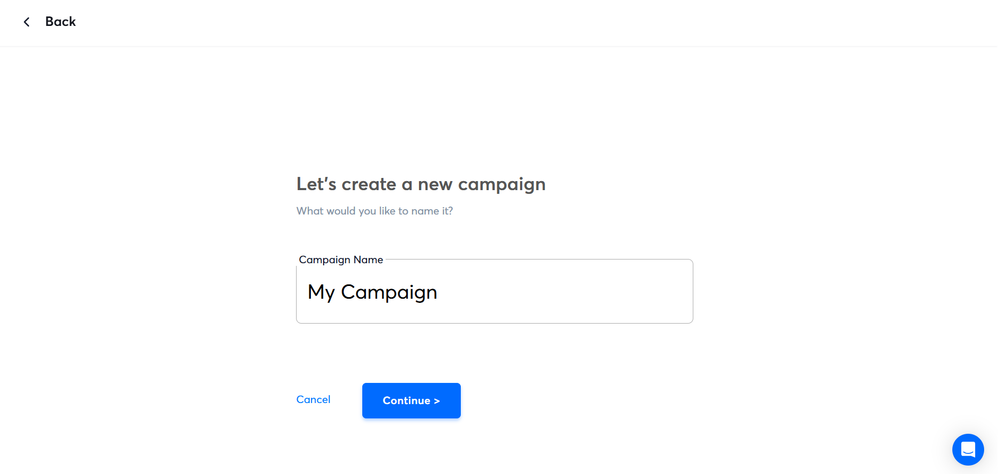
Next, you need to click on Campaigns and go over to New Campaign. From there, you’ll be able to name your campaign to find it later.
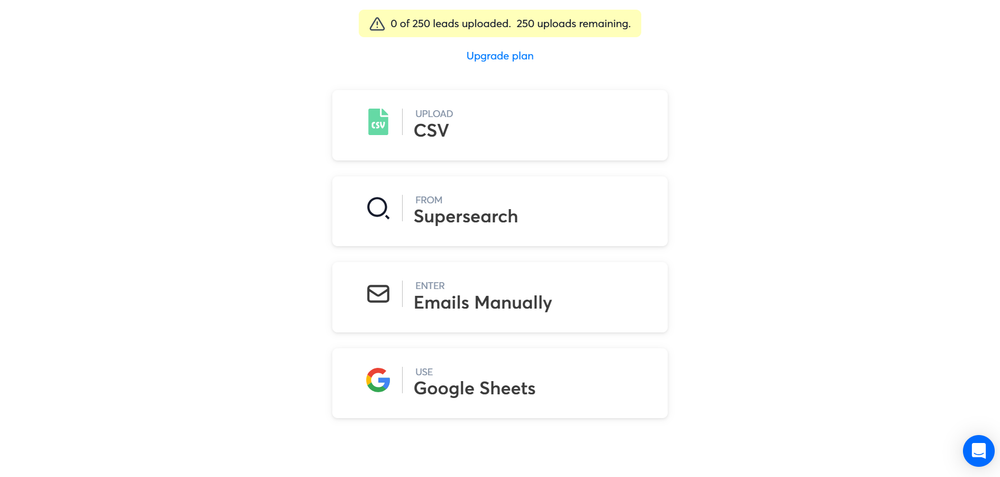
- Next, you add leads to your campaign. Some people do this by uploading a CSV file, which will have the names and emails.
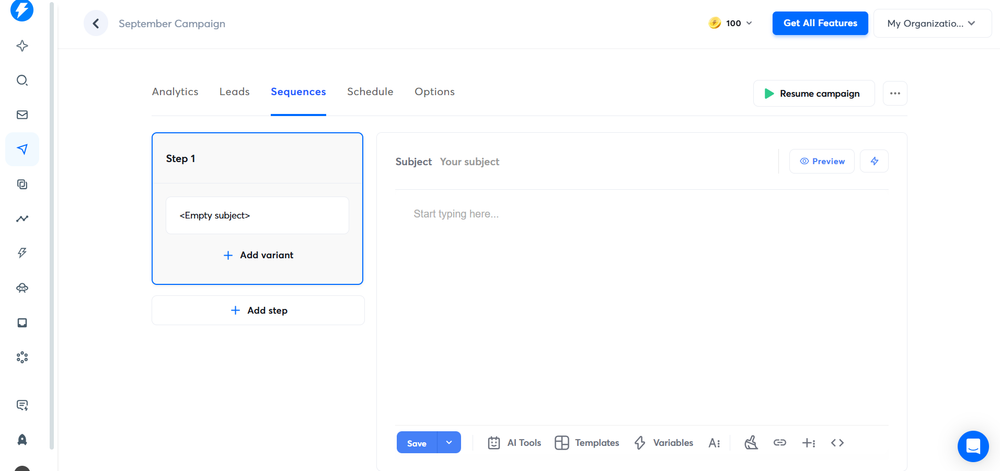
Once you get inside the campaign, you will go to sequences and add a step. Write your first email and write the follow-up steps.
- Next, you will need to go over to your settings and choose how many emails you wish to send per day or per hour. Now, you want to balance volume with deliverability.
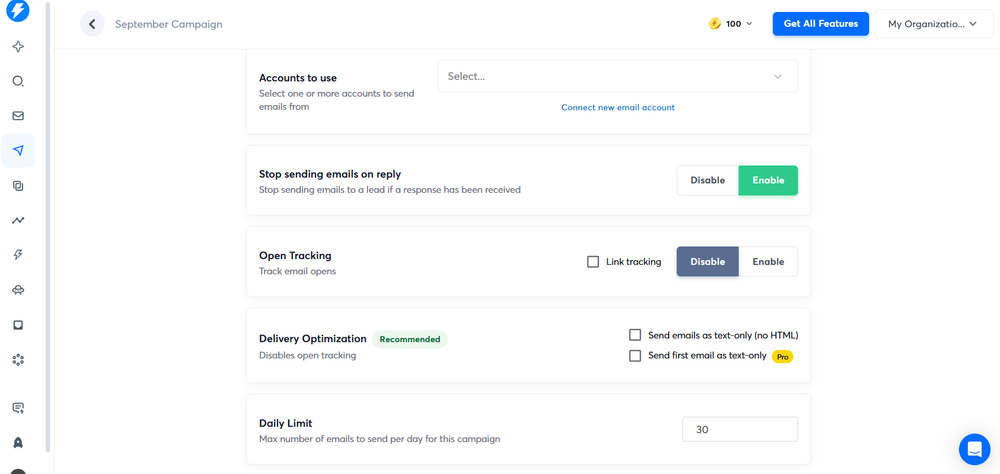
- After you have done this, you will need to check the settings you set up and hit the button to launch your campaign.
Stage 2: Case Discovery & Analysis
Goal: Speed up the "unbillable" hours spent digging through discovery files.
Discovery is infamous for demanding huge amounts of time for law firms. You can expect the process to take anywhere from several months to over a year. All of this requires an exchange of information, documents, and evidence between parties.
The Problem
- Enormous volumes of documents
- Note-taking requires time and attention
- Hard to find the key details quickly and effectively
- Risk you might miss critical information
The Solution: AI Researcher and Automated Notetaking
NotebookLM: Your Private Case Researcher.
Upload hundreds of pages of discovery, medical records, or police reports. It acts as a "grounded" AI that answers your questions using only your uploaded files, complete with citations, to prevent hallucinations.
Remember to use the Google Workspace Enterprise environment since this will have the confidentiality and privacy needed for a law firm.
How to Use NotebookLM for Law Firms
- To begin, first you need to go to the area that says Add a Source.
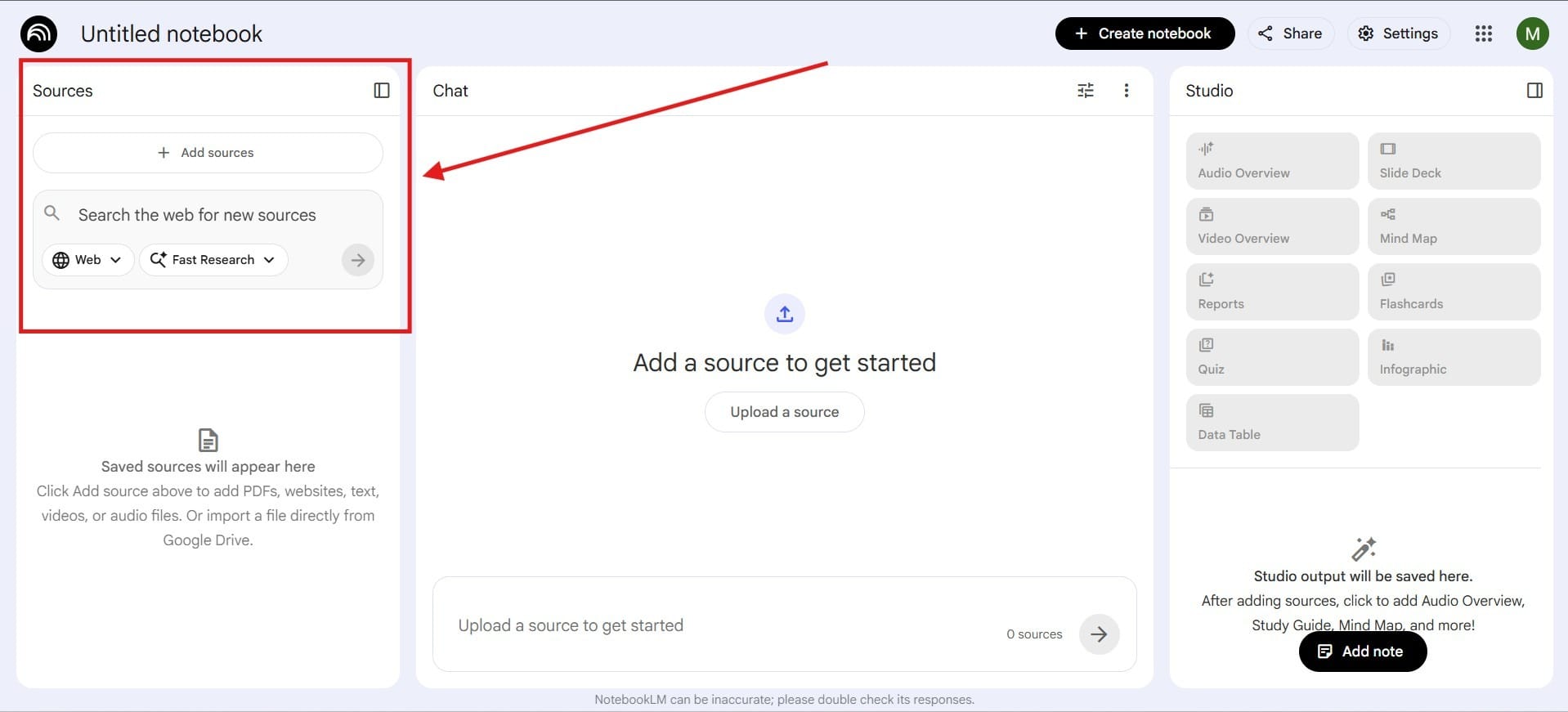
- After you add a source, it will take you to a screen where you choose what kind of source you want to add to your notebook. There are a variety of different files to choose from, and you can also scour the internet for sources.
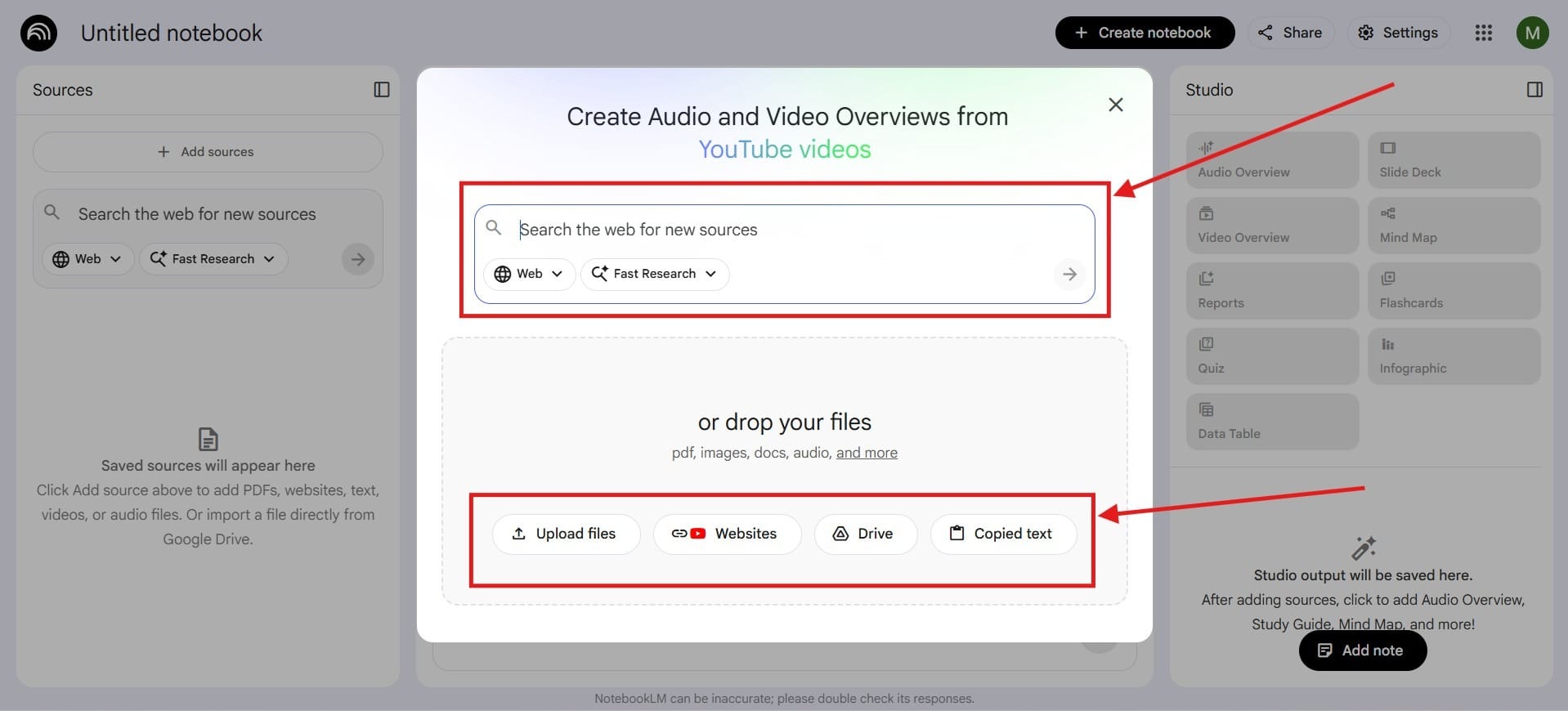
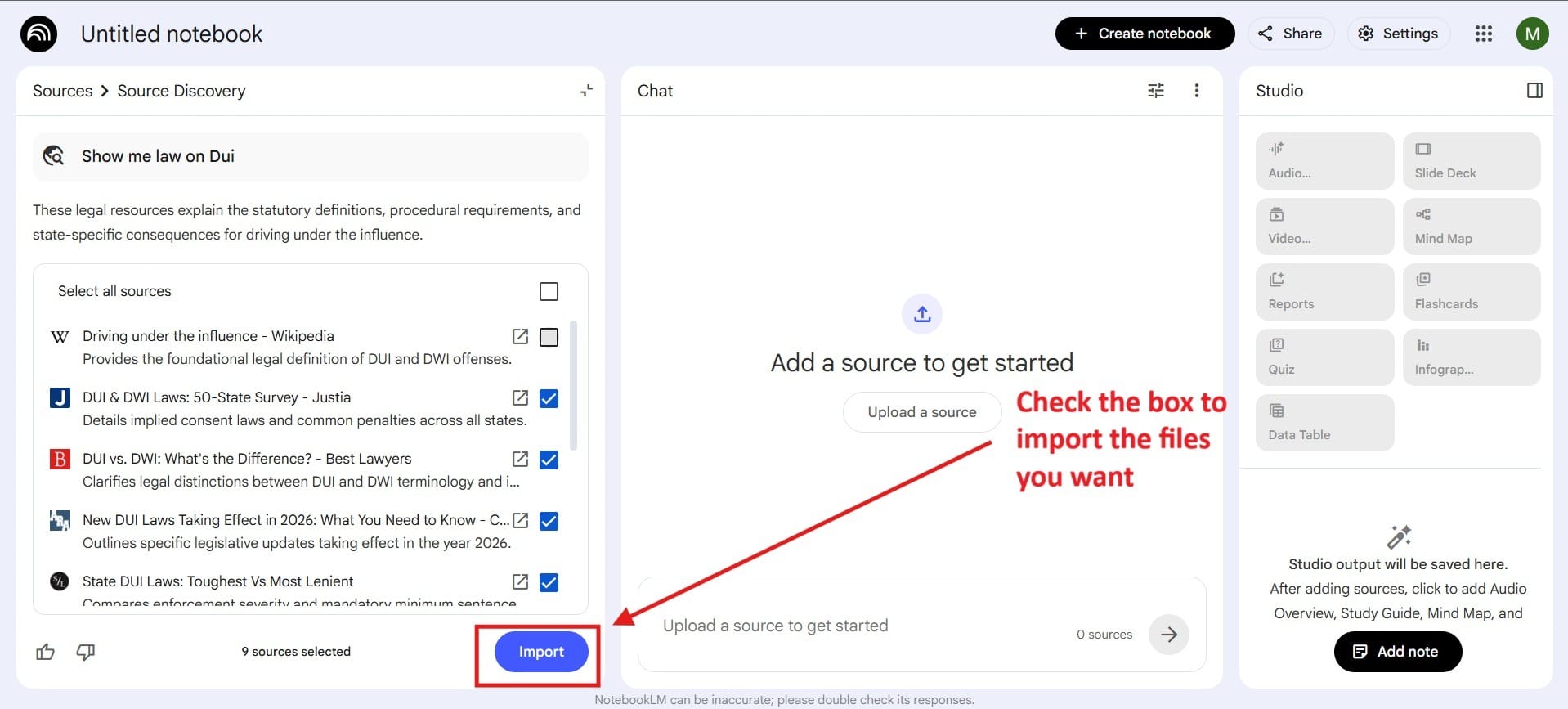
Next, you need to choose what files you would like to add to your notebook that you can quickly pull from later. After you import files to your notebook, you will be able to use it as a resource.
Fireflies.ai: Your Digital Court Reporter.
It records and transcribes client consultations or witness interviews, then generates an AI summary with key action items. It bridges the gap between a verbal conversation and your written case file.
Getting Started with Fireflies.ai
- After you sign up (and there is a free option), you will need to review your settings. The settings let you choose how you want Fireflies to record your meetings and under what circumstances.
- Next, choose how you would like to customize your experience. This is fairly straightforward.
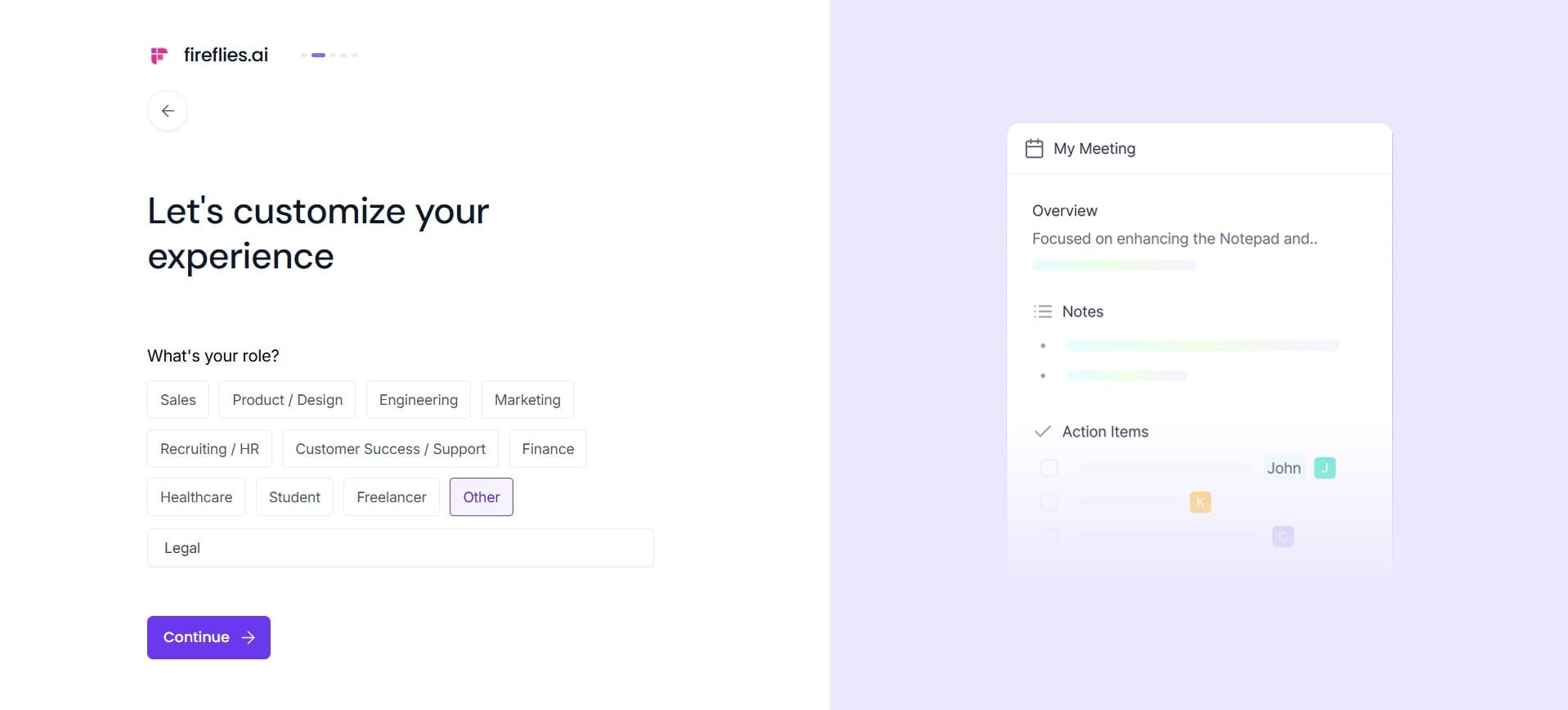
- Then you will need to choose the tools that you use during your meetings.
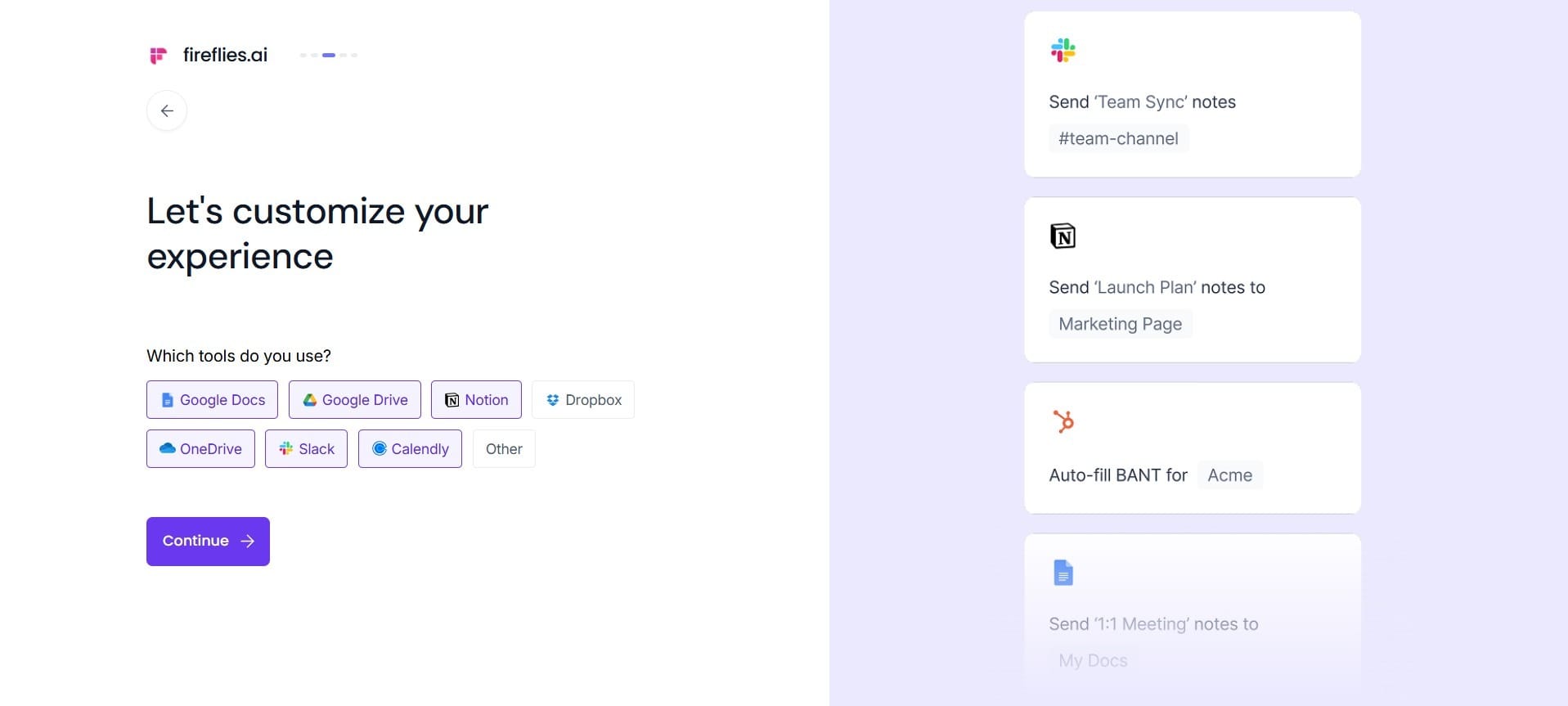
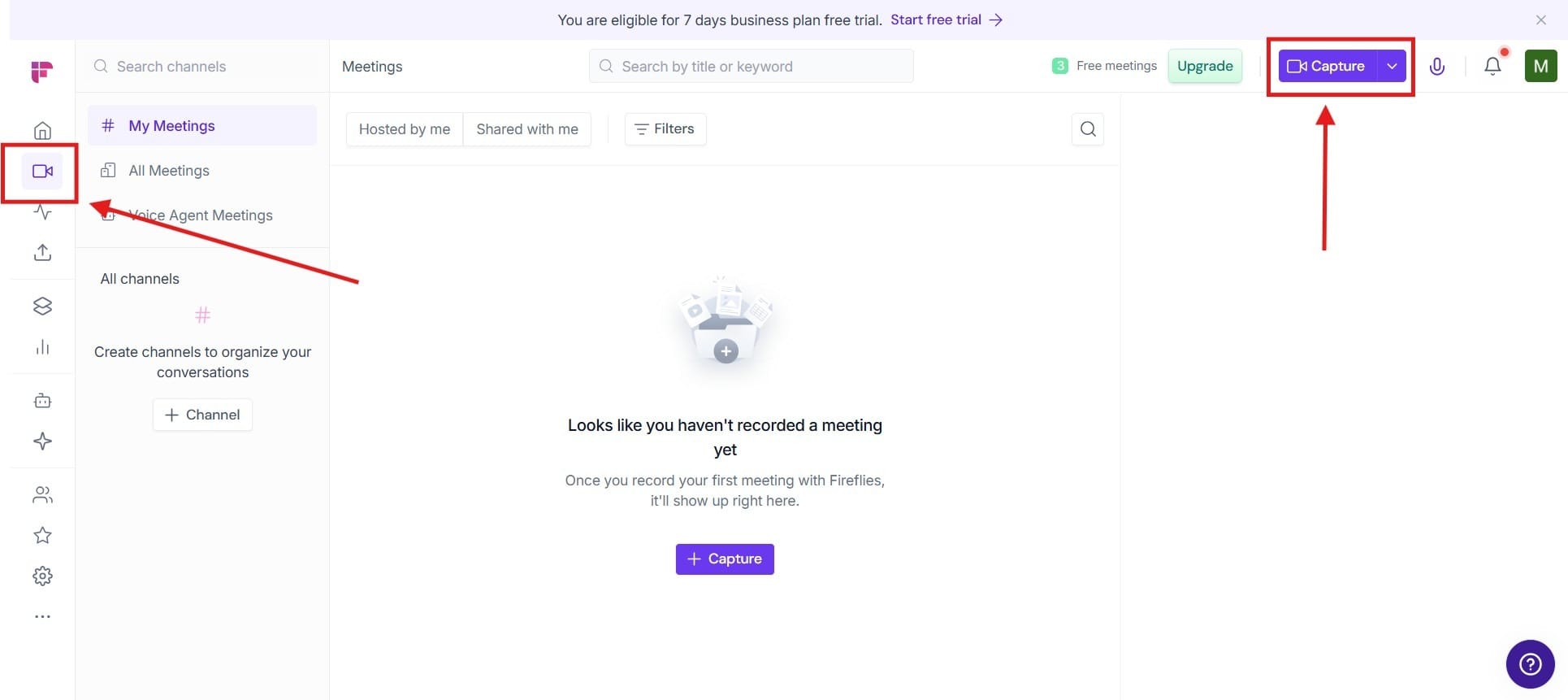
- After you get set up, all you have to do is go to the Meeting section and hit Capture. Doing this will let the AI take transcripts for your meetings so that you don’t need to take notes.
Stage 3: Drafting & Content Creation
Goal: Move from a blank page to a final draft in minutes.
Effective legal drafting requires that you use plain language with an SEO-driven strategy to convert readers into clients. Different AI tools can accelerate the process of drafting marketing materials so that you have the final draft in hand in minutes.
The Problem
- Time is limited and this can make it difficult to look at content creation.
- Inconsistent publishing due to busyness causes momentum to die.
- People burnout because content becomes another obligation rather than a growth asset.
- Content is used once and never used again across other platforms.
The Solution: Automation of Content Creation
Jasper AI: The Expert Legal Writer.
Use Jasper’s high-quality templates to draft the first version of demand letters, case summaries, or legal blog posts for your firm’s website. It helps maintain a professional tone while cutting drafting time by 50%.
How to Use Jasper AI for Blog Posts
- First, you need to go through on the left-hand side and create the settings you want for the Blog Post.
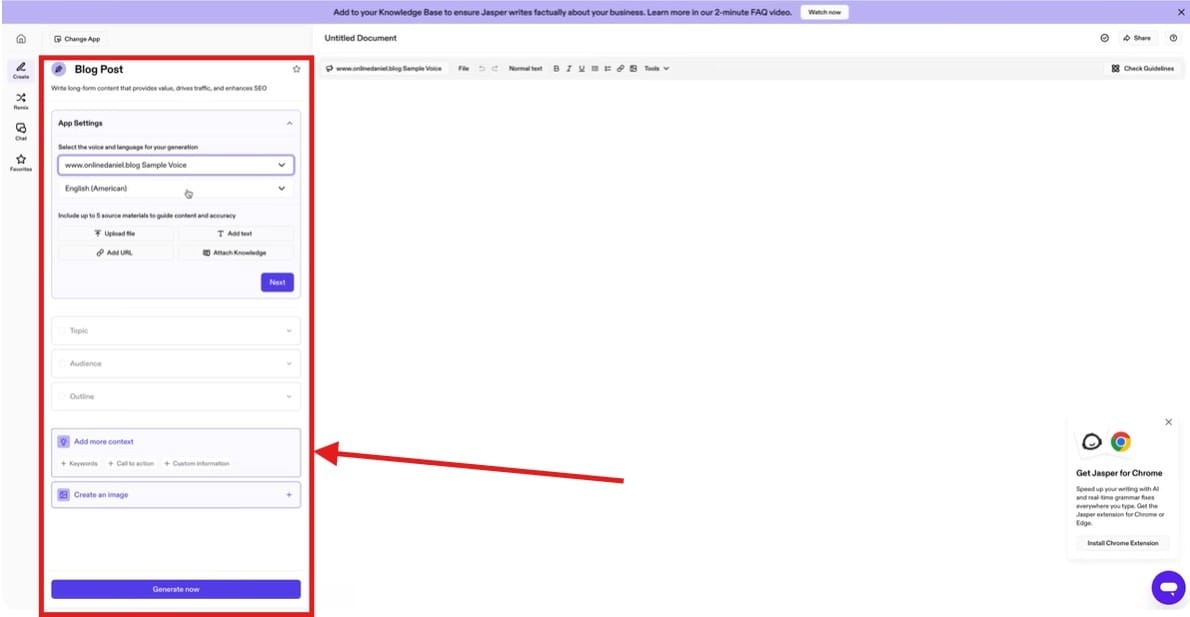
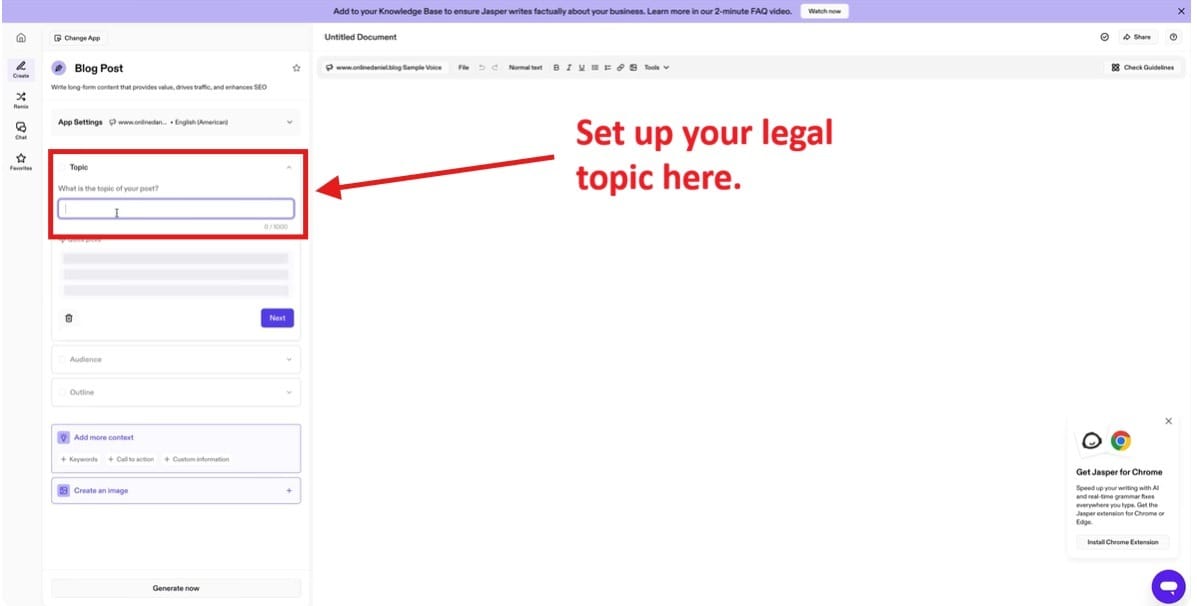
- Next, you need to choose your topic in the empty bar.
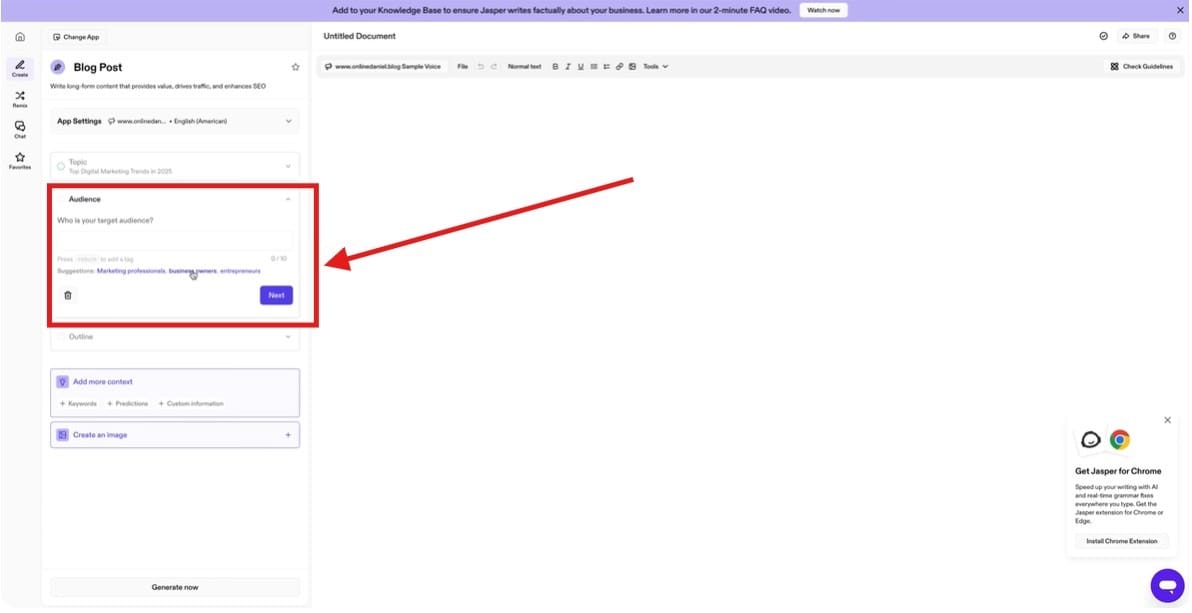
- Next, you need to choose your target audience.
- Finally, you’ll create your outline for the article. You will add in what you want Jasper to write. There are other sections after this, but they’re self explanatory.
![Outline editor for structuring an article.[Button: Check out Jasper AI for Yourself!]](https://storage.ghost.io/c/39/26/3926a146-7e10-4676-83ac-1ed15a6962fb/content/images/2026/04/data-src-image-bf560553-339b-4acc-a7e4-a755785da56e.jpeg)
Notion AI: Your Internal Knowledge Base.
You can use Notion to organize case notes and transform messy transcripts from Fireflies into structured legal memos, research outlines, or task lists for your paralegals and assistants. All of this will help you to be more organized.
How to Organize Case Notes and Transform Messy Transcripts with Notion
- First, you need to go to the Template page of Notion. To get there, use your search bar and type in Template. Then click on the area that shows a template, and hit the bar above that says Template.
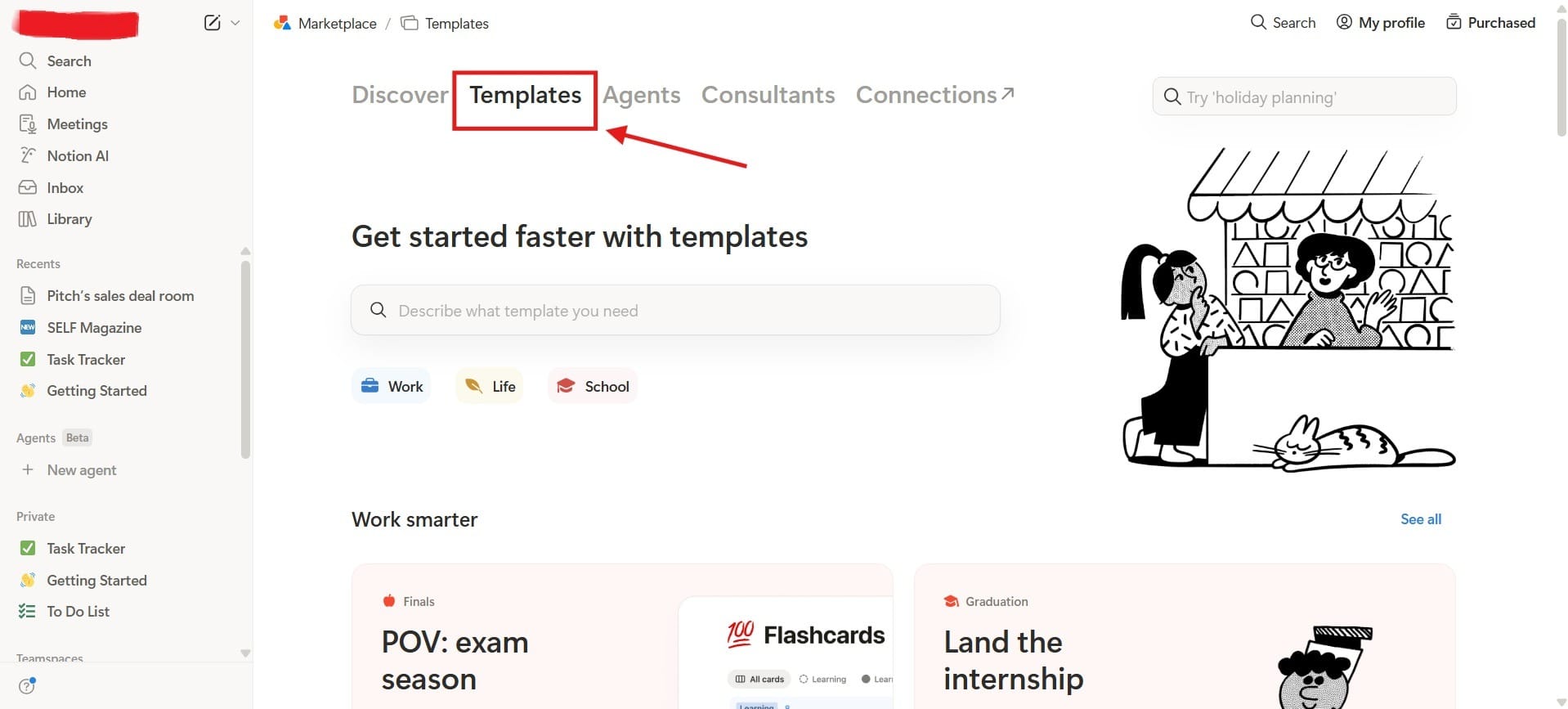
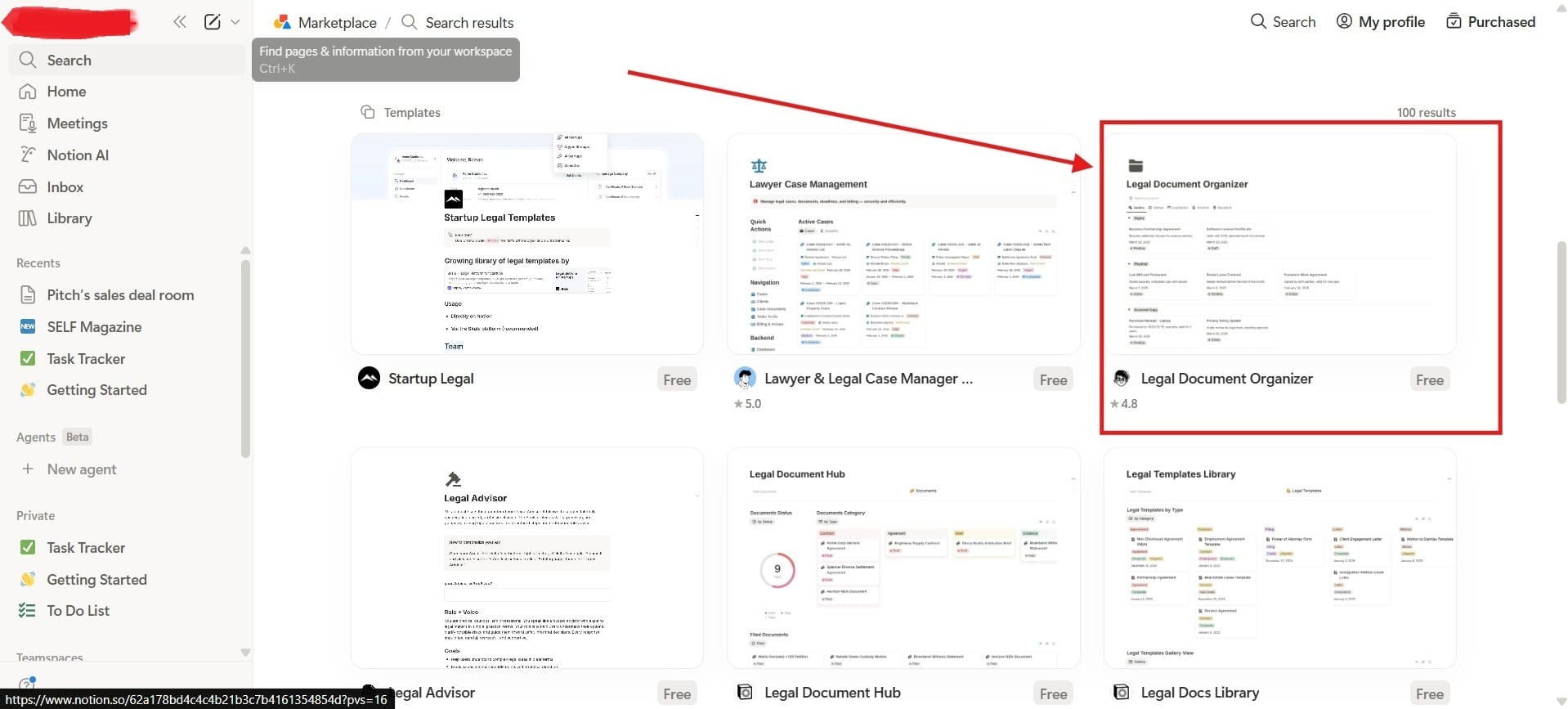
- Under where it says, “Get started faster with templates,” tap the search bar and type in “Legal.”
Stage 4: Workflow & Relationship Management
Goal: Maintain a bird’s-eye view of every case and protect your firm's reputation.
Finally, we will look at the Workflow at your law firm and how to manage your relationships with clients better through the use of AI tools. Because many law firms feel pressed for time, sometimes their relationship with clients will be set on the backburner, and this can come back to bite them later in the reviews.
The Problem
- Slow response times with potential clients go cold before anyone follows up.
- Weak follow-up systems and no reminders or automation to nurture leads or clients.
- Repetitive admin work eats into billable time.
- Inefficient onboarding and new clients aren’t guided smoothly through the process.
The Solution
Pipedrive: Your Visual Command Center.
Instead of complex spreadsheets, use Pipedrive’s drag-and-drop boards to track a case’s journey from Initial Inquiry to Trial/Settlement. It ensures no deadline or document request falls through the cracks.
How to Visualize Case Progress with Pipedrive
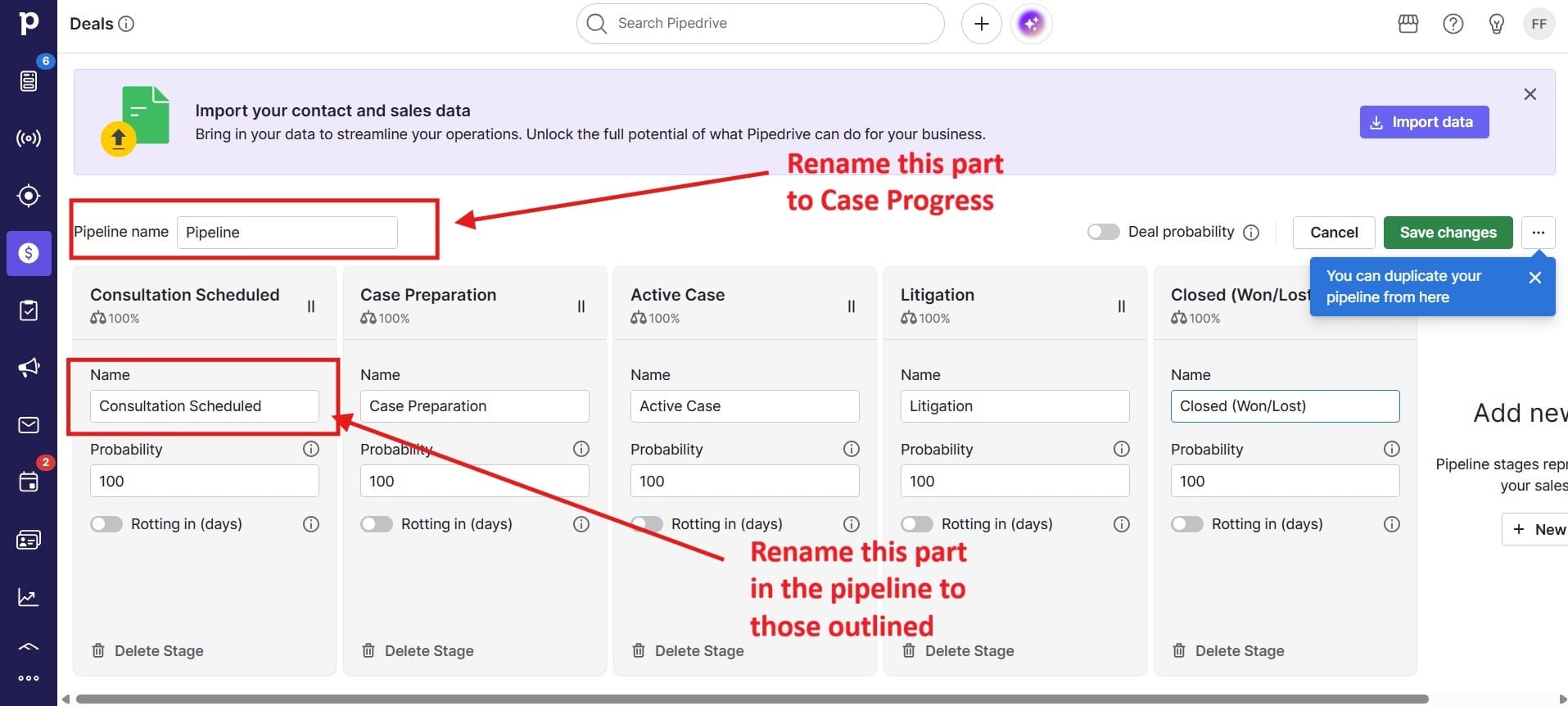
- In Pipedrive, everything revolves around pipelines (kanban-style boards), so you’ll do this in the Deals tab. Instead of sales stages, redefine it to case stages like:
- Qualified → Consultation Scheduled
- Contact Made → Case Preparation
- Demo Scheduled → Active Case
- Proposal Made → Litigation
- Negotiations Started → Closed (Won / Lost)
👉 Each case = a “Deal” in Pipedrive This gives you a visual board of every case and where it stands.
- To make visualization meaningful, add custom fields:
- Case Type (Family, Criminal, Corporate)
- Priority Level (High / Medium / Low)
- Assigned Lawyer
- Court Date
- Case Value / Fees
This matters because you can later filter, sort, and report visually (e.g., “All high-priority cases in litigation stage”), finding a case quickly.
- Use color labels and filters for instant clarity. Through Pipedrive, you can add labels like:
- Urgent
- Waiting on Client
- On Track
One of the cool things this does is it lets you spot bottlenecks instantly. There’s more that you can do with this, but this gives you a general idea.
GoHighLevel (Reputation Management): Your Growth Engine.
Once a case is marked as Closed, GHL can automatically trigger a text or email to the client requesting a Google Review. This builds your firm's online authority without you having to waste time asking for a review manually.
How to Send Review Requests
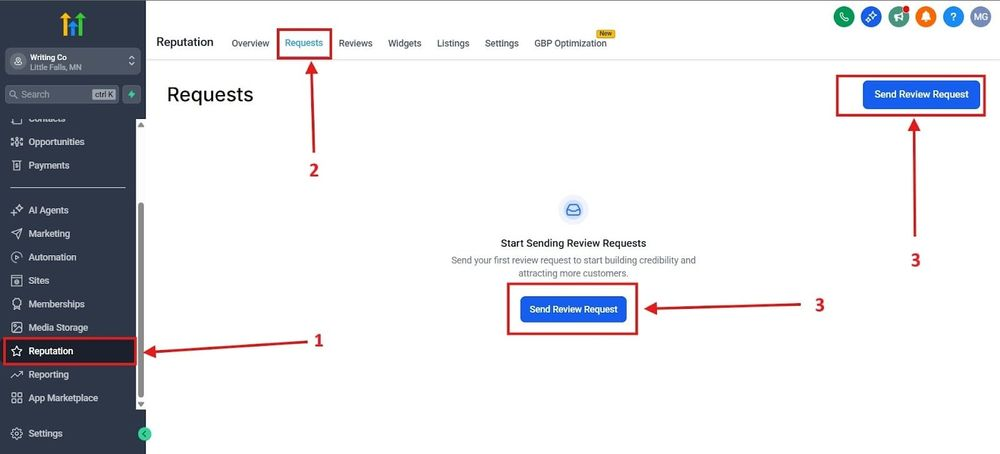
First, go to Reputation on the left hand side. After that, go to requests found in Red Box 2. Once you do that, you can Send Review Request from either of the red boxes highlighted as number 3.
[Button: Check out GHL and SEE for Yourself!]
The Success System
When you combine these AI tools together, they will create a powerful advantage for your law firm:
- Intake
- Primary Tool: GoHighLevel
- Key Benefit: Instant response to new inquiries
- Discovery
- Primary Tool: NotebookLM
- Key Benefit: Fast, cited analysis of case evidence
- Drafting
- Primary Tool: Jasper AI
- Key Benefit: Rapid generation of demand letters and blogs
- Management
- Primary Tool: Pipedrive
- Key Benefit: Visual tracking of case deadlines and status
For those law firms who don’t make use of AI tools, they will be at a disadvantage to the law firms that do use it.
