

For any service-based business, from consultants and coaches to local service providers, appointments are the lifeblood of revenue. Still, the traditional process of setting, confirming, and reminding customers about these appointments is often a big source of friction and financial loss. GHL’s calendar can help you to master your schedule and payments.
Watch this quick walkthrough to enable payment collection in GHL Calendar and reduce booking friction.
The Mechanics of the GHL Calendar
The GHL Calendar is engineered to replace your entire external scheduling stack by offering superior integration across all critical business functions.
1. Unified Calendar Creation and Management
The foundation of the system is flexibility. GHL understands that a single calendar doesn't fit all business needs, so here’s what you get:
- You can create multiple distinct calendar types (e.g., a short 15-Minute Discovery Call, a 60-Minute Paid Strategy Session, or internal Team Support Time) all within the same, centralized interface.
- This functionality features seamless two-way syncing with external calendars like Google and Outlook. If you accept a personal appointment in Google, GHL immediately marks that time as unavailable, ensuring users never face embarrassing or costly double-bookings.
2. Integrated Payment Capture
This is the most powerful feature for businesses that sell high-value services or need commitment. Here’s what it includes:
- The system has the inherent ability to mandate payment (deposits or full fees) directly at the time of booking, turning the calendar into a revenue engine.
- If a service requires payment, the customer is prompted for their credit card information through the integrated Stripe/GHL payment gateway. The customer cannot finalize the booking slot until the payment is processed, eliminating those annoying no-shows.
3. Automated Communication Workflows
The second-biggest cause of no-shows is simple forgetfulness, which GHL eliminates through its multi-channel automation. The Calendar is natively integrated with GHL's robust Workflow Builder (automation engine), allowing you to trigger a sequence of actions based on a booking event. Some of its mechanisms include:
- Confirmation: Immediate email/SMS confirmation upon booking, providing the client with all the needed details and links.
- Reminders: Scheduled reminders (e.g., 24 hours prior, 1 hour prior) sent via the client's preferred channel. SMS has a 98% open rate, making it one of the key channels you want to use.
- Follow-Up: Automatic surveys or re-booking prompts sent after the appointment is complete, ensuring continuous engagement and feedback collection.
4. Team-Based Scheduling and Round Robin
For growing agencies or businesses with multiple staff members handling sales or service delivery, GHL offers sophisticated load balancing. Some of this includes:
- Sophisticated options for managing team availability and ensuring you distribute the workload evenly.
- Allows for "Round Robin" scheduling, which is distributing incoming leads or meetings evenly among all available team members, or you can also do "Weighted Assignment.”
Strategic Benefits: Why Integration Is Vital for Scale
The GHL Calendar’s best value is revealed when you translate its features into tangible business outcomes. Here’s how it can help you with scaling:
1. Eliminate No-Shows and Revenue Loss
The combined power of the platform directly attacks the two main causes of missed appointments:
- Financial Commitment: Upfront payment capture ensures that only serious prospects book high-value time.
- Preventing Forgetfulness: The multi-channel automated reminders ensure the client is gently nudged multiple times.
2. Instantaneous Data Flow and CRM Accuracy
Using separate tools creates data debt, which is the manual effort required to transfer information:
- Because the Calendar is natively integrated with the CRM, every booking instantly creates or updates a contact record, applies a relevant tag, and places the contact into the right automation workflow.
- Doing this eliminates the manual, error-prone transfer of booking data from an external scheduler into the CRM.
3. Creating a Highly Professional and Frictionless Client Experience
How a customer books an appointment reflects directly on your brand professionalism. The things that GHL can help you with include:
- Professional Booking Page: A professional, fully branded booking page that offers the option for payment and provides immediate, multi-channel confirmation signals maturity, organization, and technical competence.
- User Experience: Clients appreciate the convenience of handling everything like scheduling, paying, and receiving reminders through a single and smooth tool.
4. Maximizing Staff Productivity
Any task that can be automated should be. Scheduling is the prime candidate:
- Focus Shift: By automating busywork, staff time is immediately freed from tedious administrative tasks that do not generate revenue.
- Scalability: The team scheduling feature ensures managers can add new staff members and quickly assign them to a Round Robin schedule without complex manual load balancing, making growth simple.
Activating the Automated Assistant Step by Step
Implementing the GHL Calendar system is the fastest way to achieve operational gains. Here is the practical blueprint for activating your Automated Assistant:
Step 1: Connecting Your External Calendar
This is the non-negotiable foundation to prevent double-booking:
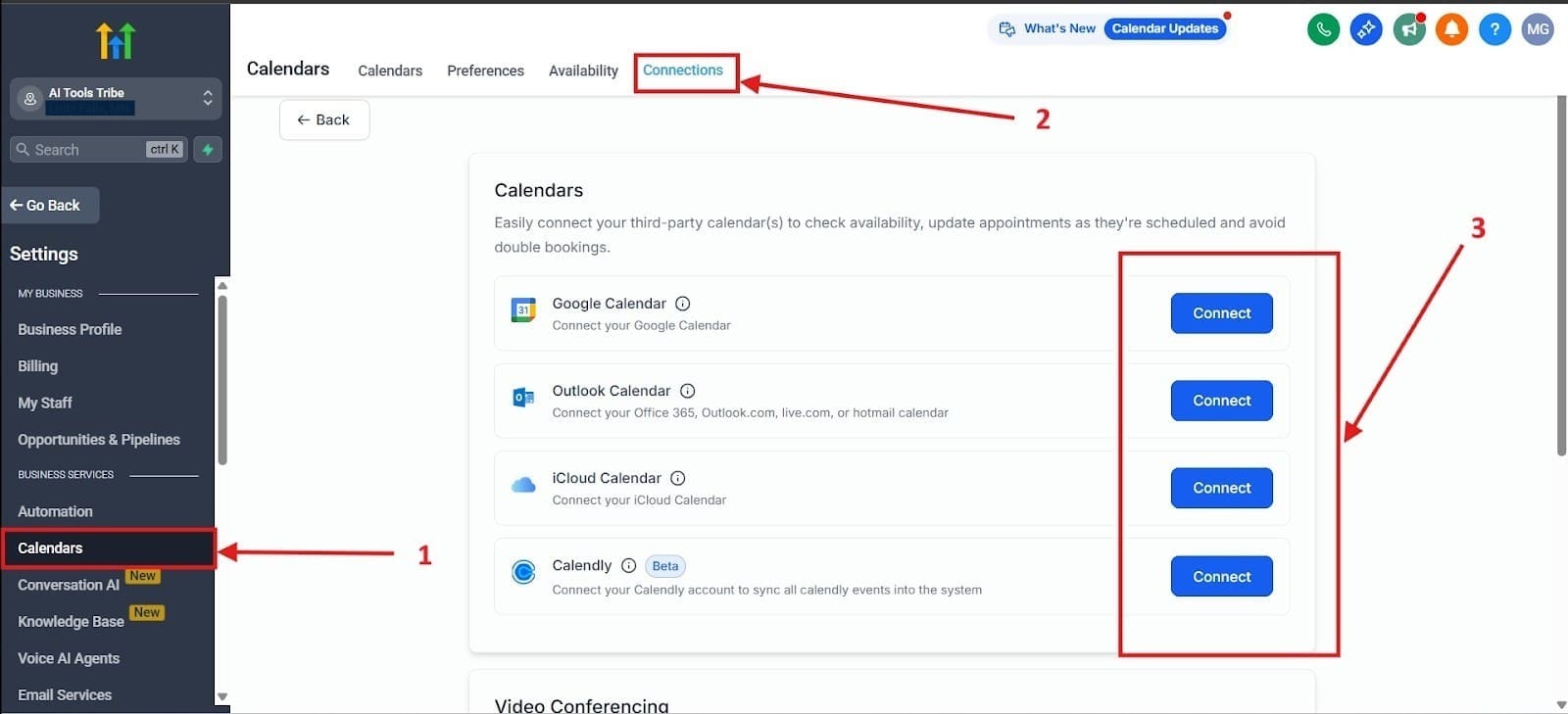
- First, as an admin, navigate to the Calendar Settings of your GHL account. Then go to Connections and Add New. Click the button to connect your Google or Outlook account.
- Expert Tip: Explain how to define "Busy" statuses. You must ensure the sync is two-way and set your GHL availability to respect all events marked as "Busy" in your external calendar. This is the ultimate guardrail against scheduling conflict.
First, go to Calendars highlighted in red as number one. Second, go to the Connections section at the top, highlighted as number 2. Finally, connect the calendars you want in the area highlighted as number 3.
Step 2: Designing Your Calendar Type and Availability
Each calendar should be custom-tailored for its intended purpose:
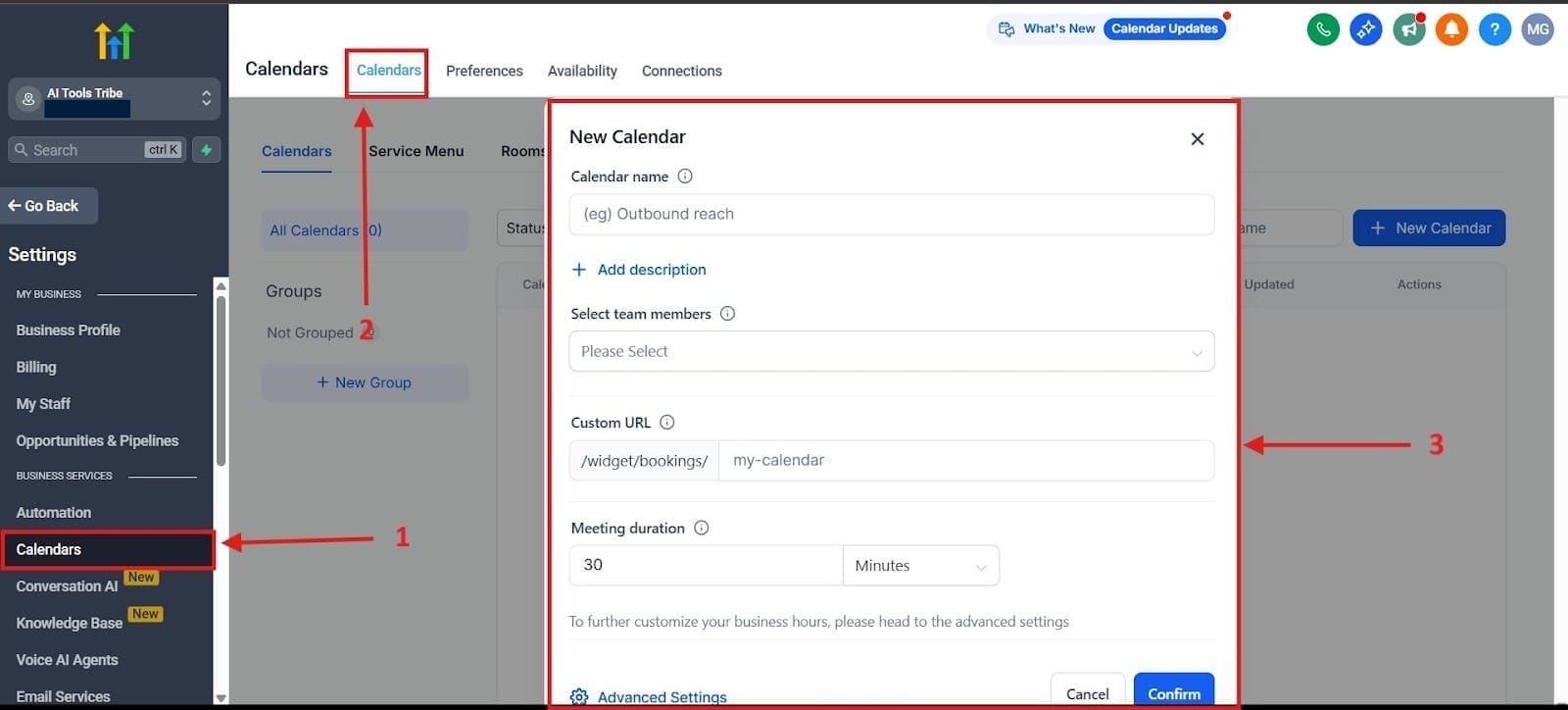
- Action: Go to the main Calendars section and click Create Calendar. Select the type (Simple for one person, Round Robin for a team).
- Setup: Carefully set the meeting duration (e.g., 30 minutes), the hours of availability, and, critically, the Padding Between Appointments rule (e.g., 15 minutes).
To get to the section where you create a calendar, first go to the section I highlighted on the lefthand side as number 1. Next, go to the section highlighted in red as number 2 for Calendars. Next, you’ll see the interface for creating a calendar, which includes things like Calendar name, team members, custom URL, and meeting duration, highlighted in red as number 3.
Step 3: Integrating Payment Requirements
If your service has value, capture it upfront:
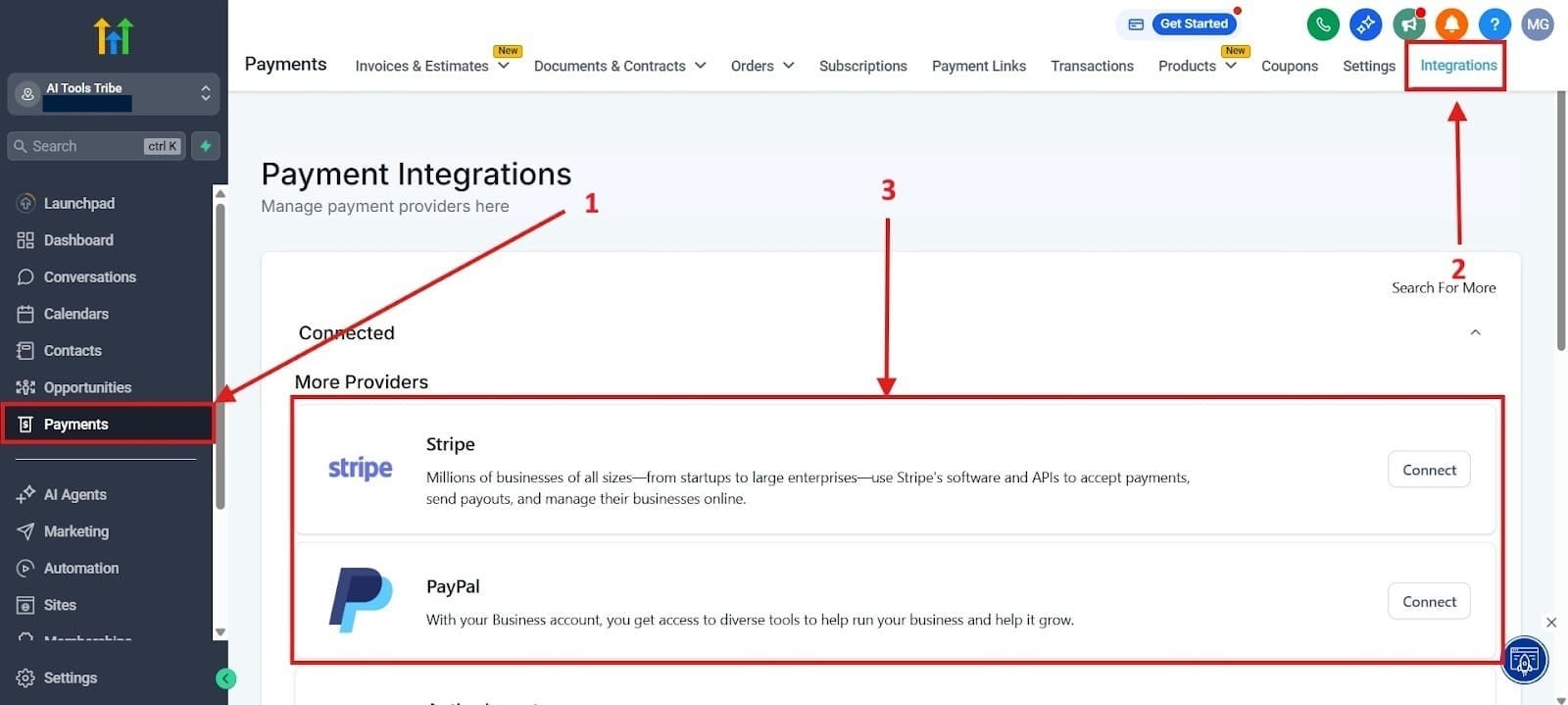
- Action: To do this one, first you’ll need to go to Payments and then Integrations. After that, you’ll need to turn on and set the required fee and deposit amount.
- Prerequisite: Note that GHL must already be integrated with a payment gateway (like Stripe) for this feature to function.
First, navigate to the Payments tab on the lefthand menu highlighted as number 1. After you click on that, click on the Integrations tab at the top highlighted as number 2. Finally, integrate with the payment methods that you would like to connect with like Stripe or PayPal.
Step 4: Building the "No-Show Killer" Communication Workflow
The secret sauce is setting up a sequence of automated nudges:
- Action: Go to "Automation" -> "Workflows." Create a new workflow using the "Customer Booked Appointment" trigger, specifically targeting the calendar you just created.
- Logic: Detail the sequence of steps that will run automatically:
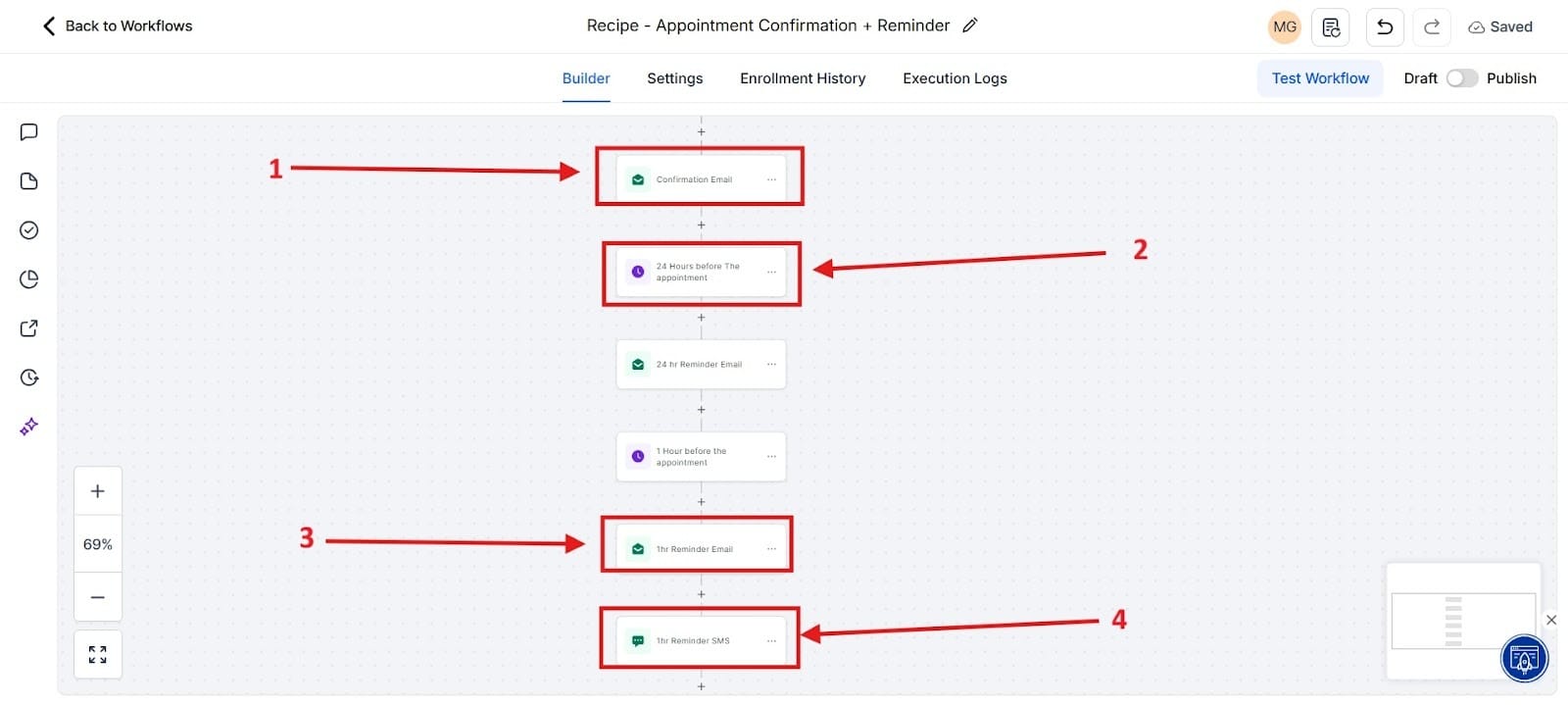
- Send Confirmation Email (Immediate)
- Wait 1 Day
- Send SMS Reminder
- Wait 1 Hour
- Send Final SMS/Email ReminderThis multi-touch sequence is the strongest defense against forgetfulness and guarantees attendance.
First, you have the confirmation email in the workflow. This is sent 24 hours before your appointment, highlighted in red as number 2. For number 3, it sends a 1 hour reminder email, highlighted in red as number 3, and then as number 4, it sends a 1 hour reminder SMS. The SMS is critical because it has a much higher open rate.
Step 5: Sharing and Embedding the Calendar
The final step is making your new Automated Assistant accessible to your customers.
- Action: Once the calendar is fully configured and the workflow is active, obtain the sharing link from the Calendar settings. Advise on the two most effective deployment methods:
- Direct Link: Use this in email signatures, direct messaging, and social media calls-to-action (e.g., "Book Your Strategy Session Here").
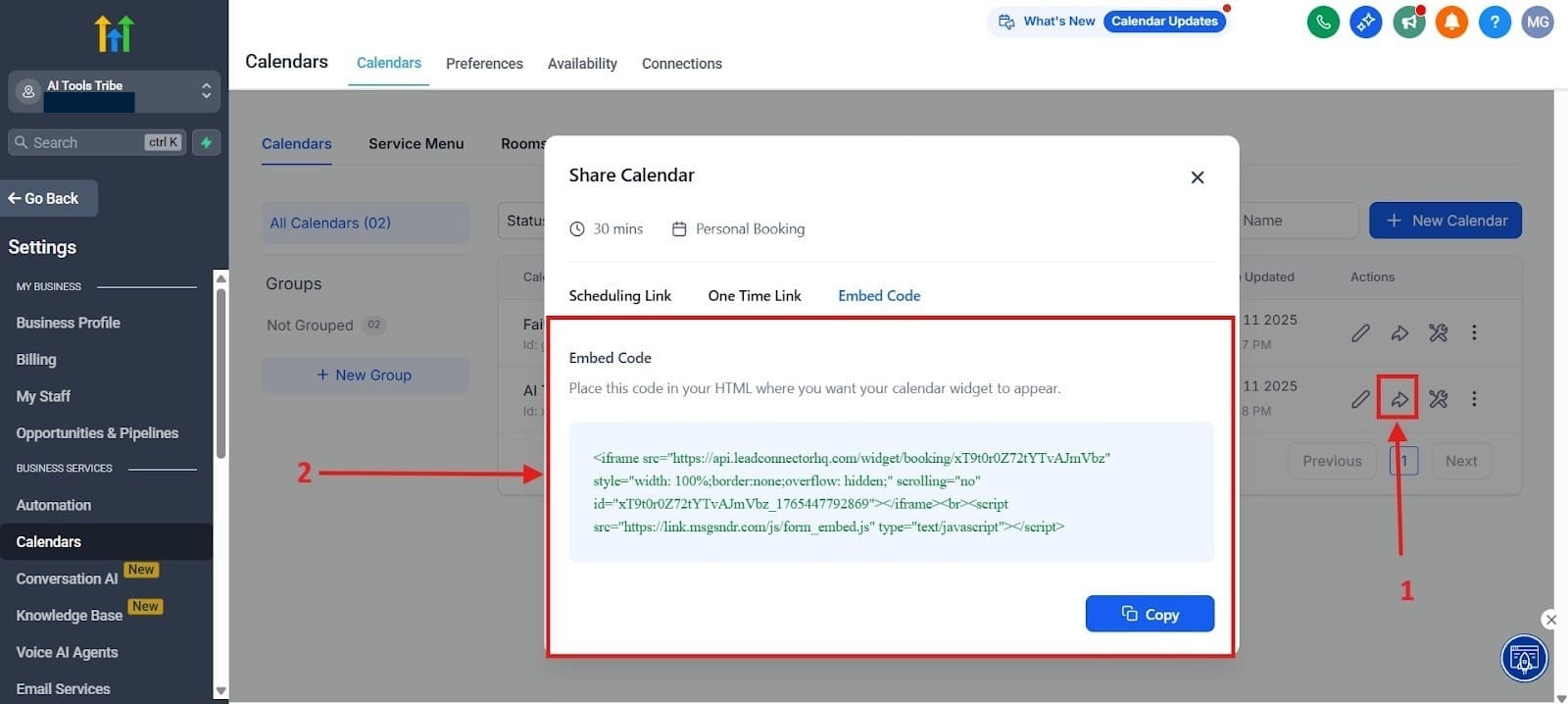
- Embedding: Use the GHL provided embedding code to place the calendar cleanly onto a business website or landing page, offering a seamless user experience.
First, click on the icon that I highlighted in red as number one. Doing this lets you share your calendar. Next, you will want to go to Embed Code and highlighted as number 2 is what you’ll want to copy and share with your customers.
Final Thoughts
The GHL Calendar is fundamentally designed to put your business operations on autopilot. It transforms the often-chaotic and administratively heavy process of scheduling and payment into a professional, automated system that runs accurately and reliably.
It's not just a scheduler; it’s the core of a powerful, automated sales and service delivery process that enhances every stage of the customer journey.
