

Tools like ChatGPT help streamline patient communication and treatment explanations, while NotebookLM makes it easy to organize and retrieve patient records. Platforms like Birdeye help you build a reputation by automatically requesting reviews. Meanwhile, Marketing Cloud helps you build your practice with customer outreach, and Invideo generates videos for your social media marketing efforts.
Together, these tools allow dentists to save time, improve patient understanding, and run a more streamlined, scalable practice.
When you run a dental practice, your day fills up fast. You’re balancing patient care, managing appointments, handling records, coordinating with staff, creating treatment plans, and keeping up with marketing and patient communication.
You can use AI to streamline operations and make the patient experience better. Think of AI as your behind-the-scenes assistant, helping you communicate with patients, document treatments, manage your workflow, and even grow your practice.
I put together this list of the five most valuable AI tools for real-world use cases to help dentists save time, improve patient outcomes, and scale their practice.
Stage 1: Instant Dental Assistant (Appointment Booking Chatbot)
Tool: ChatGPT
Faster Patient Communication and Case Preparation
One of the most adaptable tools for a wide variety of situations for dentists, ChatGPT can dramatically reduce the time spent on patient communication and administrative writing. While you should always verify clinical accuracy, it can help you move much faster. You can focus your time on the most important tasks at your dental clinic with less focus on customer communication.
ChatGPT can draft patient emails, explain procedures in simple terms, create post-op instructions, generate treatment plan explanations, and even help with clinical documentation.
Step-by-Step Guide
First, I’d like to show you how to create an AI dental assistant through ChatGPT to help with scheduling appointments and customer service. In fact, it’s quite simple to do, but the one thing to remember with this is that you will need at least a ChatGPT Plus subscription to be able to do it. Let’s look at the steps:
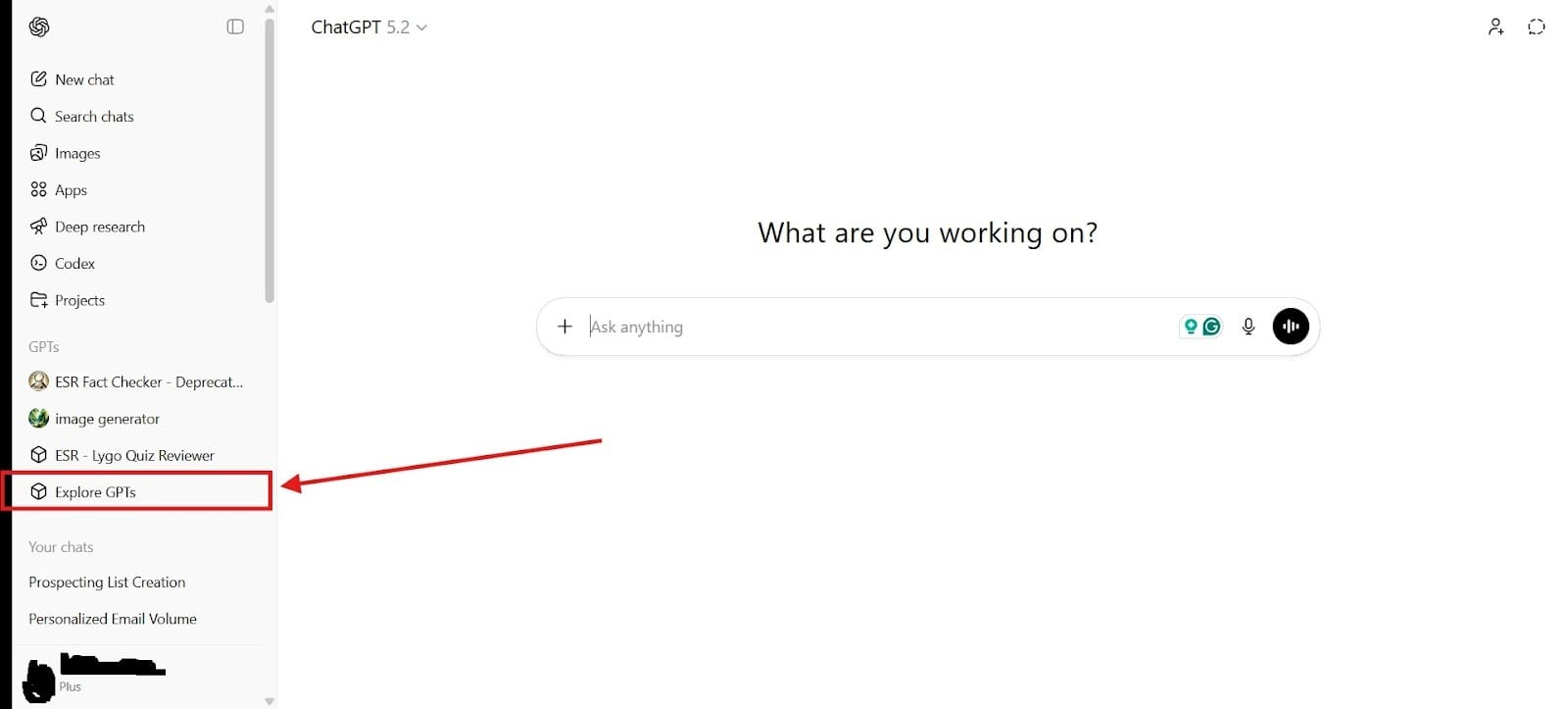
- First, you need to go to the area that says, “Explore GPTs.” This can be found to the left of the screen. I highlighted it in the Red Box.
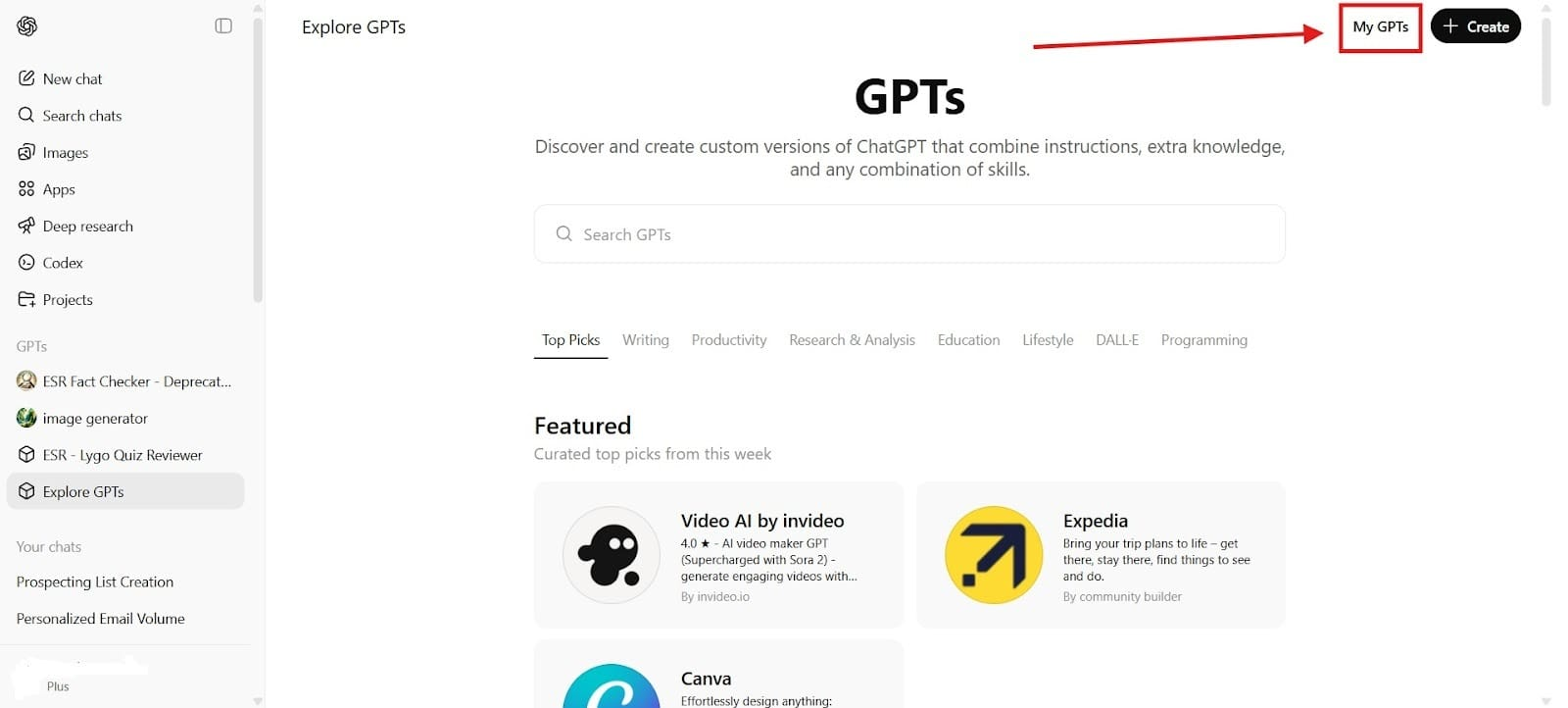
- Next, you will need to go to the top right-hand corner and click on the section that says, “My GPTs.” Doing this will allow you to create your own AI assistant for your dental clinic.
- For the third step, you need to prompt the AI. You might use a prompt like this to create your dental clinic AI assistant, “You are my AI dental assistant helping to communicate with customers. I want you to respond to customers and follow-up with them.”
- Next, you need to give a name to the AI dental assistant. This is often an opportunity for branding. You might add your brand name at the front of the assistant name like “[Brand Name] AI Dental Assistant.”
- Finally, you will create your own assistant. Then you simply share it on your website to use at your dental clinic.
Practical Uses:
Using an AI assistant from ChatGPT would have many uses, but some of the many things that you might use it for include:
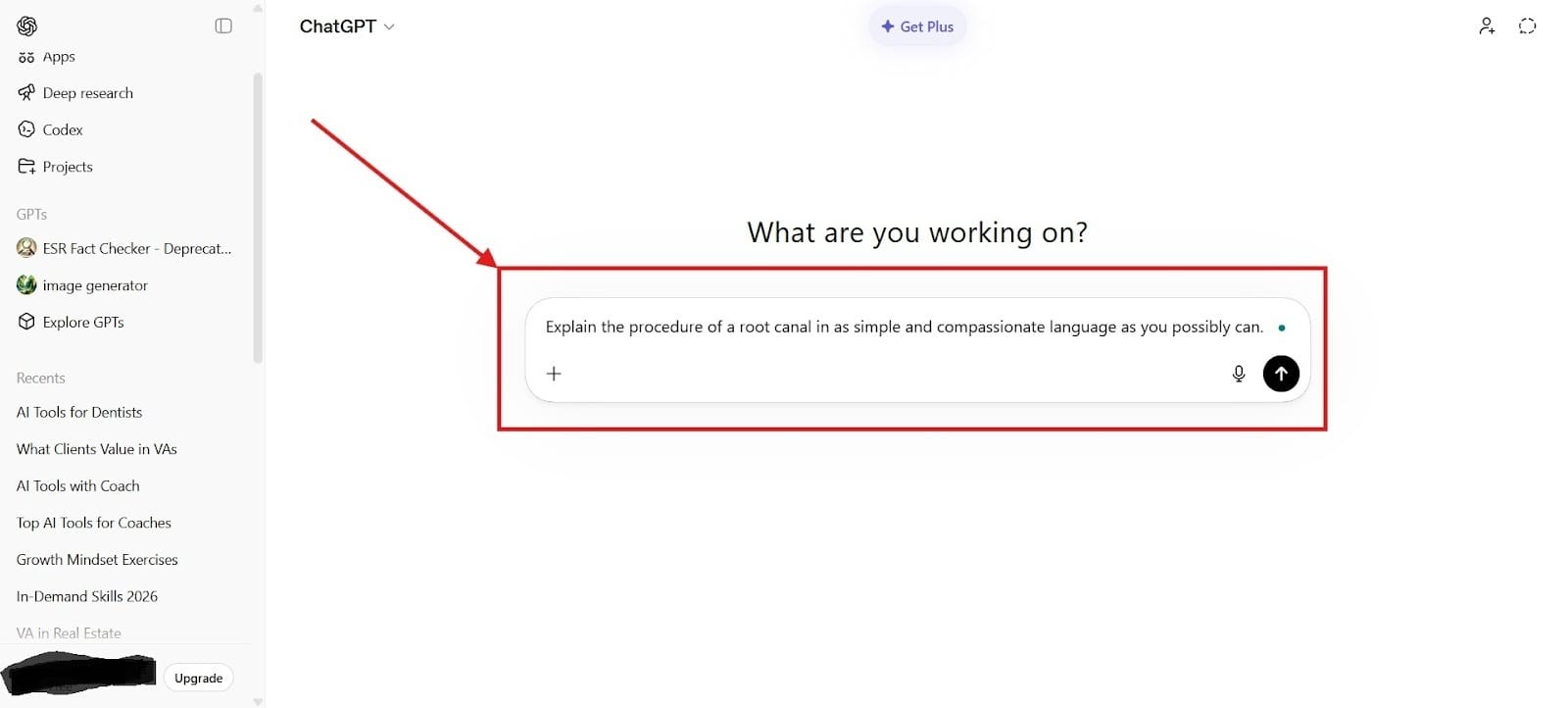
- You could use it to explain a root canal in simple terms for a nervous patient to put them at ease. Many dentists struggle with this, such as putting things into simple language. The image below shows an example of how you might do this.
- Provide 24-hour accessibility to answer questions and increase the amount of engagement.
- Create a draft for a treatment plan explanation for dental implants (with oversight from the dentist). You can do this basically with the same type of prompt as shown in the previous image except you create a draft for a treatment plan and tweak it according to your preferences.
- Draft follow-up email messages after dental appointments to save time on messages.
- You can now use the AI chatbot from ChatGPT to send reminders about dental appointments. This will also reduce the number of no-shows by anywhere from 30 to 80%. You can also use it to book appointments through the feature called ChatGPT tasks.
Stage 2: Searchable Patient Records (Clinical Documentation & Insights)
Tool: NotebookLM
Smarter Record-Keeping and Case Review
NotebookLM allows you to store and analyze patient notes, treatment histories, and documentation in one place. Imagine instantly recalling what happened in a patient visit three months ago without digging through files. Also, because the AI only uses the information contained inside of the software that you put in, you have a lower risk of hallucinations.
Core Uses:
Keep searchable records:Upload patient notes, case studies, and documents. Ask questions like:
- “What treatments has this patient received?”
- “Summarize this patient’s history.”
- "What was the diagnosis for [PatientID P001] on their last visit in 2023?"
- "What are the missing records or gaps in documentation for PatientID P002?"
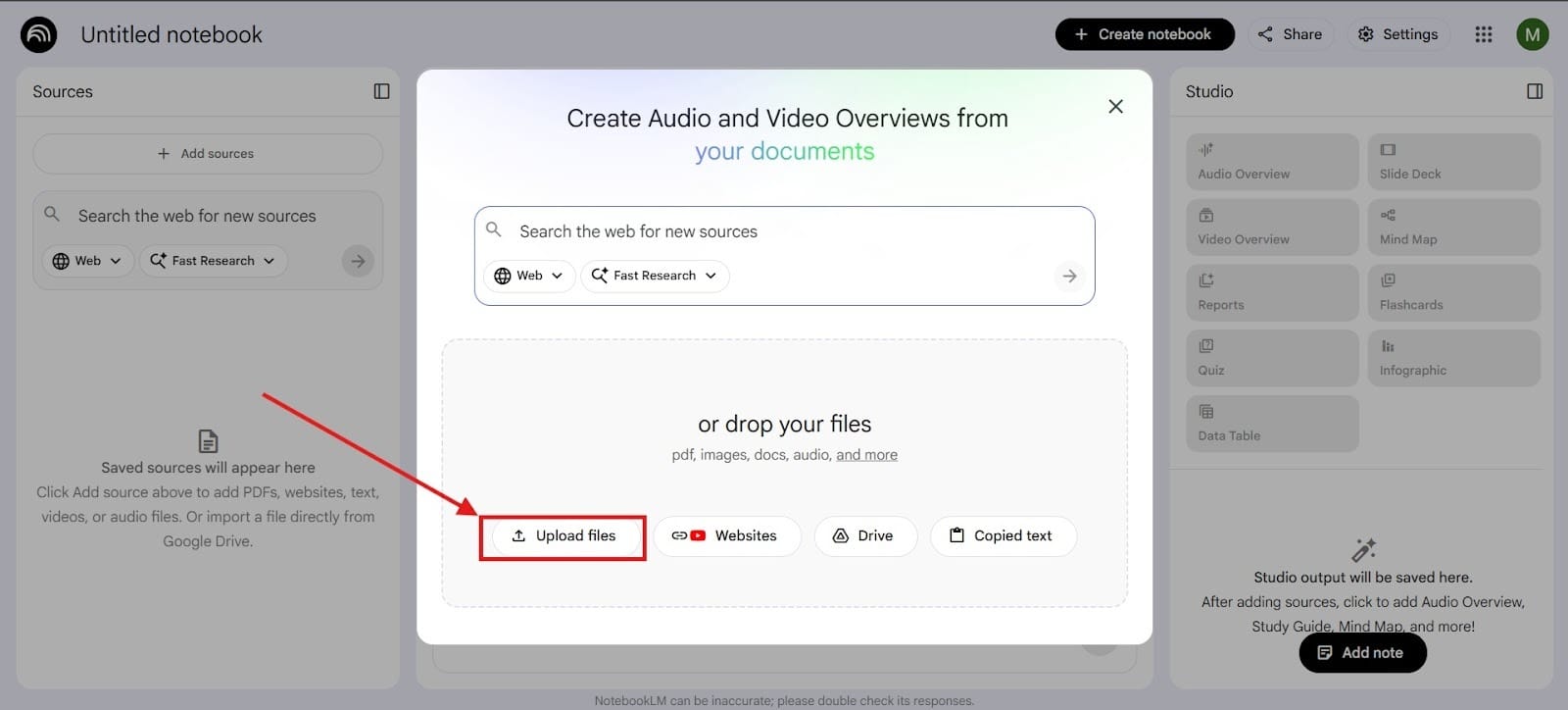
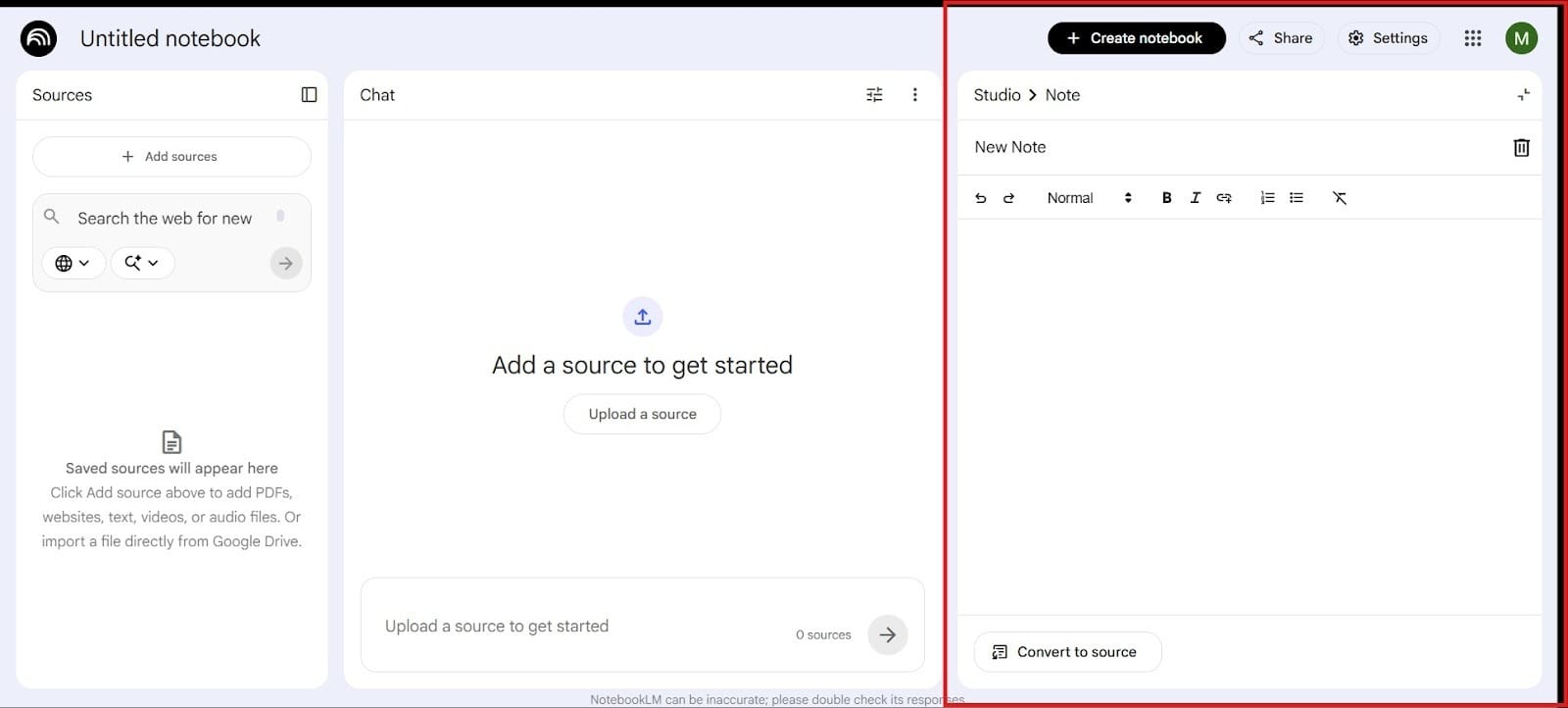
You can see how you would upload a patient note, record, study, or document in the two images below. First, either go to Red Box 1 to Upload a Source, or go to Red Box 2 to Add Note.
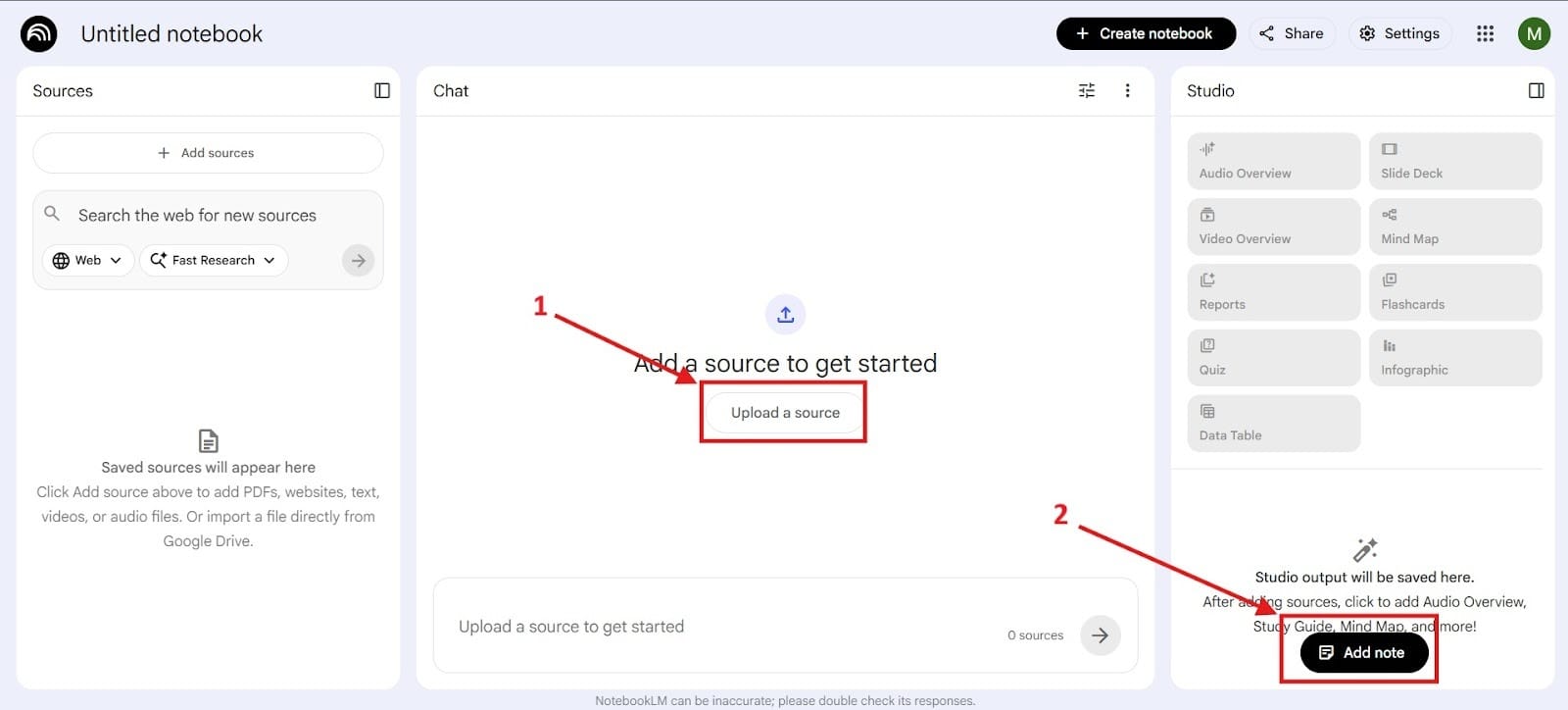
After you go to the area that says Upload a Source, found in the center. Click on the area that I highlighted in the Red Box to upload what you want to upload.
If you click on the area that says, “Add Note” this is what it will look like, and you can add the note that you would like the most. You can see what it looks like in NotebookLM in the Red Box below.
Clinical research support: Upload dental journals, treatment protocols, or case notes. NotebookLM synthesizes insights while staying grounded in your uploaded sources.
Return to past cases: Quickly revisit similar cases and reuse successful treatment approaches. For example, because you can turn this into a record-keeping system, you can go back and examine other patient records. While you can use it as a powerful tool, one thing to remember is that this is not a HIPAA-compliant or secure medical record system, so do not store protect health information.
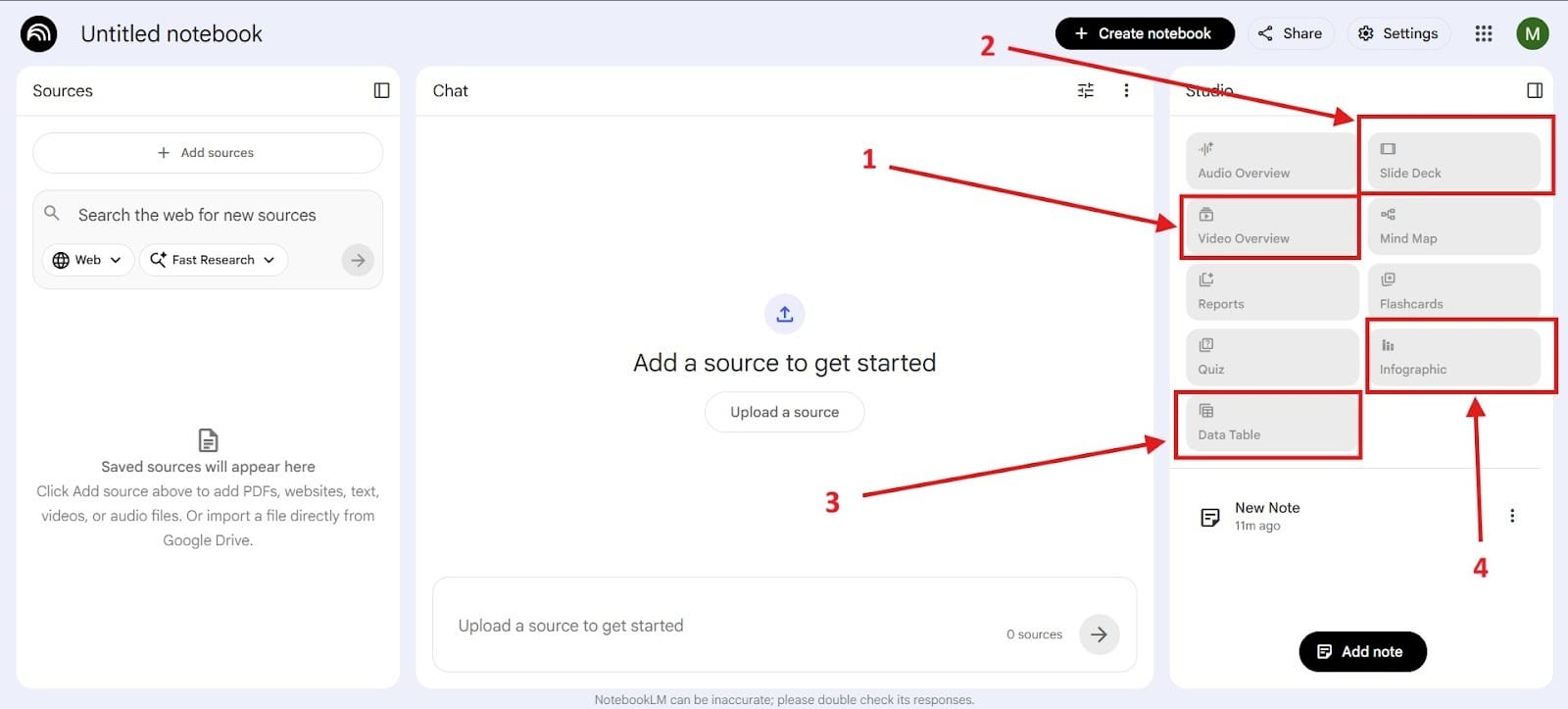
Turn documents into visual summaries: Generate simple visual overviews for patient education or internal training. One of the biggest advantages here is speed, and what used to take hours of reviewing can now take seconds. I highlighted all the areas useful for visual summaries (they’re in no special order) as Red Box 1, Red Box 2, Red Box 3, and Red Box 4.
Stage 3: Review Generator & Reputation Management (Customer Experience and Reputation)
Tool: Birdeye
Managing Your Reputation Management and Reviews
Over 150,000 online businesses trust Birdeye to help with reputation management with handling reviews, listings, and customer communication. One of the advantages of using this for your dental practice is that everything gets communicated from a single dashboard. Where Birdeye excels is in automating review generation.
Getting Set Up:
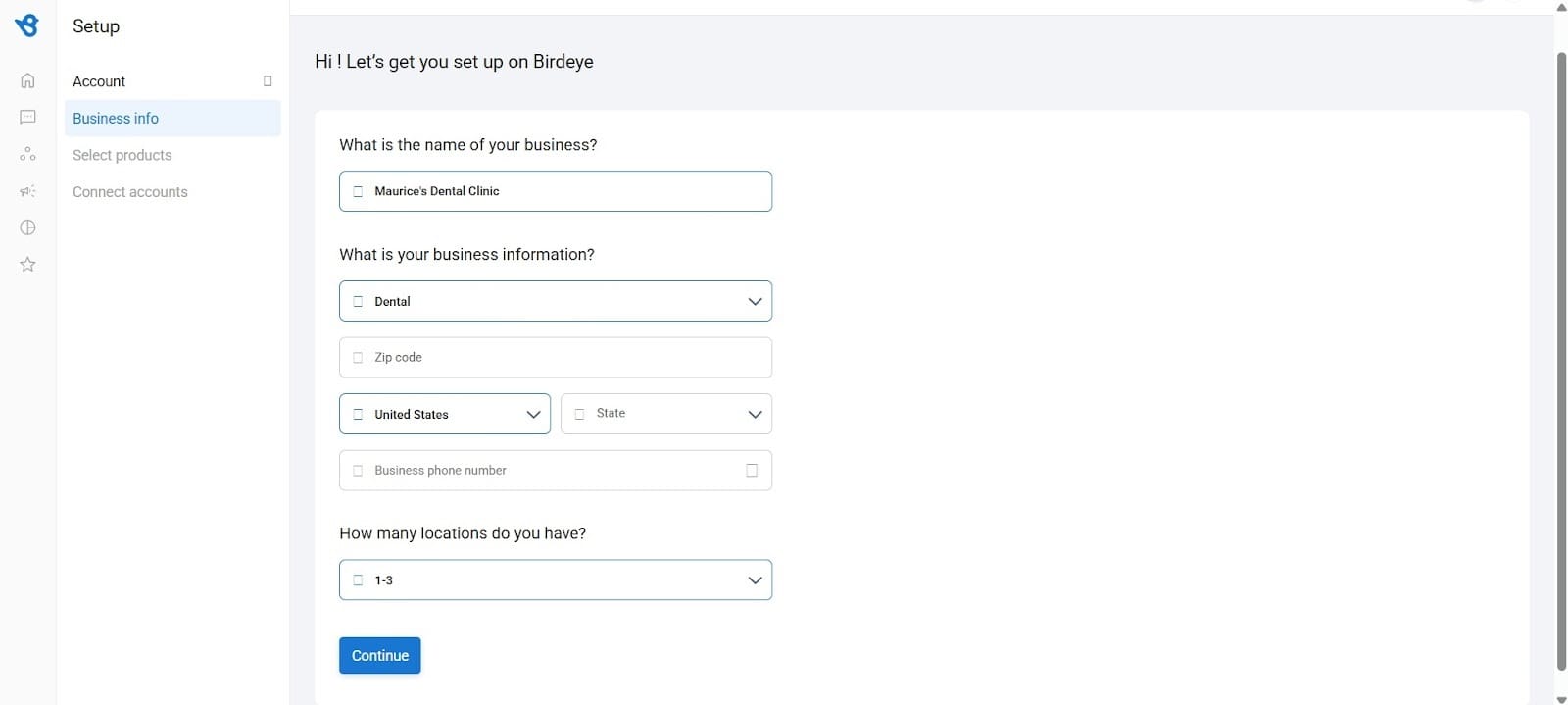
- First, you need to fill out the information for your dental clinic. I highlighted what the form looks like. It’s not hard to find because it’s one of the first things you see.
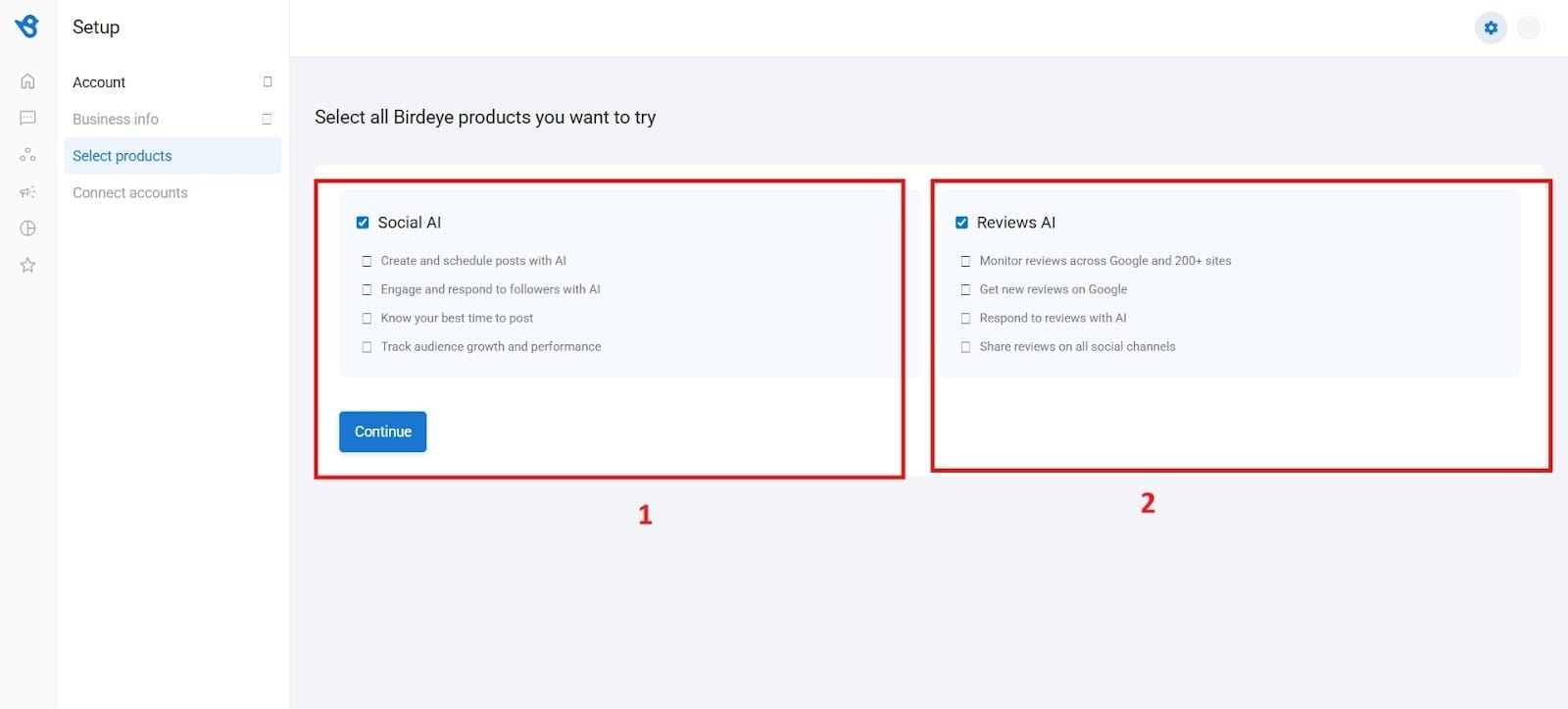
- Next, it will take you to a screen where you select all the products that you would like to try. You have two choices with Social AI and Reviews AI, highlighted as Red Box 1 and Red Box 2.
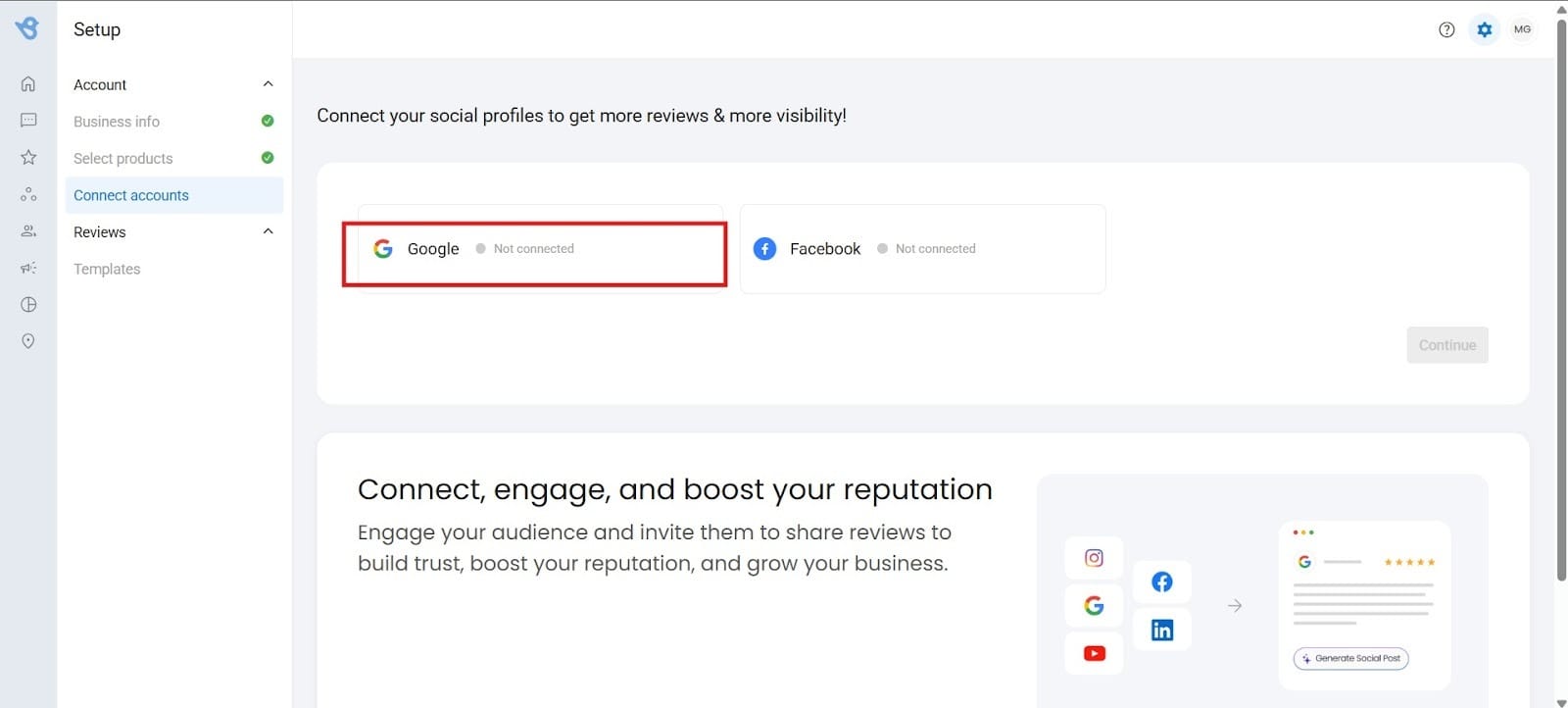
- After you click the continue button, it will set up your dashboard. You’ll need to sign in with your email, which will show you this dashboard. You’ll need to connect your account.
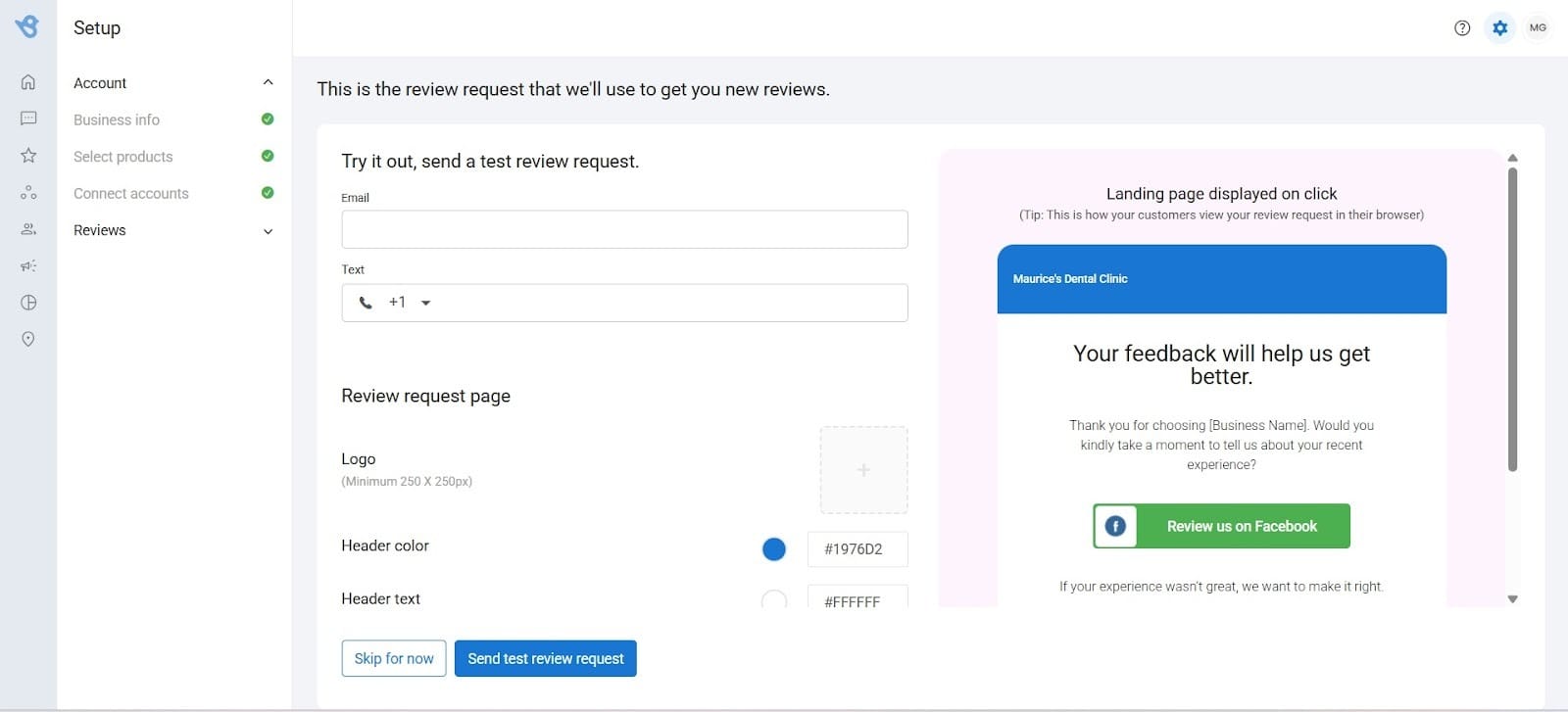
- Finally, this is the section where you can send out requests for reviews to get new reviews for your dental practice.
Core Features:
- Request reviews from clients with request emails.
- Respond to reviews with AI-powered responses.
- Share reviews on your website.
- Create stunning AI email templates
Stage 4: AI CRM Solution (Prospect Outreach)
Tool: Marketing Cloud by Salesforce
Create Smarter Marketing Campaigns
Operating through Einstein AI and Agentforce agents, the AI found on Marketing Cloud makes it easier to personalize your customer journey, generate content, and predict engagement behavior. Using this software, you can do things like generate content and predict engagement behavior. Optimize your send times, and deliver on a targeted one-on-one experience.
Step-by-Step: How to Send Emails
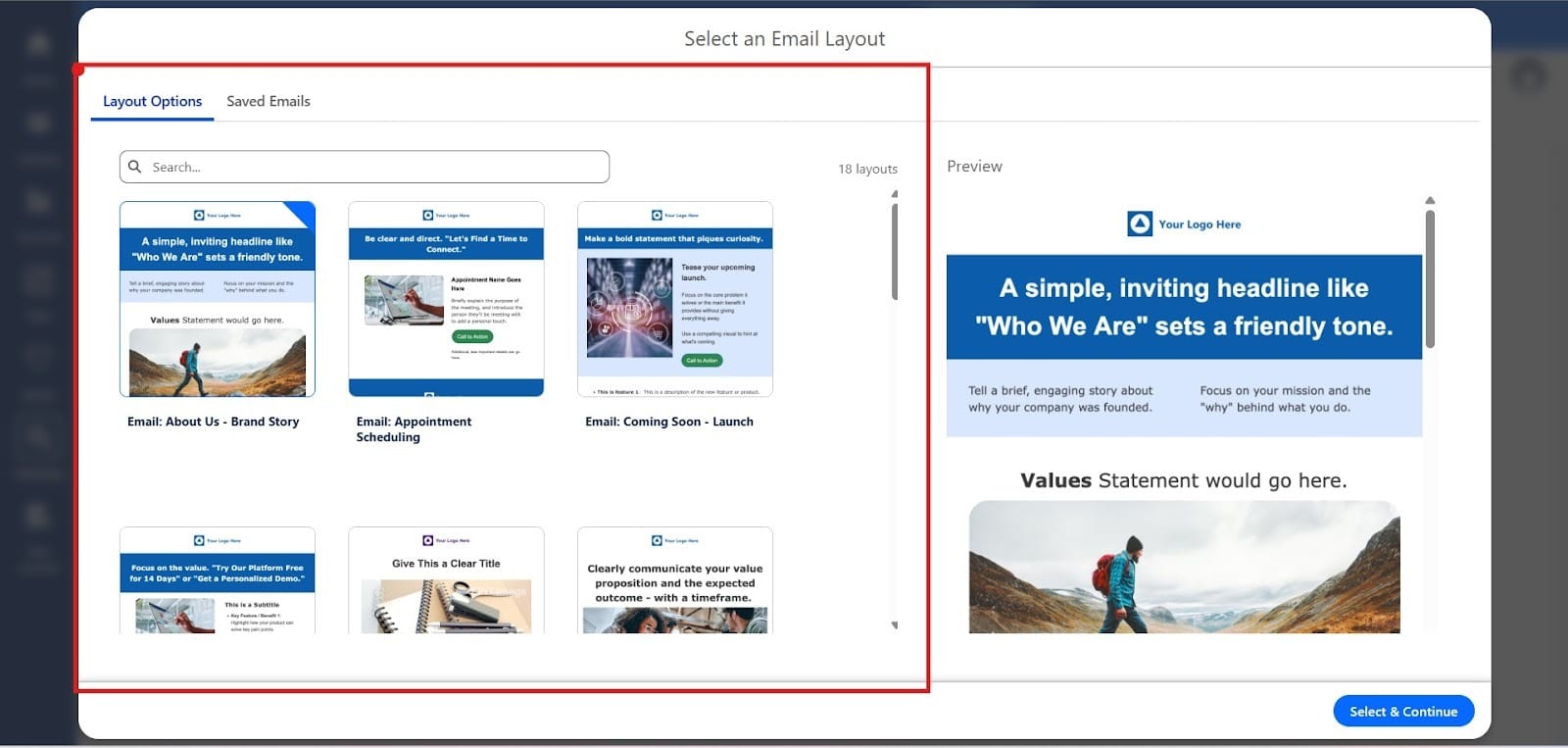
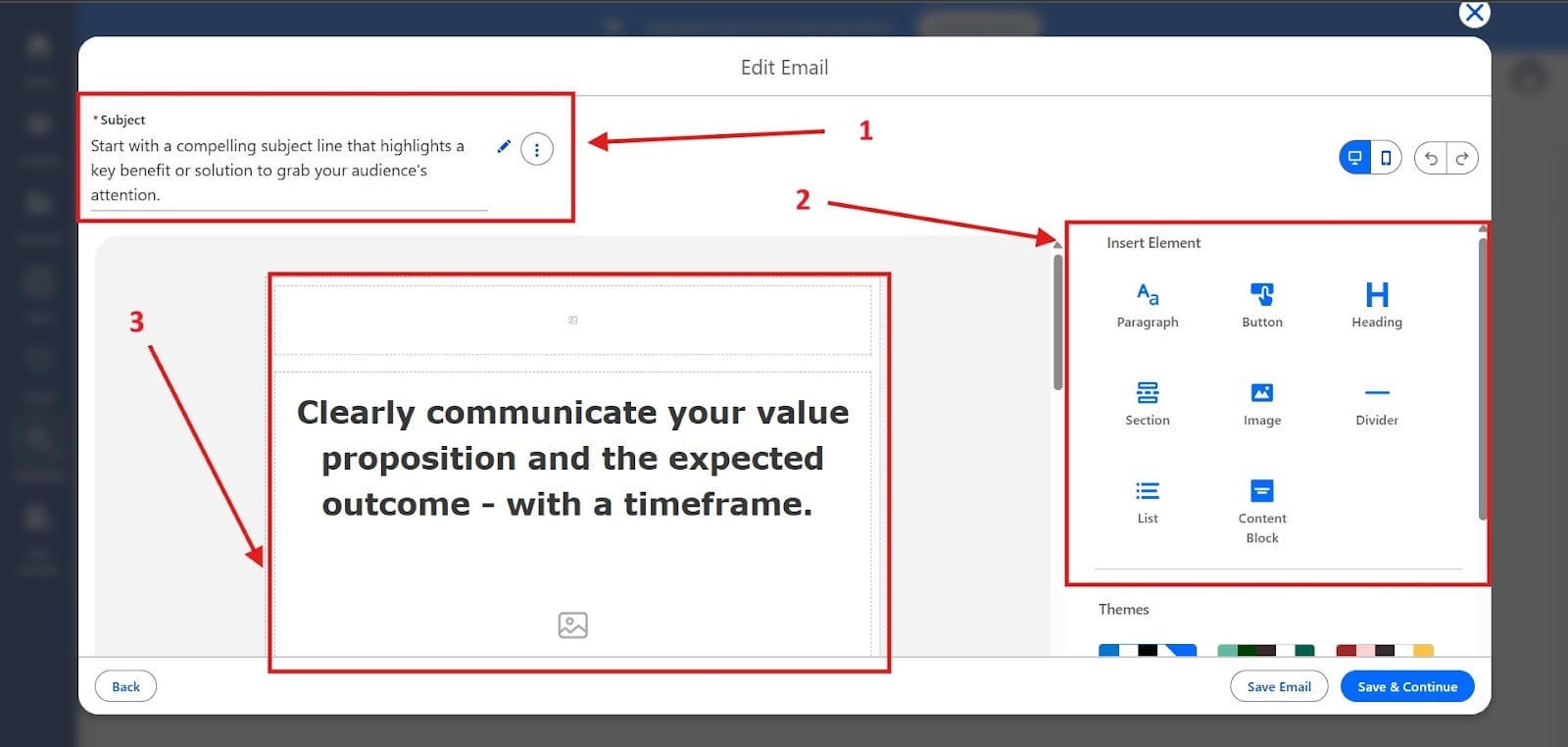
First, you need to choose an email layout highlighted in the image below in the Red Box.
- Next, you will need to choose a compelling subject line for your email, highlighted as Red Box 1. Next, you will need to choose the elements you want to add to your email by dragging and dropping the elements that you want, highlighted as Red Box 2. Finally, highlighted as Red Box 3, this is the actual body of the email.
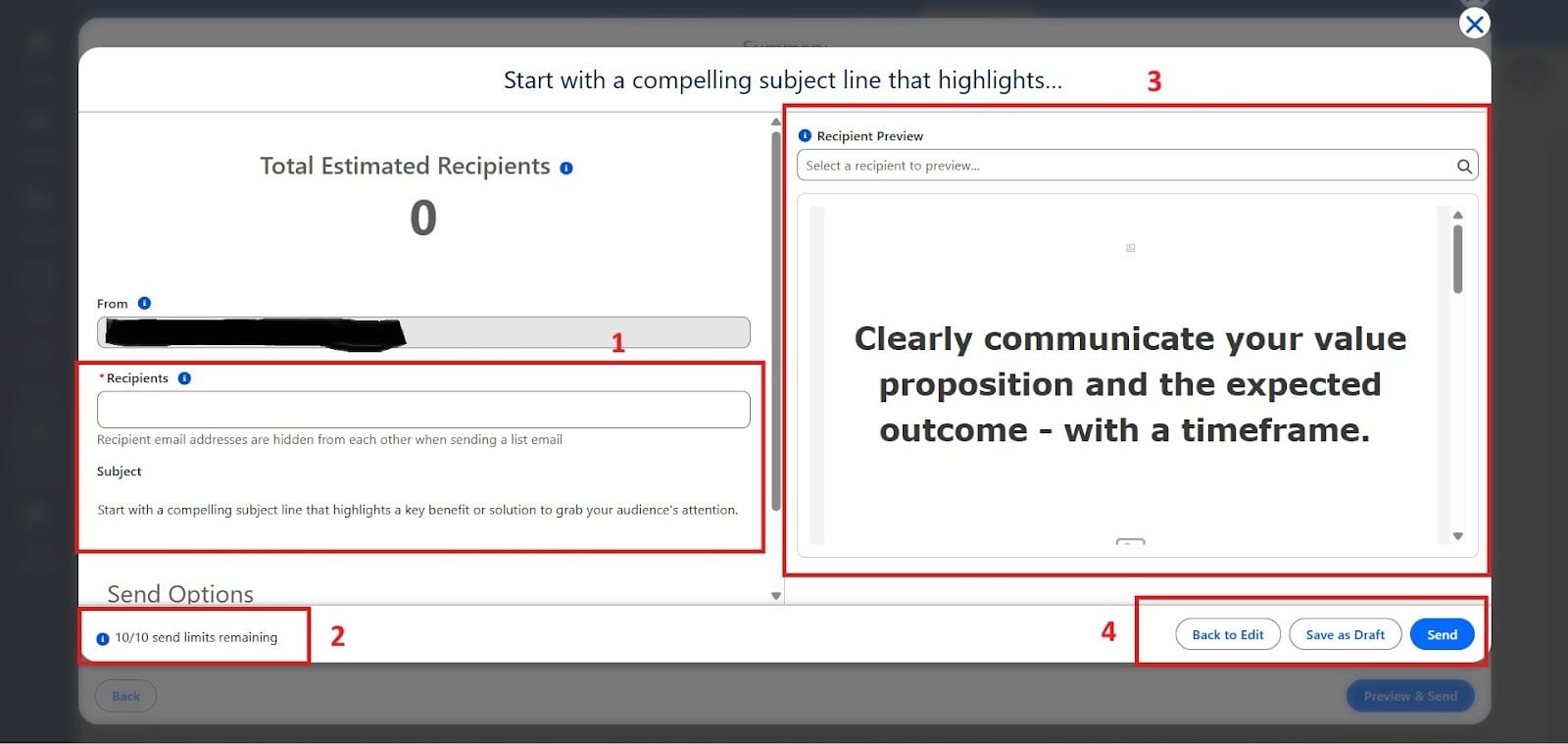
- Finally, it will take you to a screen where you send it out to your recipients. Red Box 1 is where you add your patient emails that you want to target. In Red Box 2, I highlighted this section to show the limits. Red Box 3 shows you what the recipient will see as the overview in the email. Finally, in Red Box 4, you will see things like Back to Edit, Save as Draft, or Send.
Stage 5: Create Videos for Your Practice (Video Promotion)
Tool: Invideo AI
Generate Powerful Promotional Videos with AI
Invideo AI lets you create ideas, add visuals, and AI voiceovers to quickly create content for your videos. No video editing skills required! You can also change the voiceover to Spanish if you’d like to bring in patients from that audience, and you can do this quickly.
How to Create AI Videos
- Getting started is easy. All you have to do is type in the type of video you would like to generate, which I highlighted as Red Box 1. Below that is where you can choose to use a script, clone yourself, make an explainer video, or add dynamic captions.
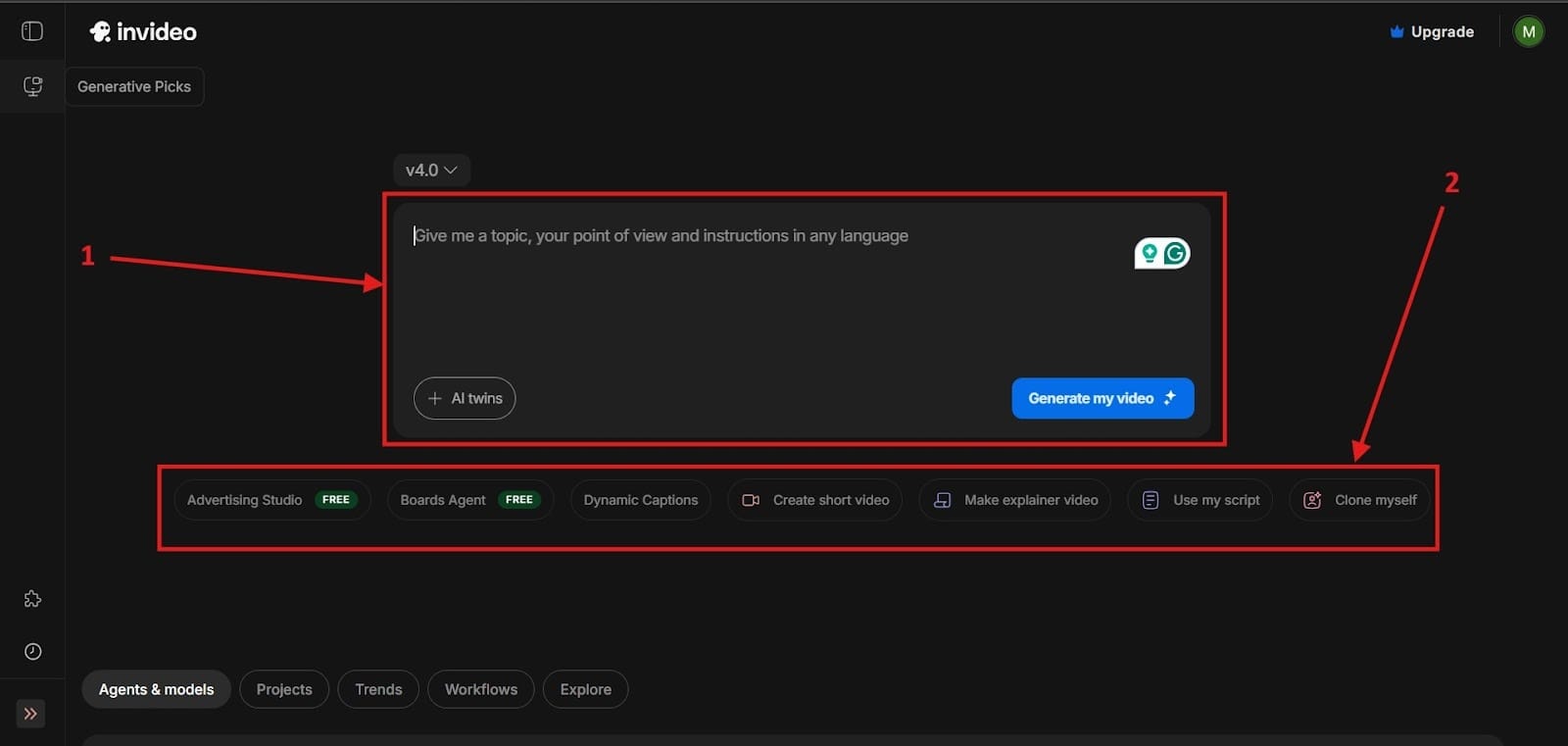
- Once you do this, it will initiate the process, and you can choose the duration, platform, and media. After choosing that, the video will start to generate. After you do this, there’s not much left other than to post your video.
Use Cases:
- Create explainer videos to better understand treatment.
- Show before and after transformation style videos for promotions.
- Create a local ad without the need for a production team.
- Create myth versus fact content on social media.
The Success Loop
When you combine these tools, they create a powerful system for your dental practice:
ChatGPT → NotebookLM → Birdeye → Marketing Cloud → Invideo (repeat…)
Every tool on this list will make your dental practice stronger, and this becomes especially true when you combine them.
- ChatGPT improves communication and helps your patients to automatically book appointments.
- NotebookLM organizes and retrieves patient insights through documentation that you can pull up.
- Birdeye helps you to manage the reputation of your practice while actively seeking out reviews.
- Marketing Cloud helps you to reach out to customers and build your dental practice.
- Invideo AI helps you to create marketing materials and explainer videos that you can use on social media platforms.
The best dentists aren’t just clinically skilled. They’re efficient, organized, and patient-focused, especially when they use AI.
We would recommend that you start with one tool, build your system, and let AI handle the repetitive work, so you can focus on what matters most: delivering exceptional patient care.
