

Zencastr is an online tool that lets you record, clean up, edit, and share conversations in high-quality sound and video without needing complicated software.
In simple terms, it is a service you access through your web browser that helps people capture conversations, like interviews or chat sessions, with clarity and ease, then edit them and publish them if you want.
It is designed for people who want professional results without spending hours learning technical recording or editing tools.
To see how these features come together in a real-world workflow, watch this brief video walkthrough of the Zencastr platform:
What Problems Does Zencastr Solve?
Historically, recording a remote interview was a technical nightmare. Zencastr solves these common issues:
- Low Audio Quality: Standard video tools compress audio, often making speakers sound hollow or robotic.
- Internet Instability: If a connection drops during a normal call, you lose part of the conversation forever. Zencastr records locally to prevent this.
- Post-Production Fatigue: Usually, recording is followed by hours of manual labor to fix background noise and volume levels.
- Tedious Editing: Manually cutting out "umms," "ahhs," and long silences is a drain on business resources.
Zencastr uses its proprietary ZenAI to eliminate this "grunt work" and solve the "internet dependency" problem once and for all. By automating these technical hurdles, it allows teams to focus entirely on the quality of their conversation rather than the equipment.
Who Should Use Zencastr?
While its roots are in podcasting, Zencastr has evolved into a powerhouse for any business that relies on high-quality digital communication. It has moved beyond simple hobbyist use to become a scalable solution for corporate branding, internal communications, and high-end marketing.
- Business Owners & CEOs: For those looking to establish authority through thought-leadership content without spending hours in a recording booth.
- Marketing Teams: To create high-converting video clips for social media (TikTok, Reels, Shorts) from long-form webinars or interviews.
- HR and Training Departments: To record crystal-clear internal training sessions or company-wide announcements that look and sound professional.
- Journalists and Researchers: For capturing high-fidelity interviews that need to be accurately transcribed for documentation.
- Content Creators: Anyone looking to scale a podcast or YouTube channel with minimal staff.
What Can Zencastr be Used For?
Zencastr is a versatile tool designed to handle a wide array of audio and video production needs, serving as an end-to-end "content factory" for both individuals and enterprises. Its primary use cases include:
- Remote Podcasting: Recording multi-guest shows with studio-grade 48kHz WAV audio and up to 4K video.
- Social Media Content Engines: Using the AI clipping tool to turn one 30-minute interview into dozens of "bite-sized" vertical videos for marketing.
- Video Testimonials: Collecting high-quality customer success stories remotely without sending a camera crew to the client’s location.
- Webinars and Virtual Events: Hosting and recording discussions that can be instantly published to YouTube or hosted on Zencastr’s own distribution network.
- Transcription Services: Automatically converting spoken word into text for SEO-friendly blog posts or meeting minutes.
How Should You Use Zencastr?
Getting started with Zencastr is designed to be as simple as sending an email. You don’t need to install any heavy software; it all happens in Google Chrome, Edge, or Brave.
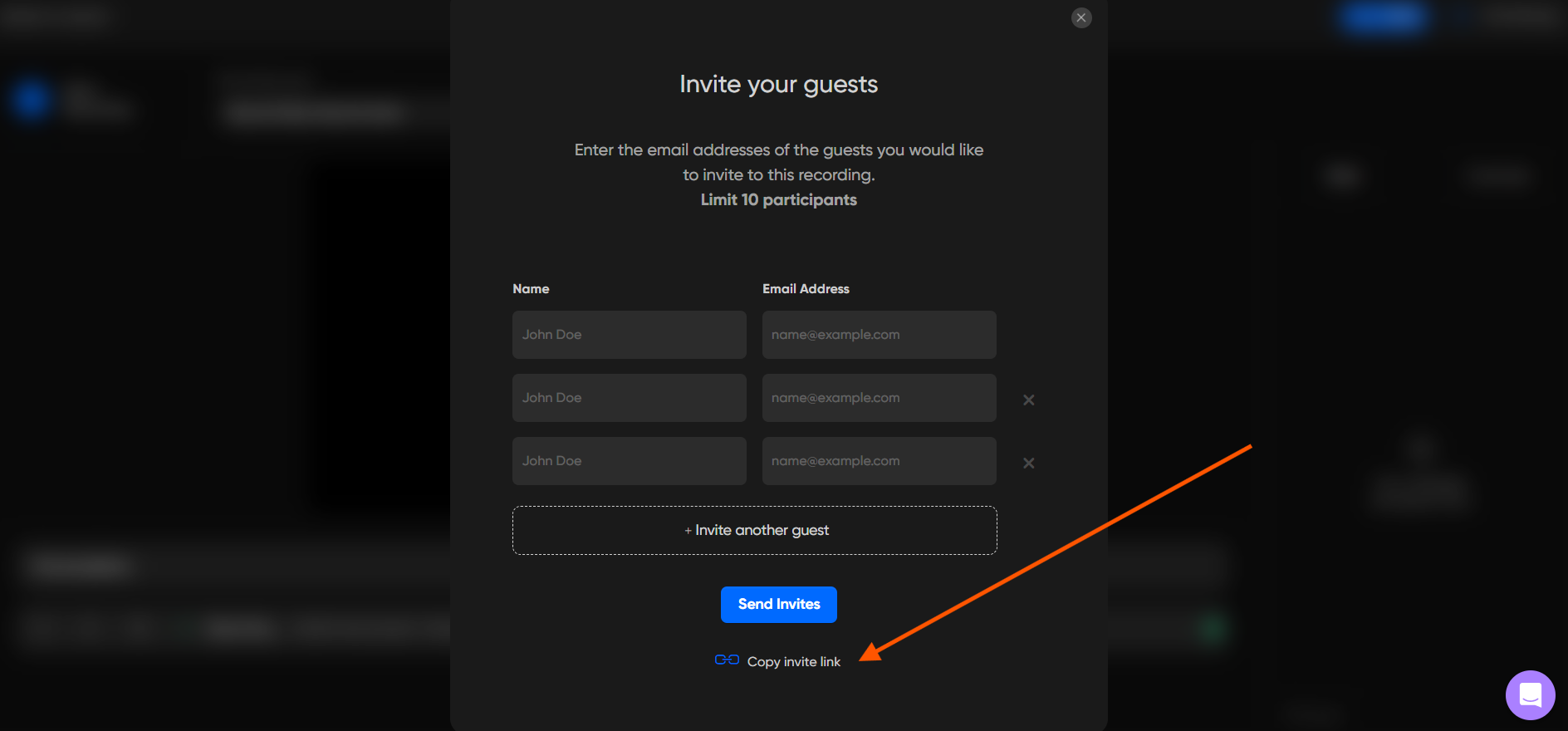
Step 1: Create Your Show and Invite Guests
Log in to your dashboard and create a new "Recording." You will be given a unique URL. Simply copy this link and send it to your guests.
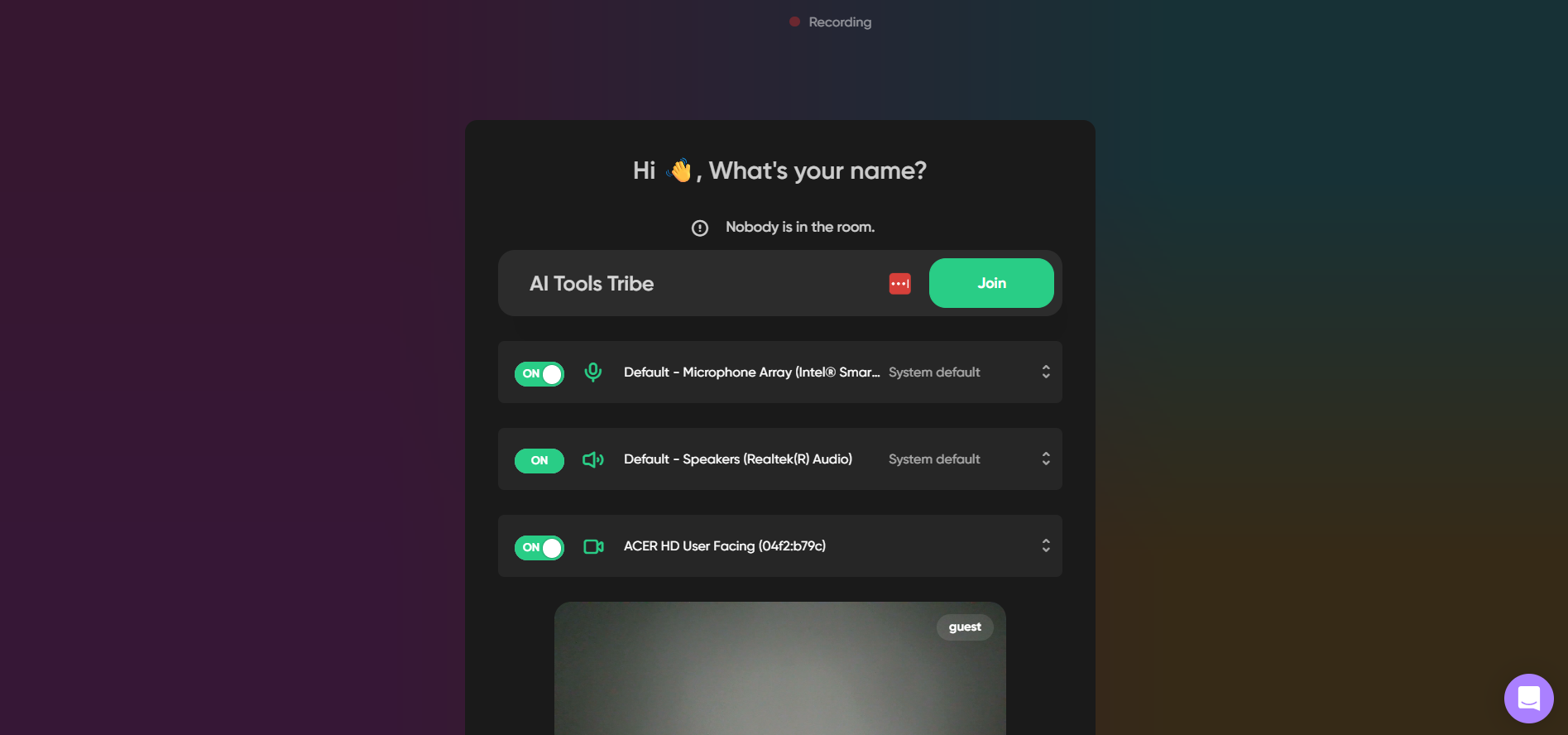
Step 2: The "Green Room" Check
Before you start, Zencastr runs a "Health Check" on everyone’s microphone and camera. This ensures that the AI has the best possible data to work with later.
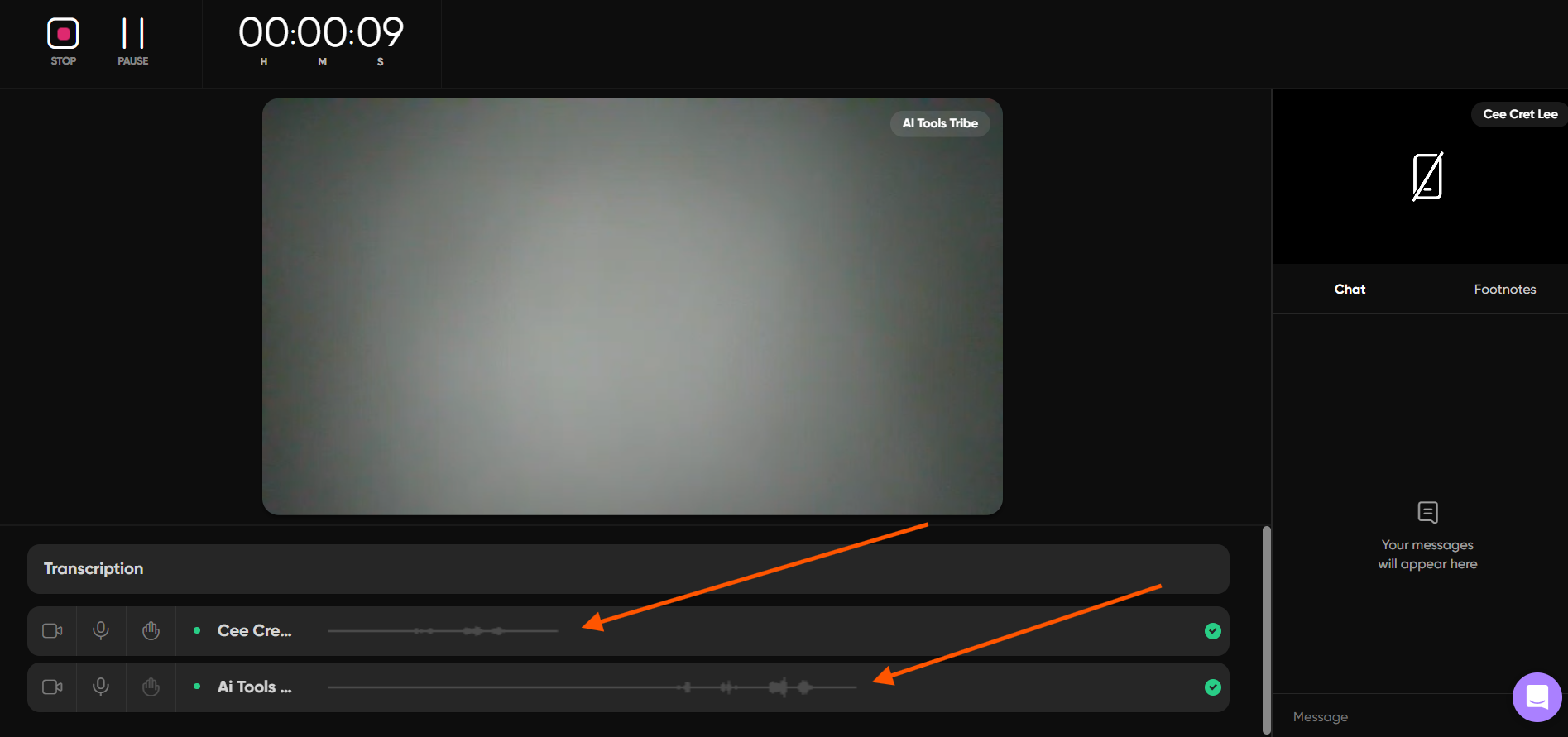
Step 3: Hit Record
As you speak, you will notice that each person has their own dedicated "track." This is crucial. If one person coughs while another is talking, you can edit that out later without affecting the speaker.
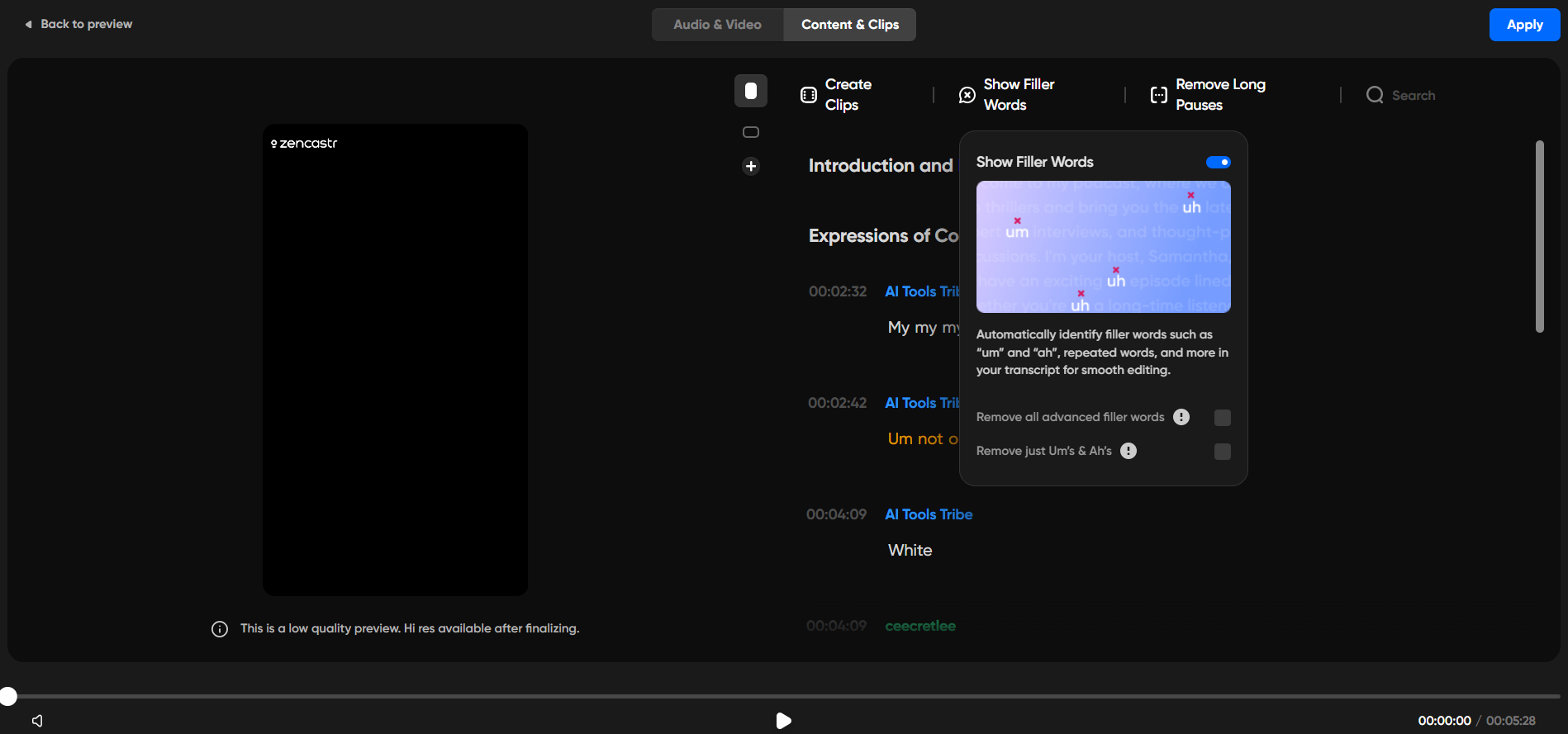
Step 4: Let ZenAI Take Over
Once you hit stop, the files upload automatically. Click on "Produce" to enter the AI suite. Here, you can select "Smart Filters" to remove filler words and "Mastering" to balance the audio.
Step 5: Distribute and Clip
Choose to publish the full episode to Spotify and Apple Podcasts, or use the "AI Clipping" tool to find the most "viral-ready" moments and export them for social media.
What are the Key Features and Benefits of Zencastr?
Zencastr’s feature set is built around the “ZenAI” engine, which serves as a virtual production assistant that helps automate editing, improve audio quality, remove filler words, and simplify content creation for users.
- Local High-Fidelity Recording: Unlike Zoom, which records what it hears over the internet, Zencastr records what the microphone hears directly. This results in 4K video and 48kHz WAV audio.
- AI-Powered Editing (ZenAI): This is where the business value lies. The AI can automatically remove over 20 types of filler words (um, ah, you know), eliminate long silences, and perform "Loudness Normalization" so every speaker is at the same volume.
- Transcript-Based Editing: You don't have to look at confusing sound waves. You can edit your audio by editing a text document. Delete a sentence in the transcript, and the AI automatically deletes that portion of the audio and video, smoothing out the transition so it’s seamless.
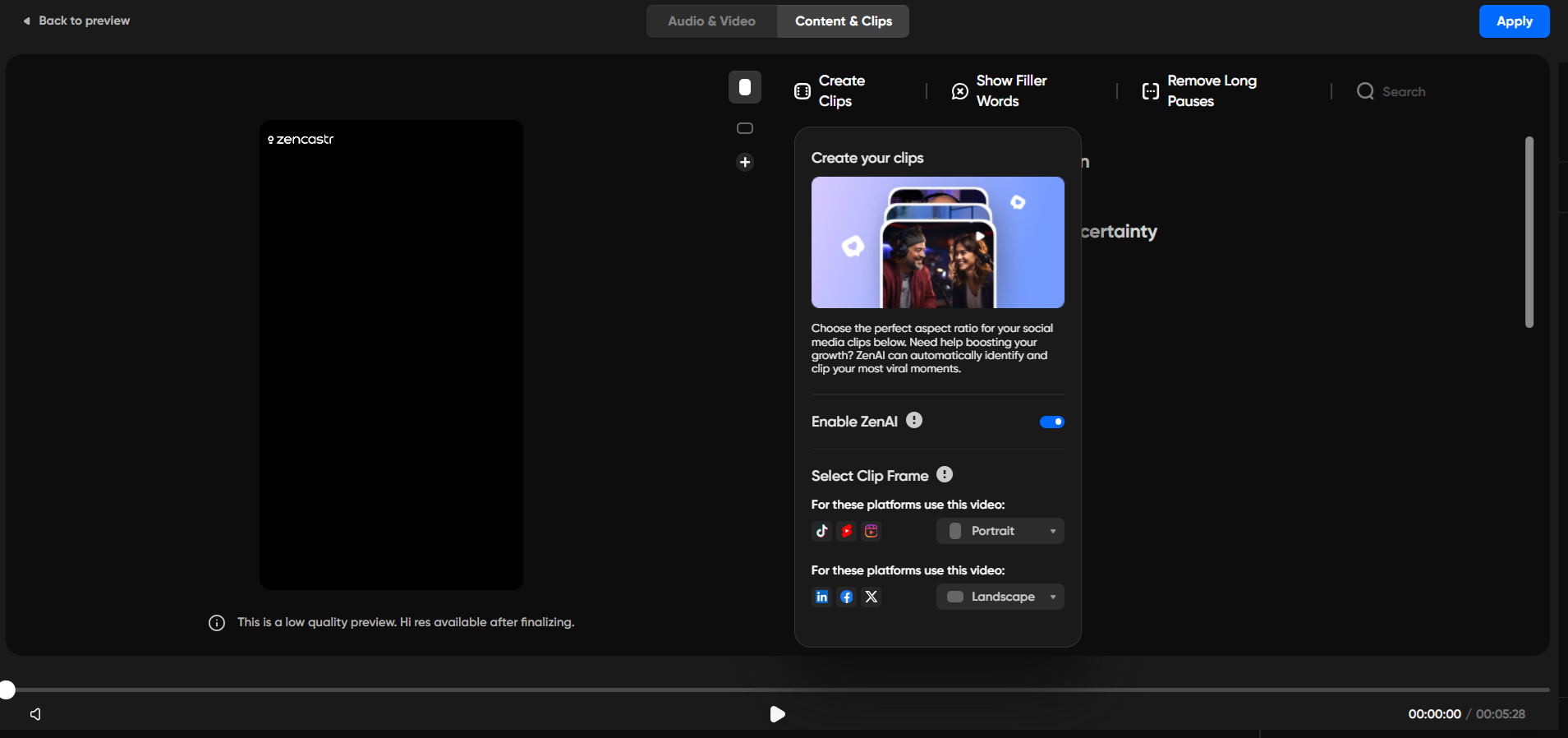
- AI Clipping & Social Growth: The AI analyzes the sentiment and "hook" of your recording to identify the most engaging segments. It then automatically crops the video to vertical format and adds animated captions.
- Monetization Marketplace: For businesses looking to offset costs, Zencastr’s AI can match your content with advertisers, allowing for "Dynamic Ad Insertion" where ads are placed into your show automatically.
What Makes Zencastr Different?
The primary differentiator for Zencastr is its all-in-one architecture, which brings recording, editing, and publishing into one platform. While most creators juggle multiple tools and subscriptions, Zencastr collapses the entire workflow into a single browser tab:
- Consolidated Workflow: It replaces the need for Zoom (recording), Adobe Premiere (editing), Otter (transcription), and Libsyn (hosting).
- Local Recording Technology: This is the "secret sauce." Because it records locally to each participant's hard drive and uploads data in chunks, you are completely protected against internet lag.
- Connection Fail-Safe: If a guest's internet cuts out for ten seconds, the recording continues uninterrupted on their end, and the data is synced automatically once they reconnect.
Final Thoughts on Zencastr
For a business looking to enter the world of audio and video content, the biggest barrier is usually the "technical tax"—the hours required to make content sound professional. Zencastr effectively eliminates that tax. By leveraging AI to handle the nuances of sound engineering and video editing, it allows a single person to do the work of a three-person production team.
While the "Professional" and "Growth" plans come with a monthly cost, the time saved by the AI filler word removal and automatic clipping tool usually pays for the subscription in a single session. If you want a tool that "just works" and delivers studio results without the studio price tag, Zencastr is currently the most comprehensive AI-powered solution on the market.
Frequently Asked Questions
Is Zencastr good for podcasts?
Yes, it is specifically built for podcasters and long-form content creators. It uses “local recording” to capture high-quality audio and video directly from each participant’s device, ensuring clear results even if the internet connection becomes unstable during the call.
Does Zencastr have a free plan?
Yes. Zencastr offers a free tier that typically includes a limited number of recording hours per month and access to basic recording features, making it suitable for beginners. However, advanced AI editing tools, extended recording time, and high-resolution video options usually require a paid subscription.
Does Zencastr record video?
Yes. Depending on your plan, Zencastr can record video in up to 4K resolution. It records each participant’s video locally on their device instead of relying only on internet streaming, which helps preserve image quality and reduces issues caused by weak connections.
Can I edit audio in Zencastr?
Yes. Zencastr features a “ZenAI” editing suite that allows for text-based editing, filler word removal (like “um” and “ah”), noise reduction, and automated audio leveling, making it easier to produce professional-quality recordings without advanced technical skills.
How do I access my mic on Zencastr?
When you first enter a recording room or the "Green Room," your browser will prompt you with a pop-up asking for permission to use your microphone. Click "Allow." You can manage specific microphone selections in the "Settings" or "Call Settings" menu within the Zencastr dashboard.
