Submagic is a browser-based AI tool that takes your raw, unedited videos and turns them into clean, engaging short-form reels for TikTok, Instagram, YouTube Shorts, and LinkedIn. At its core, it works as an AI caption generator and all-in-one editing assistant. Instead of forcing you to spend hours tweaking timelines, Submagic handles the tedious parts—adding animated subtitles, placing relevant stock B-roll, cutting dead silence, throwing in subtle sound effects, and generating hook titles—in just a couple of minutes.
You don't need to know how to use Premiere Pro or DaVinci Resolve. Submagic reads your audio transcript and automates around 80% of the manual labor. If you record talking-head videos, quick tips, or product demos, it gives your videos that polished, viral look without forcing you to hire an editor.
What Problems Does Submagic Solve?
If you try to stay consistent on social media, you already know short video is where the attention is. But actually making those videos every week usually turns into a total headache for a few specific reasons:
- Editing Eats Up Your Entire Day: Sitting down to manually transcribe a 60-second clip, sync up pop-up subtitles word by word, hunt for stock footage, and add zooms can easily take 1 to 2 hours per video. If you run a business, you simply don't have that kind of time.
- People Scroll Past Plain Videos: A basic video of someone just talking to the camera without captions or visual changes gets ignored fast. Modern audiences need visual cues and clear subtitles to stay locked in—especially since many watch with the sound off.
- Hiring Editors Gets Expensive Fast: Good short-form editors usually charge anywhere from $1,500 to $4,000+ a month. When you're running a small operation or working solo, that's a tough bill to justify early on.
- Reaching New Audiences Takes Extra Work: Translating captions into other languages or re-formatting videos usually means juggling three different apps or hiring translators.
Submagic fixes these issues by putting the captioning, visual pop-ups, silence trimming, and B-roll on autopilot. You get high-performing videos out the door in minutes instead of losing your whole afternoon to editing software.
Who Should Use Submagic?
Submagic is built for anyone who needs solid video content without making video editing their second full-time job:
- Solopreneurs & Business Owners: People building a brand or driving sales who need to push out 3 to 5 clean reels a week without burning out.
- Small Teams & Marketers: In-house teams who want to maintain a sharp social presence without blowing their budget on extra staff.
- Coaches & Creators: Anyone sharing advice, mini-lessons, or talking-head clips who wants automatic captions that actually look modern and readable.
- Podcasters: Teams taking long audio or video interviews and breaking them down into quick, shareable social clips.
- Agencies: Marketers managing video assets for multiple clients who need fast turnarounds and consistent brand styles.
What Can Submagic be Used For?
Here is what you can actually get done with it on a daily basis:
- Creating Animated "Hormozi-Style" Captions: Auto-generating bold, moving subtitles with auto-highlighted key words and emojis that hold people's attention.
- Chopping Long Content into Shorts: Feeding in a 20-minute podcast or recording and letting the tool pick out the best short moments for social media.
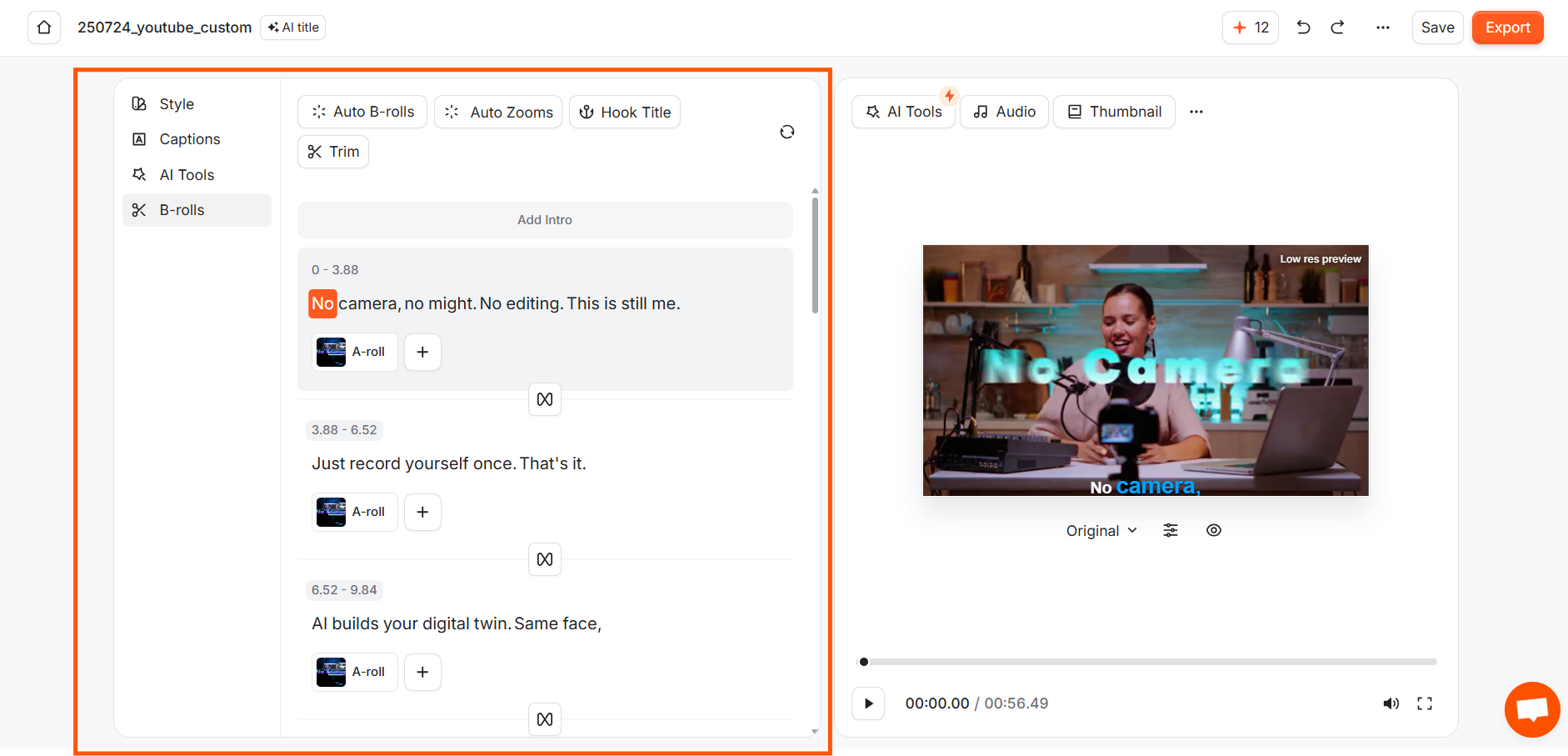
- Automating Stock B-Roll: Allowing the AI to read your words and drop in matching background clips or GIFs so viewers don't get bored staring at one angle.
- Cleaning Up Audio and Silence: Automatically cutting out long pauses, awkward "umms," and reducing annoying background noise with one click.
- Multi-Language Content: Translating your subtitles into over 120 languages so you can test content in different regions without starting from scratch.
How Should You Use Submagic?
The workflow is straightforward and doesn't require any prior editing experience:
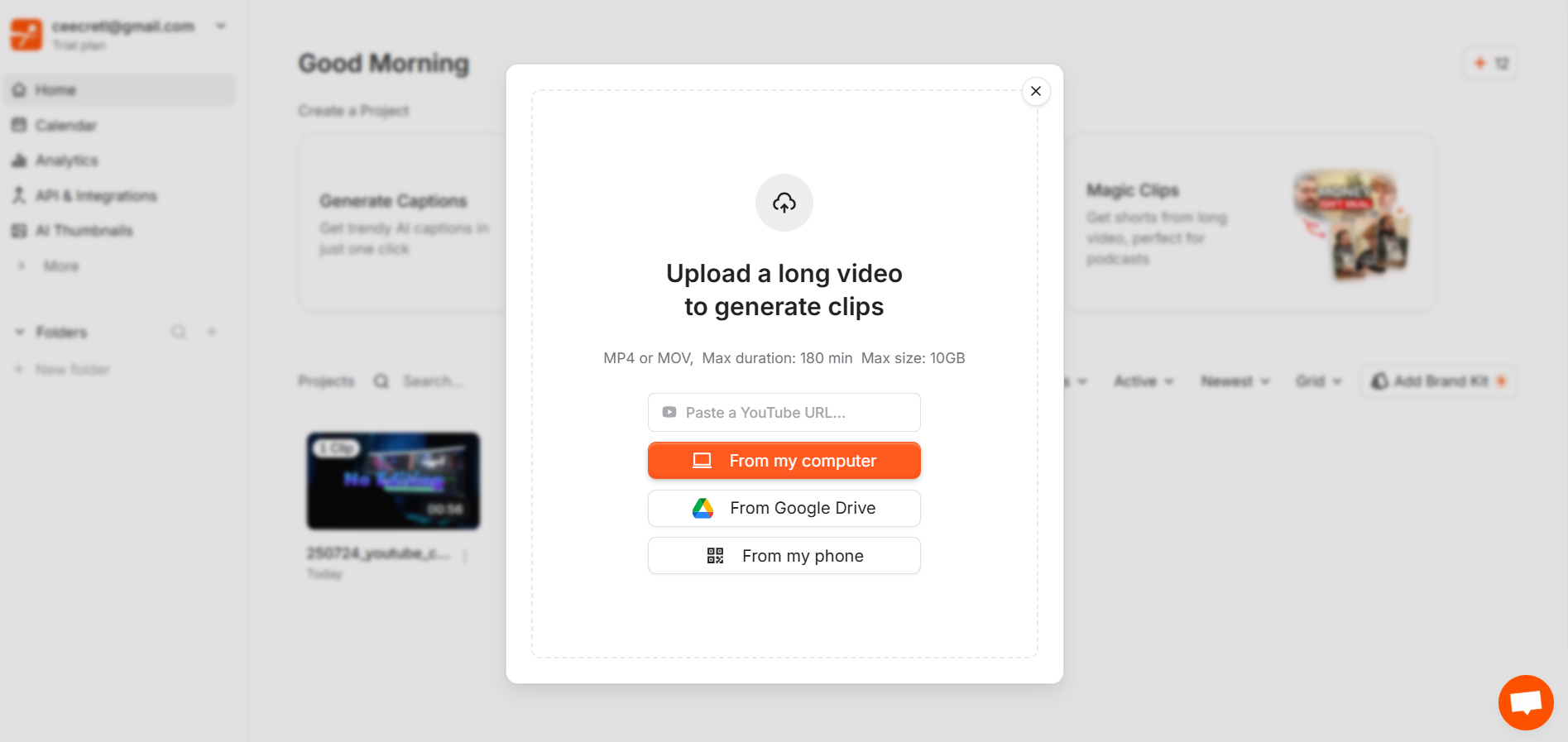
- Upload Your File: Drop your video file straight into the web dashboard, or paste a link to a YouTube video.
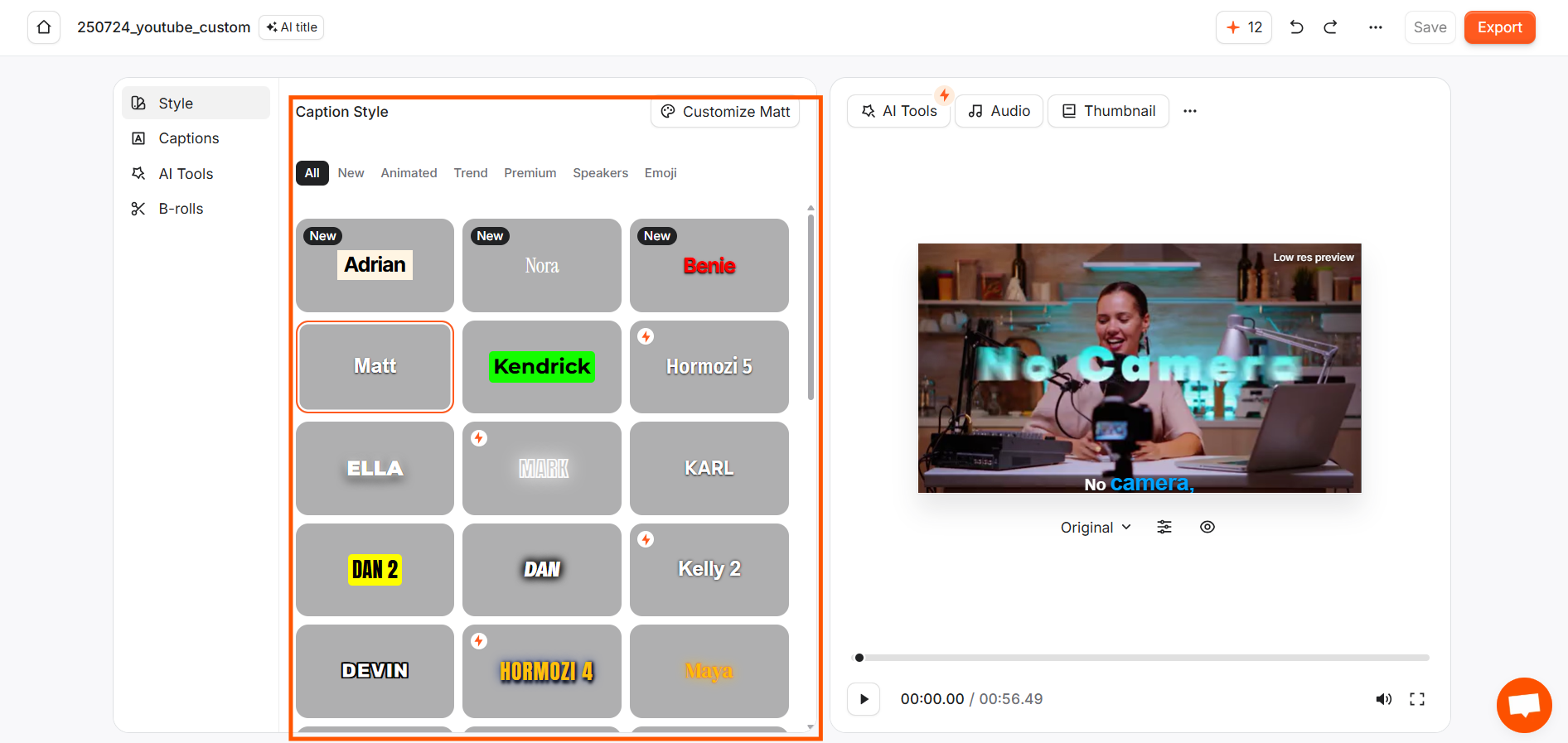
- Pick Your Style: Choose the language spoken and select a caption style (you can pick a clean preset or save your own company colors and fonts).
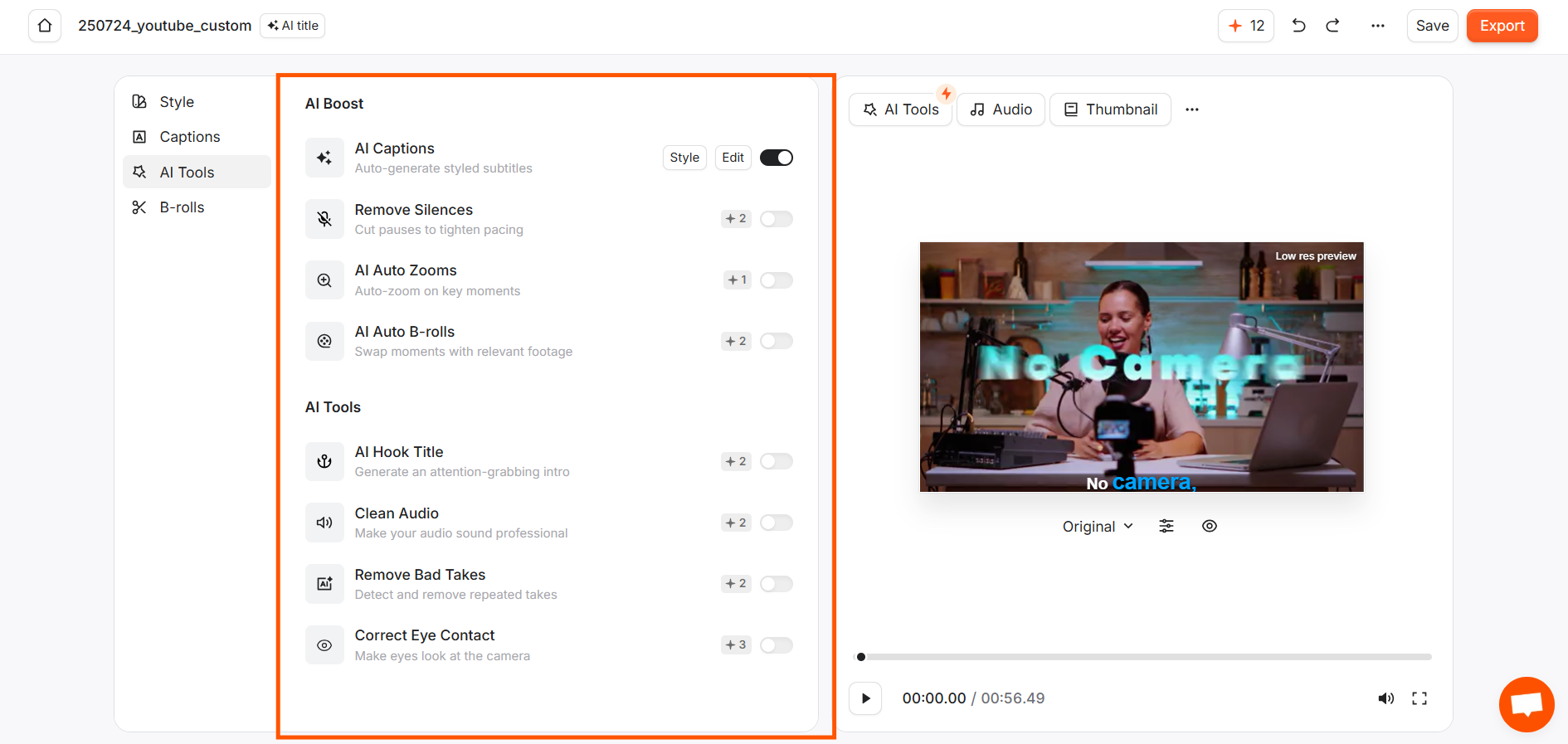
- Let the AI Run: Within about 60 seconds, Submagic transcribes the audio, places animated subtitles, trims silent pauses, and suggests fitting B-roll.
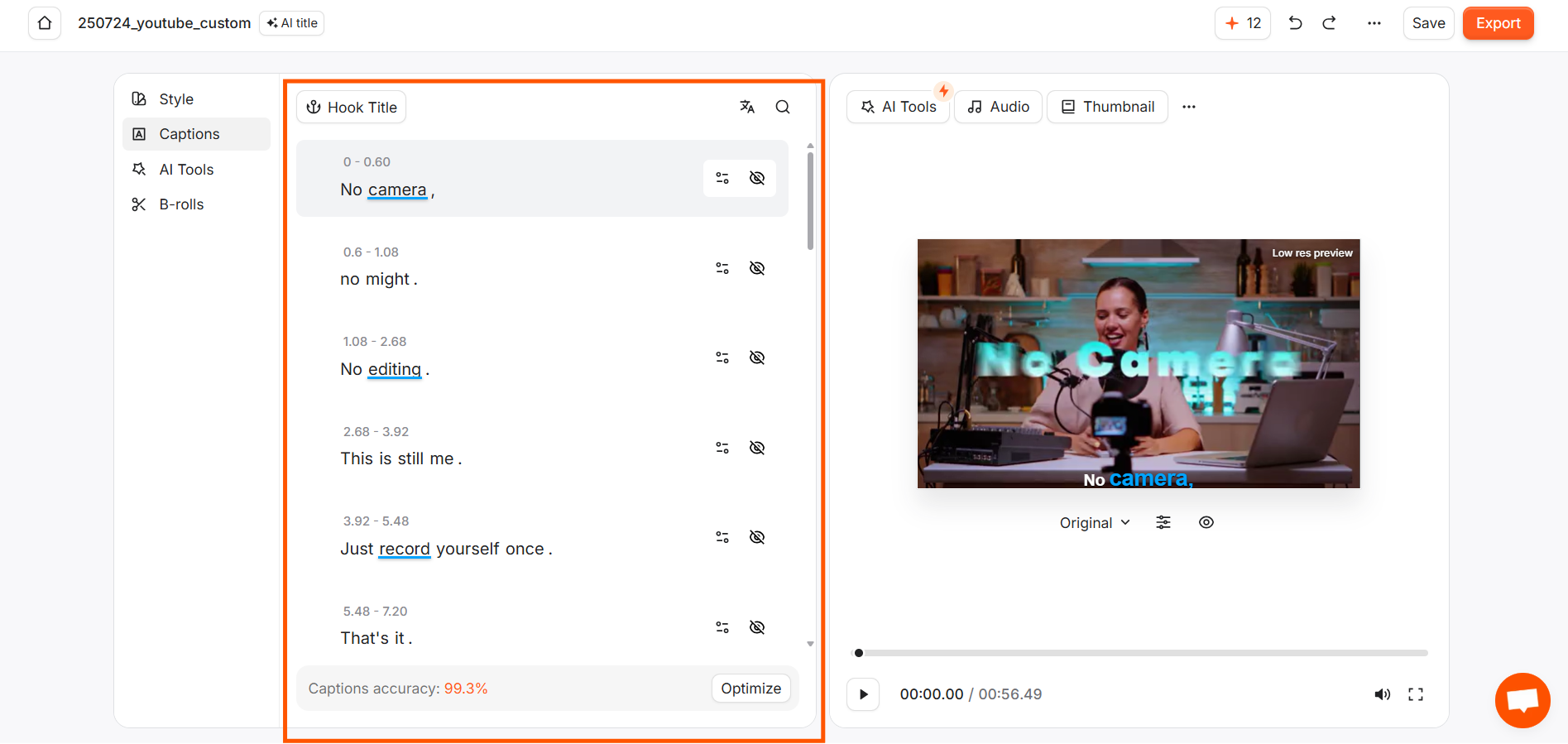
- Make Quick Adjustments:
- Click any word in the transcript to fix quick typos or brand names.
- Toggle zooms, sound effects, or background audio on or off depending on your preference.
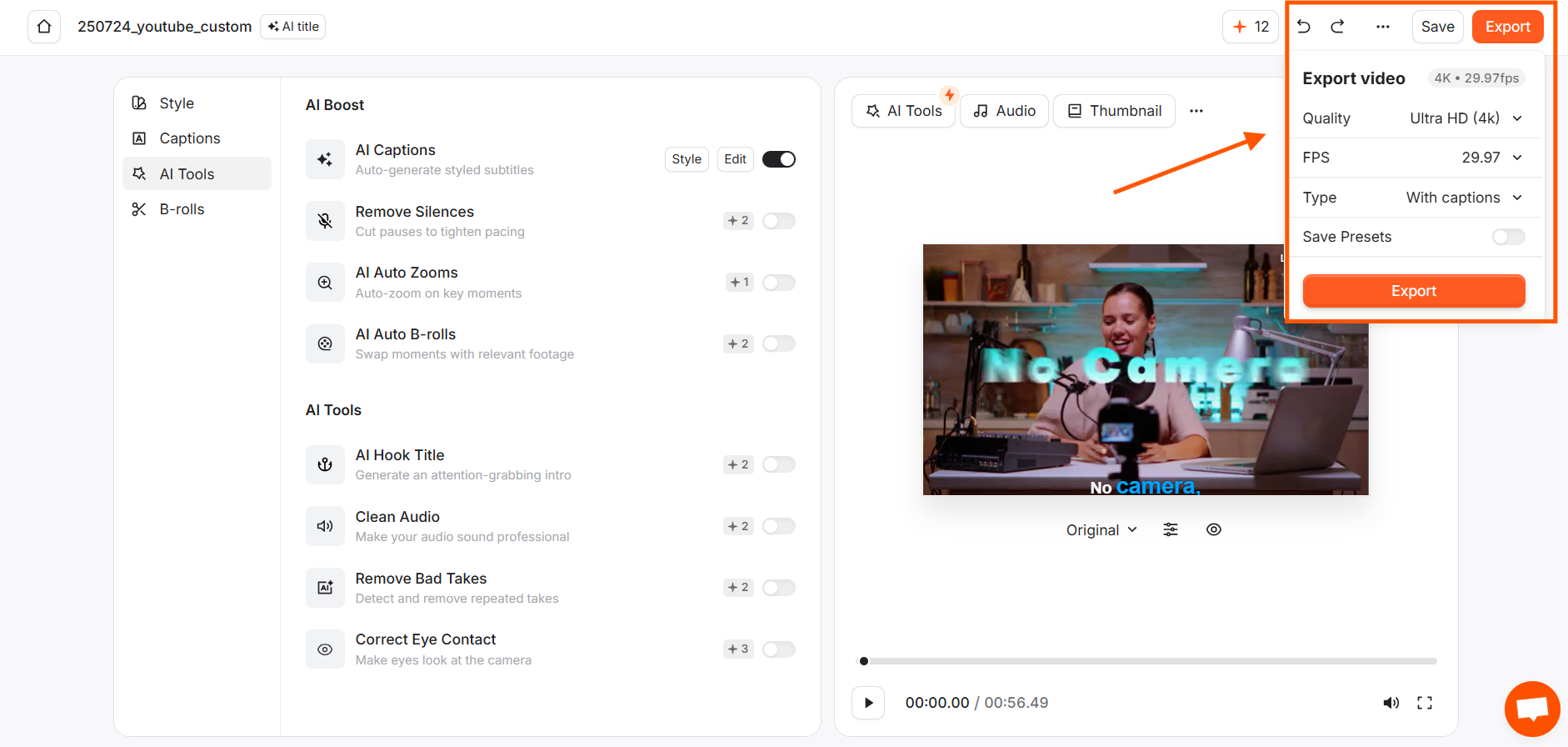
- Export: Hit download in up to 4K resolution, or send it directly over to your social channels.
What are the Key Features and Benefits of Submagic?
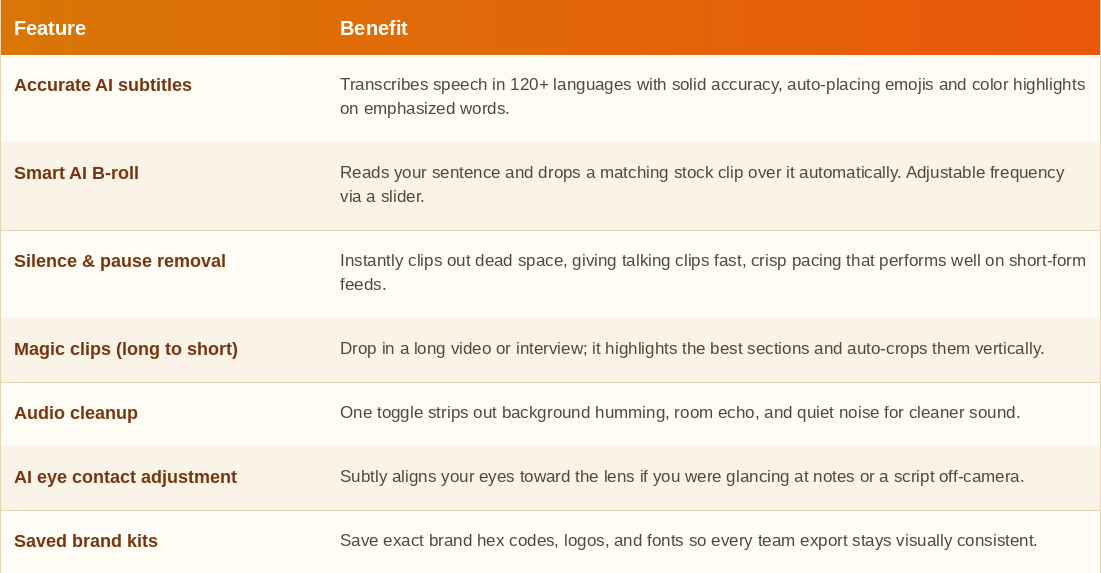
If you are looking for an honest Submagic AI review, the biggest selling point is simply how much manual clicking it eliminates. Here are the features that actually matter in day-to-day use:
What Makes Submagic Different?
To keep this Submagic review balanced, here is how it compares to some of the other popular options out there:
Submagic vs Captions.ai
Captions.ai started out mainly as a mobile app for creators on their phones, whereas Submagic was built from day one as a fast web app for desktop. Submagic generally handles automated B-roll placement a bit better and makes it easier for business owners to set up consistent brand templates.
Submagic vs Veed.io
Veed.io is a full-blown video editor with traditional tracks and timelines. Because it tries to do everything, it can feel a little clunky and slow if all you want is a fast short. Submagic skips the complexity and focuses entirely on getting a finished, formatted reel ready in a couple of minutes.
Submagic vs Opus Clip
Opus Clip is great if your main goal is taking 1-hour YouTube videos and cutting them into pieces. However, Submagic gives you far better control over your own raw talking-head videos—letting you manually fine-tune B-roll, change subtitle word positioning, fix eye lines, and adjust styling in detail.
Submagic Pros and Cons
To give you a balanced look, here is a quick breakdown of where Submagic really shines and where it has a few minor drawbacks:
Pros:
- Extremely fast—you can finish a video in under 5 minutes.
- Accurate transcription with modern, customizable caption styles.
- Automated B-roll actually saves real time.
- Clean, easy-to-understand dashboard that anyone on your team can use.
- Brand kit features keep your social content visually consistent.
Cons:
- Export limits exist depending on the plan you choose.
- Requires a stable internet connection since it works entirely in your browser.
- Not meant for long-form, multi-cam documentary editing.
Submagic Pricing
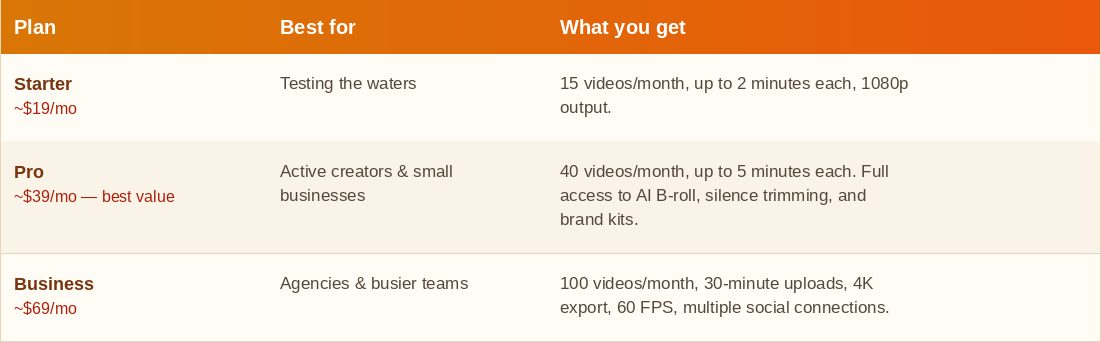
Here is a straightforward look at Submagic pricing:
If you are weighing Submagic alternatives, tools like CapCut or Descript are decent, but if your goal is finding the best AI video editor for short-form video that handles captions, cutaways, and formatting without a learning curve, Submagic is hard to beat on speed.
Final Thoughts on Submagic
At the end of the day, your time as a business owner or creator is better spent working on strategy, creating products, or talking to customers—not tweaking subtitles for three hours.
Submagic isn't trying to replace professional Hollywood editors for complex films. It solves one specific problem extremely well: taking raw vertical footage and making it look engaging, crisp, and ready to publish in minutes. If you want to put out higher-quality short videos consistently without losing your entire afternoon, it is definitely worth giving Submagic a try on your next upload.
Frequently Asked Questions
Is Submagic legit?
Yes, Submagic is a legitimate and established software tool used by thousands of content creators, marketing agencies, and business owners worldwide. It uses secure SSL encryption and recognized payment providers like Stripe.
Can I try Submagic for free before buying?
Yes, Submagic offers a free trial so you can test out the auto-captioning, AI B-roll, and editing features on your own clips before committing to a paid plan.
Does Submagic work on mobile phones or just desktop?
Submagic is a web-based app optimized for desktop and laptop browsers. While you can access it on mobile browsers, editing and previewing your videos is much smoother on a desktop screen.
Do I need video editing experience to use it?
Not at all. The tool is designed specifically for non-editors. The AI automates around 80% of the work, and any tweaks can be done with simple clicks rather than complex timeline editing.
Can Submagic translate captions into other languages?
Yes, Submagic supports over 120 languages. It can auto-transcribe spoken audio in your native language or translate your subtitles into another language for broader reach.